| First Published 29 Nov 2019 | Last Updated 10 Feb 2026 |
|---|

This is a significant update to my original article from 2019. It explains how the UserControl property has some important implications for the display of Access user alert messages.
It also discusses how the UserControl property can be used to restrict how an application can be opened.
The original article was written partly in response to a thread from Nov 2019 by calvinie at Access World Forums:
Preventing user from opening accde directly but only via another access database
I have added further information following a prompt by Philipp Stiefel in another thread at Access World Forums from Feb 2026 by John F:
VBA no prompt to save design changes
The Application.UserControl Property
The official Microsoft documentation for this property is very sparse:
Application.UserControl property (Access)
UserControl is a boolean property of the Application object. It is True if the current application is opened direct, False if opened via another application using automation .
When an Access application is launched directly by the user, the Visible and UserControl properties of the Application object are both set to True.
When the UserControl property is set to True, it isn't possible to set the Visible property of the object to False.
When an Application object is created by using automation, the Visible and UserControl properties of the object are both set to False (unless specified otherwise in code).
Using these default settings, this means an Access app can be started using automation, perform certain actions and be closed afterwards without the user being able to see or interact with the automated application.
The attached example app allows you to test different ways the UserControl property (together with other database properties) affects the behaviour of the database opened by automation:
Click to download: OpenExternalDB (approx 0.5 MB - zipped)
The zip file contains two databases: Starter.accdb and the app opened by automation, New.accdb. The starter app opens to this form:
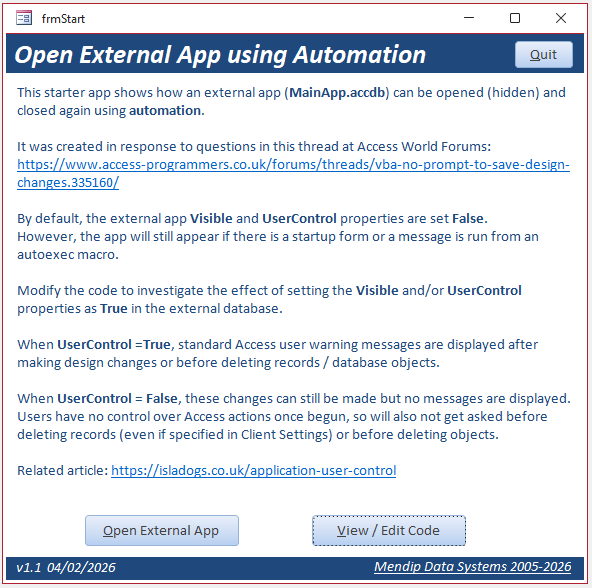
Click the Open External App button to run the following code:
Public Function RunExternalDatabase() As Boolean Dim app As Access.Application, strPath As String 'Open a new MSAccess application using automation Set app = New Access.Application 'Set file path 'Syntax: .OpenCurrentDatabase(filepath, Exclusive, strPassword) - the last 2 items are optional strPath = CurrentProject.Path & "\MainApp.accdb" 'full file path to your database 'Open the remote database, perform some action(s) then close the remote database With app .OpenCurrentDatabase strPath, False 'no db password, not exclusive ' .OpenCurrentDatabase strPath, True, "password" 'for use if password exists ' .Visible = True 'enable to show external app even if it has no startup form or message box from an autoexec macro ' .UserControl = True 'enable to show the effect of setting UserControl = True in the external app 'run some task in the external database e.g. using an autoexec macro or startup form ' DoEvents ' When completed, optionally close external database ' In certain situations, this line is superfluous as the external app will close automatically, if nothing keeps it open .CloseCurrentDatabase 'closes external database as that is current End With 'clear variable ' app.Quit acQuitSaveAll Set app = Nothing 'Quit the current app (OPTIONAL) ' Application.Quit acQuitSaveNone End Function
NOTE:
The above code has been designed with several code lines commented out so it can be easily modified for different situations.
For clarity, by removing all the commented out lines, this is equivalent to:
Public FunctionRunExternalDatabase()As BooleanDimappAsAccess.Application,strPathAs String'Open a new MSAccess application using automationSetapp=NewAccess.ApplicationstrPath=CurrentProject.Path& "\MainApp.accdb"'full file path to your database'Open the remote database and close it againWithapp.OpenCurrentDatabase strPath,False'no db password, not exclusive.CloseCurrentDatabase'closes external database as that is currentEnd With'clear variableSetapp=NothingEnd Function
When this code is run, the only way you can tell that anything has happened externally is because I also added code to minimize the main form then restore it again once it has completed.
However, if you watch the folder containing these two databases whilst this code runs, you will briefly see a New.laccdb lock file appear whilst the external app is open then disappear again after the external app closes. If you set the exclusive argument to True, then no lock file appears but the external app still opens, performs any specified actions and closes again.
How the UserControl Property affects Access Warnings
Now test the effects of modifying the original code shown above:
1. Enable the line .Visible = True: the external app will appear briefly even if there is no startup form or message box then close again.
2. Disable the .CloseCurrentDatabase line so the external app remains open.
Also enable the line .UserControl = True
Now try making changes to the app including:
a) Rename the macro as autoexec so it runs at startup OR set the startup form as Form1
b) change the background colour of the form and close without saving. Access will prompt you with the standard Access message:
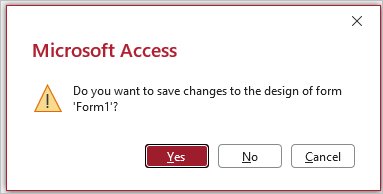
c) Similarly, if you run the update query (with Action Queries confirmation ticked in Client Settings) or delete a record from the table or delete the table itself, you will see
the standard Access alert messages associated with each action. For example:

All of that is fine! Its exactly as you would expect. The user has full control of what actions are taken by Access.
3. Next disable the line .UserControl = True again. Alternatively, type UserControl=False in the immediate window of the New.accdb app whilst it is running.
With UserControl=False, try making changes to the app again e.g. make changes to the form design, run the update query, delete a record or delete an object.
Access will still allow you to perform each action BUT no warning messages will appear asking you to confirm the action.
As UserControl = False, you have no means of preventing the actions completing once begun.
NOTE:
Even though by default, Application.Visible = False, the spawned app will still be visible if it has a startup form or e.g. an autoexec macro shows a message box.
Test this by renaming the macro as autoexec and / or setting Form1 as the startup form in the New.accdb file.
Restrict How an App Opens with the UserControl Property
The UserControl property can provide some limited security by limiting how an Access app can be opened.
The two example apps below each contain a Starter app and a Main app, both with one form.
Click to download:
BlockDBOpenDirect (approx 0.5 MB - zipped)
BlockDBRemoteAccess (approx 0.5 MB - zipped)
Just one line of code is required in the Form_Load event of the Main app startup form or in an autoexec macro.
a) BlockDBOpenDirect (as in the original thread request from 2019 by calvinie at Access World Forums)
The Main app can be opened using automation from the Starter app but cannot be run directly.
Code:
If Application.UserControl = True Then Application.Quit
b) BlockDBRemoteAccess (the exact opposite)
The Main app can be run directly but cannot be opened remotely using automation
Code:
If Application.UserControl = False Then Application.Quit
NOTE:
On its own, this code provides little security if users are able to modify the code used to open the Main app.
In addition, users can reset the Application.UserControl property value from the immediate window of the Main app.
However these issues can both be addressed:
1. using an ACCDE file for the main app, the code will be inaccessible so cannot be altered.
2. disabling the shift bypass property in the main app will prevent users being able to intercept the automation code. See my article: Manage the Shift Bypass Property
I have used method b) several times in conjunction with other security measures such as disabling the shift bypass to help prevent hacking using automation.
However, no Access database can EVER be made 100% secure.
A capable and determined hacker can break any Access database given sufficient time and motivation.
Nevertheless, by erecting various barriers, it is possible to make the process so difficult and time consuming that it isn't normally worth attempting.
Feedback
Please use the E-Mail button in the contact form below to let me know whether you found this article interesting/useful or if you have any questions/comments.
Please also consider making a donation towards the costs of maintaining this website. Thank you
| Colin Riddington | Mendip Data Systems | Last Updated 10 Feb 2026 |
|---|
|
Return to Code Samples Page
|
Return to Top
|