
First Published 30 Sept 2025
Microsoft introduced a new default Office font called Aptos in Nov 2023. It replaced Calibri which had been the default font since 2007.
The new font (originally called Bierstadt) was chosen following public consultation over a 2 year period.
Having said that, the change was largely met with indifference from most Office users, many (most?) of whom were perfectly happy with Calibri.
The Access product manager, Linda Cannon, wrote a short blog article about the new default font on Nov 17, 2023: Microsoft Access rolls out new Office default theme and font
Aptos is in fact very similar to Calibri though each character is slightly wider and taller in Aptos.

These changes can require both the height and width of controls to be increased when used with Aptos.
Aptos Font Issues
There were some initial issues after Aptos was released but these were quickly fixed. See my article:
Two Font Display Bugs in Version 2309 - FIXED
However, in recent months, two other font rendering issues have been reported with Aptos. See item c) in my article:
Bug Summary - July/Aug 2025
a) Truncated Descenders
`
Using Aptos (Detail) 11 pt, the descender portion of letters g, j, p, q and y may be truncated.
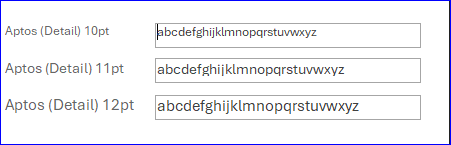
The issue is most clearly noticeable with the letter 'g'. It does NOT happen with any other font size apart from 11 pt. Nor does it happen with the Aptos Display (Header) font.
b) Misplaced Cursors
When one or more letters are selected in Aptos (Detail) 11 pt, the cursor may be shifted by half a character making it difficult to determine exactly what is selected.
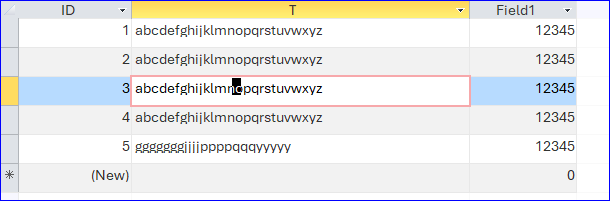
The issue is most clearly noticeable in datasheet forms. It can often be triggered by changing the font size to 11 pt after selecting one or more characters in a different font size e.g. 14 pt.
Both issues were reported to the Access team by Karl Donaubauer in April and again in August 2025.
Recently there have been more user reports of these issues, both of which are currently being investigated.
Changing the Default Font
The default font can be altered from Access Options | Client Settings | Default Theme

By default, this is set to Office Theme.thmx:
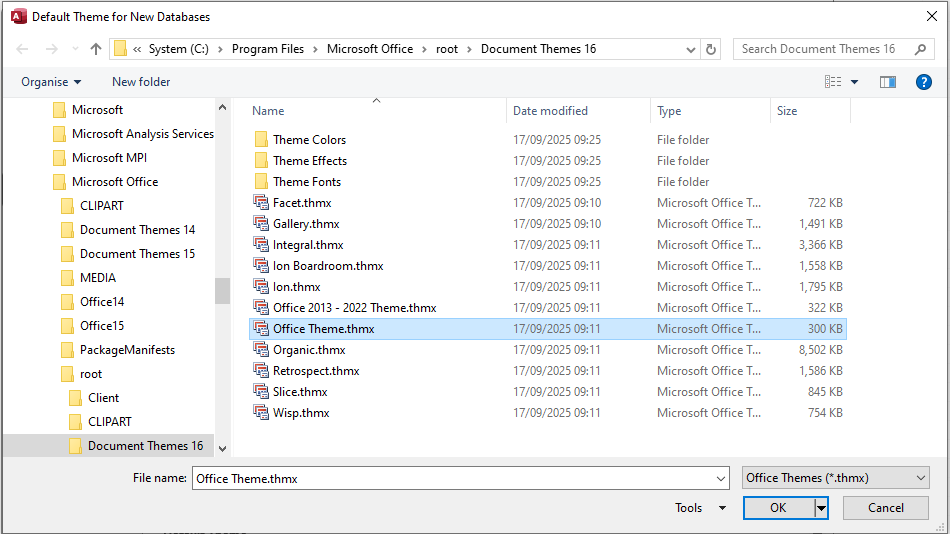
To revert back to using Calibri as the default font, first tick the checkbox in Access Options. Next browse to and select the Office 2013 - 2022 Theme.

NOTE:
As these changes are done in Client Settings, other users can alter these settings on their own workstations.
If this matters in the applications you distribute, ensure that you distribute compiled ACCDE files and block user access to the Options menu in File | Backstage view
Unexpected Side Effect
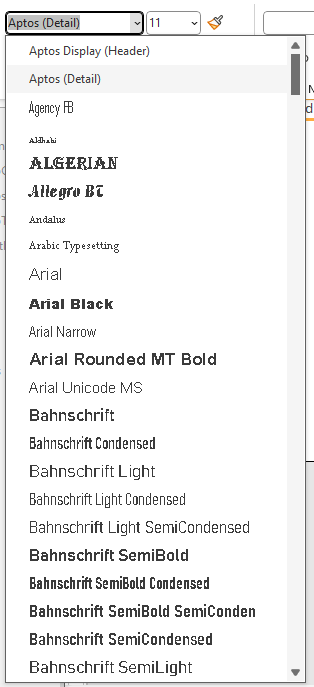
There is an unexpected side effect when the default font is changed - the Aptos font no longer appears in font diologs for new databases!
Default font = Aptos
|
Default font = Calibri (Aptos NOT listed)
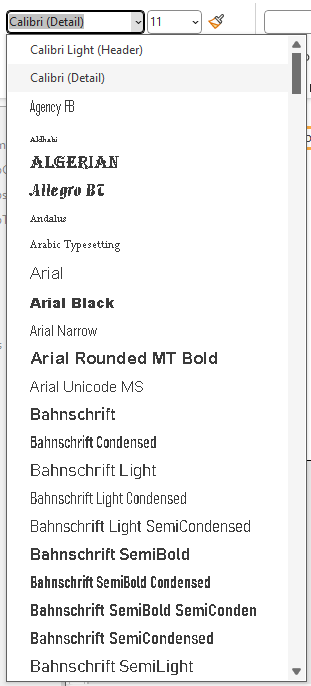
|
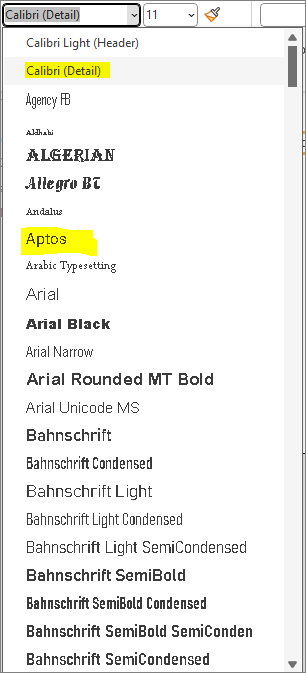
The font dialog in Access only shows the fonts stored in the standard c:\Windows\Fonts folder together with the default font (wherever it is saved)
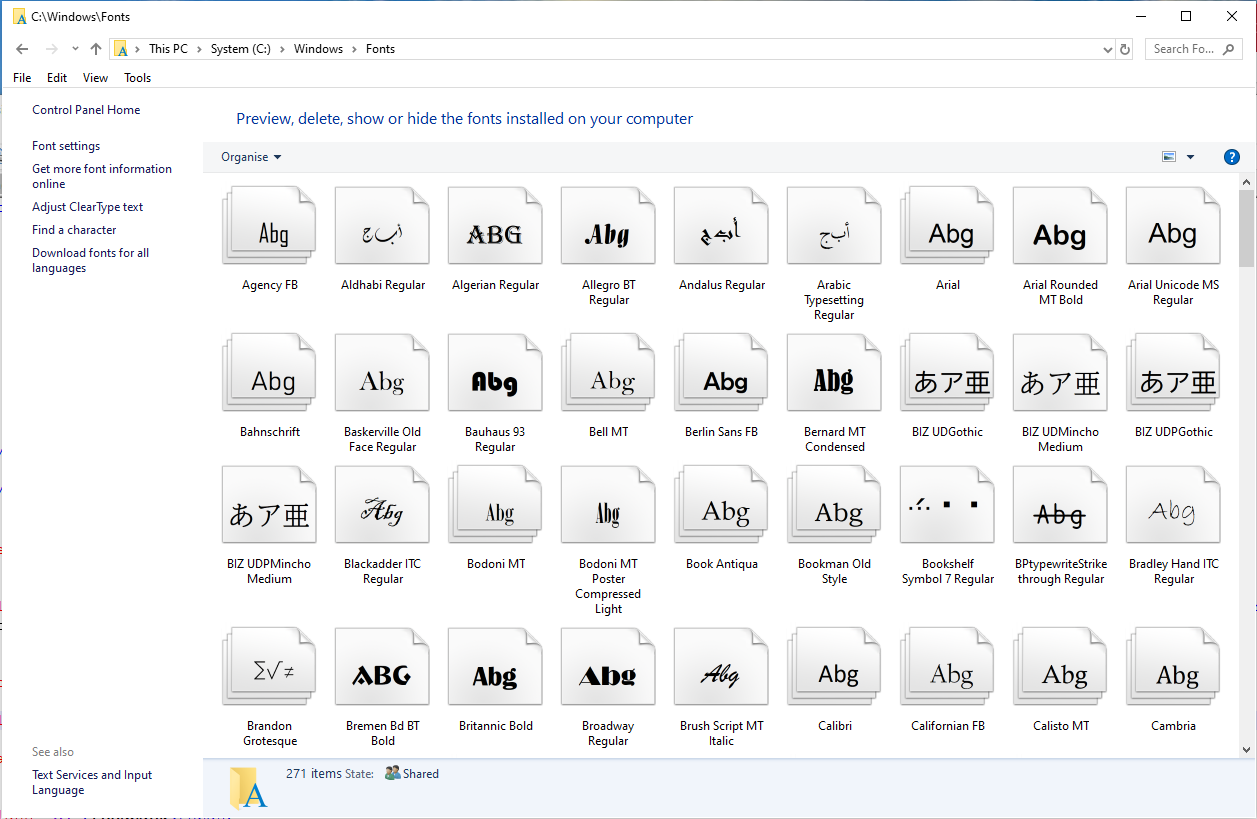
Aptos is missing (unless it is the default) as it is stored in a different folder: C:\Users\YourUserName\AppData\Local\Microsoft\FontCache\4\CloudFonts
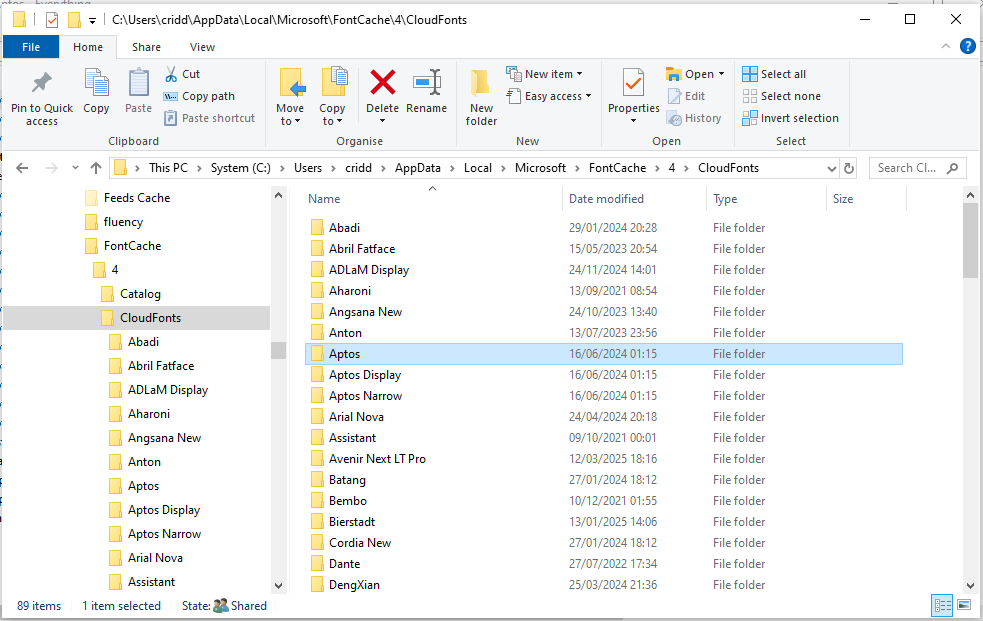
There are 10 Aptos font variants in this folder:
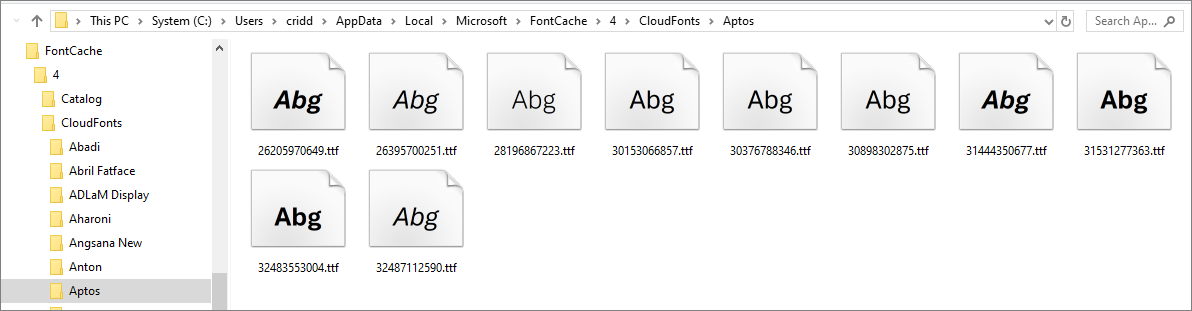
If you want Aptos to be available in font dialogs without it being the dafault, copy one or more of the Aptos font variants (Normal / Bold / Italic etc) from the C:\Users\YourUserName\AppData\Local\Microsoft\FontCache\4\CloudFonts\Aptos folder to C:\Windows\Fonts
Default font = Calibri (Aptos added to list)
|
The same approach can be used if you want to access any of the other 'Cloud fonts'.
Doing this isn't necessary in other Office apps such as Excel and Word, both of which handle fonts in a slightly different way.
Feedback
Please use the contact form below to let me know whether you found this article interesting/useful or if you have any questions/comments.
Please also consider making a donation towards the costs of maintaining this website. Thank you
Colin Riddington Mendip Data Systems Last Updated 30 Sept 2025
|
Return to Access Blog Page
|
Return to Top
|