| First Published 24 June 2026 | Last Updated 24 July 2026 | Difficulty level : Moderate |
|---|

UPDATES:
2026-07-09: in line with changes made in version 2608
2026-07-19: with additional details about a serious bug (FIXED 2026-07-24)
This article discusses the new 'Big Forms' feature which is now available in the Beta Channel for Microsoft Access. This long-requested feature removes the long-standing 22.75 inch (57.79 cm) form size limitation and lays the foundation for a more modern, scalable, and accessible form experience. The feature also applies to reports.
The feature was rolled out to the Beta Channel at the start of June with version 2606 build 20123.20000. It was originally expected to reach Current Channel Preview in mid-July but this was brought forward with the roll out to Current Channel Preview version 2606 occurring a few hours after I first published this article on 24 June!
The benefits of this new feature are outlined in an official Microsoft blog article: Access begins rollout of Big Forms for Modern Monitors feature.
The blog article includes this screenshot of a very wide form containing a modern chart with a width of almost 40 inches (100cm) wide.
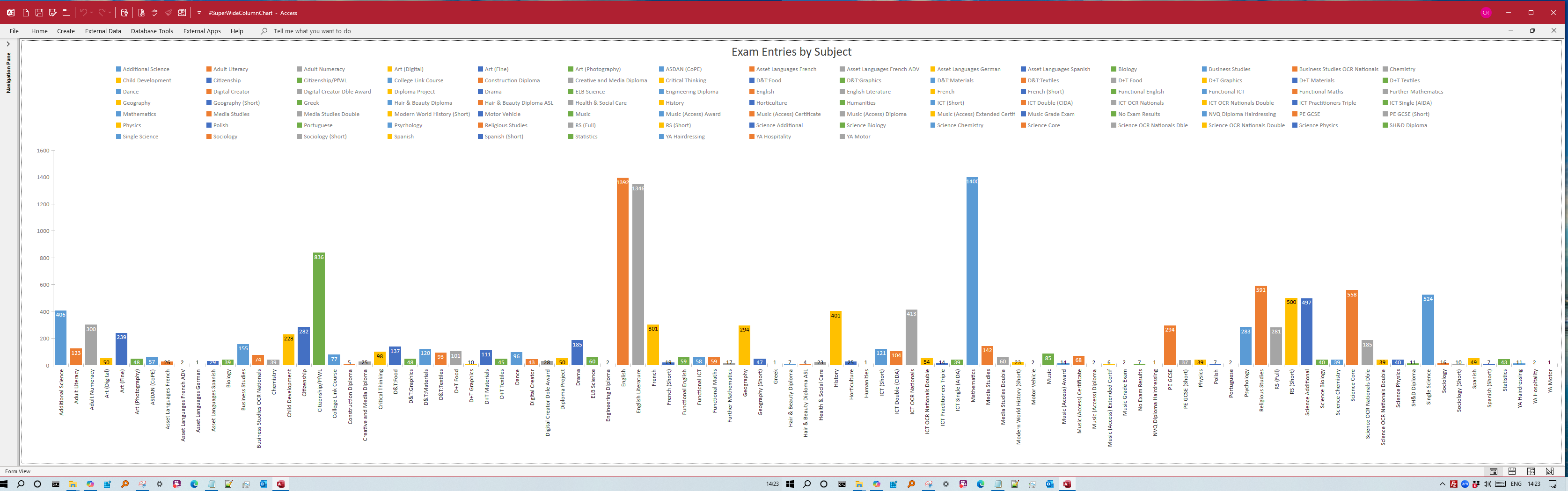
I originally created this form using a different approach for an earlier article on this site:Create Forms Wider Than the Access Limit.
Later in this article, I will demonstrate how the big forms feature means it can now be further extended to around 800 cm wide making the chart data more accessible and even easier to read.
The Big Forms Feature
With the release of this feature, the old 22.75 inch (57.79 cm) width limit has been removed. The old section height limit has also been removed.
Width and height dimensions are now supported up to approximately 93,195 inches / 236,715 cm / 134,200,800 twips.
For all practical purposes, this means there is no longer any meaningful real-world limit to form (and report) widths or heights.
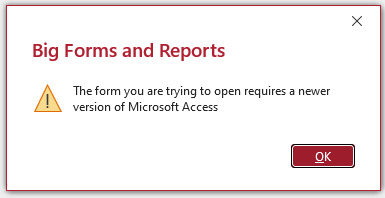
'Big forms' created in new builds will not open in an older version of Access which does not support the feature. A warning message is shown in such cases.
The feature can be used either on its own or in conjunction with the new Zooming Feature which was released a couple of months earlier.
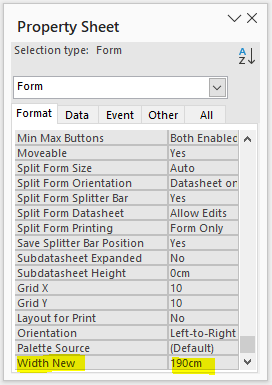
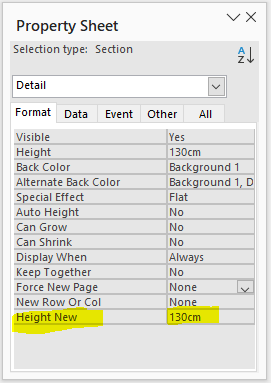
When the feature was first released in version 2606, the sizes and positions of big forms/reports and their controls were managed using 4 new long integer properties:
WidthNew, HeightNew, LeftNew and TopNew
| Forms - WidthNew property | Form Sections - HeightNew property | Controls - 4 new properties |
|---|---|---|
 |
 |
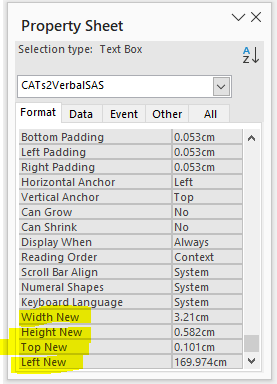 |
The values could be entered directly in the property sheet or using code. For example:
'Code for versions 2606 / 2607 ONLY'Set form width in twips (1440 twips = 1 inch, 567 twips = 1cm)Me.Properties("WidthNew") = 110000'Set control widths to stretch across formMe.Chart0.Properties("WidthNew") = 109000Me.Chart2.Properties("WidthNew") = 109000Me.Line4.Properties("WidthNew") = 109000
The existing Width, Height, Left and Top properties were retained for backwards compatibility and continued to be visible in the property sheet causing 'duplication'.
However, the original four properties remain as integer datatype and are therefore limited to a maximum value of 32767 in twips (22.75 inches / 57.79 cm) in VBA code.
UPDATE 2026-07-09: Version 2608
Starting with Beta channel version 2608, the 4 new properties have been renamed to match the original Width, Height, Left and Top properties thereby removing the duplicate values previously seen in the property sheet. Therefore the code shown above will not work from version 2608 onwards.
Where the property values are below the old integer limit, you can continue to use the concise syntax. For example, to set the positions of two buttons near the right edge of a form 55cm wide:
Private Sub Form_Load()''Values below the old integer twips limit (32767) Me.Command0.Left = 28000 Me.Command1.Left = 28000 Me.Command0.Width = 1500 Me.Command1.Width = 1500End Sub
However if you try to use the same code to set the positions of two buttons near the right edge of a form 65cm wide, you will get an overflow error:
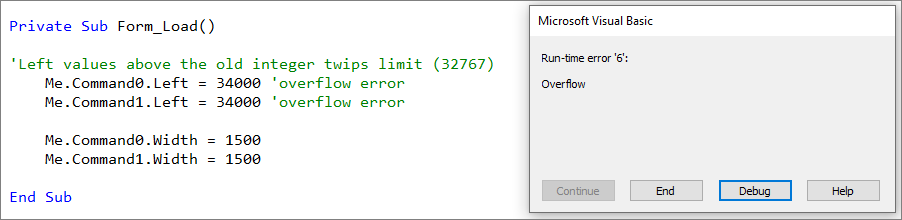
The above code fails because the concise version of the code references the original 16-bit signed integer values (which cannot be updated to ensure backwards compatibility).
For all values above the integer limit, you MUST instead use the Properties collection. This looks up and references the new long integer properties.
As the width values are below the integer limit, either version of the code can be used for those properties:
Private SubForm_Load()'Left values above the old integer twips limit (32767)'Must use the Properties collection. This looks up & references the new long integer propertiesMe.Command0.Properties("Left") = 34000Me.Command1.Properties("Left") = 34000'Width values below the integer limit - can use either version of the codeMe.Command0.Width= 1500Me.Command1.Width= 1500End Sub
Although this is a somewhat odd situation, it is the simplest solution available due to the constraints imposed by legacy code.
Definitely much better than having 'duplicate' properties with different names!
Additional Info / Known Issues
1. Using the Wizards
The wizards used to create a form or report currently use the old width limits (22.75 inches / 57.79 cm). This causes certain restrictions:
• 'multiple items' continuous forms created using a layout are limited to about 15 fields.
• tabular style continuous forms are limited to about 64 fields and the fields will initially be compressed together.
• datasheet forms can have up to 255 fields but the fields will again initially be 'squashed together'.
However, the form can then be made wider in design view and the widths of each column adjusted either manually or in code.
The attached database includes examples of a datasheet form just over 400 cm wide with 163 fields and a tabular continuous form with 64 fields and almost 200cm wide.
The screenshots below show the tabular continuous form as first created by the wizard and again after the columns have been adjusted using code.
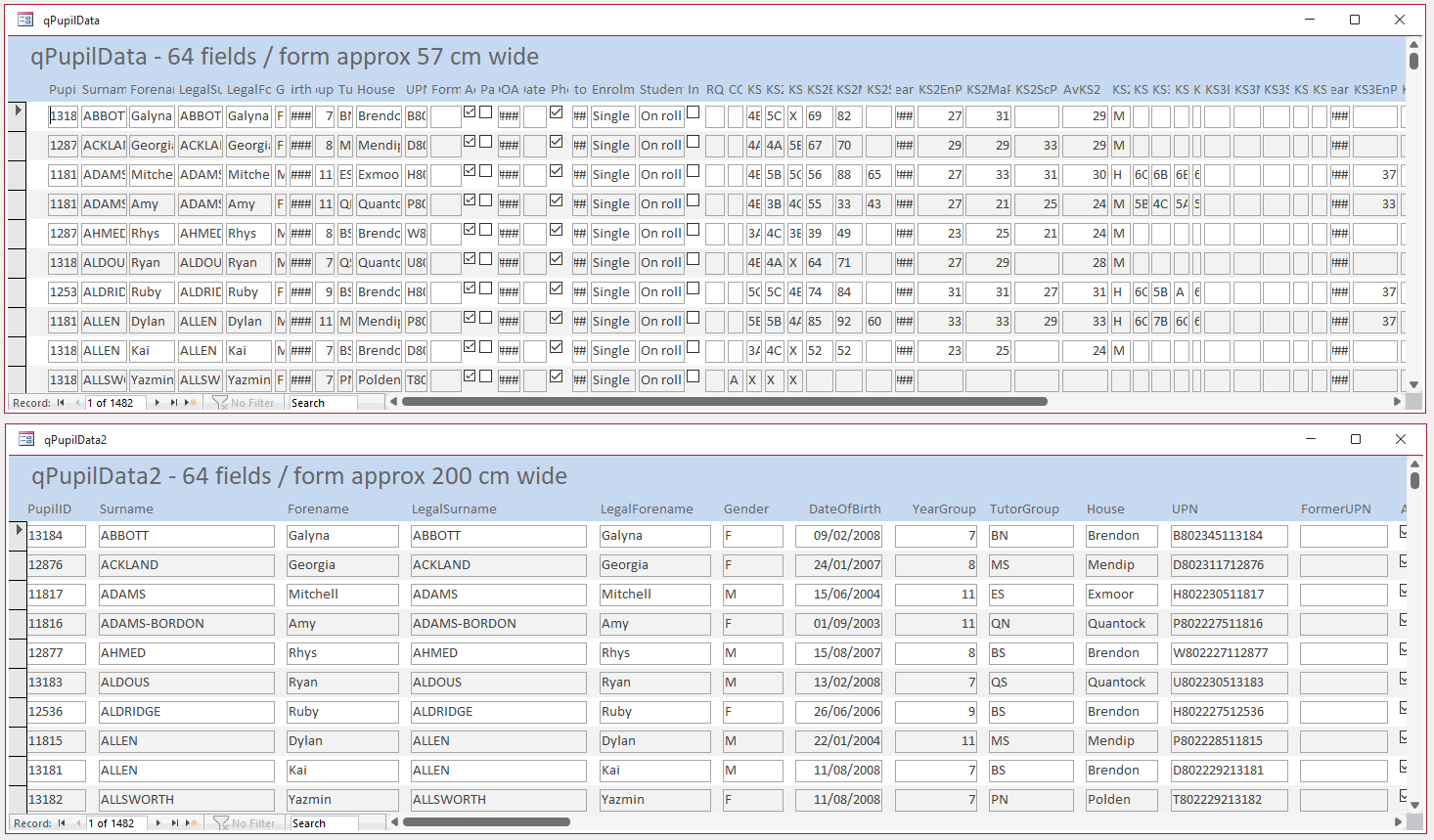
The code used to automatically adjust the column widths and positions at runtime is also included. This is simple for datasheet forms but more complex for continuous forms.
2. Using Big Reports
As with forms, Access also no longer imposes any meaningful limit on report width.
Big reports can now also be created with the same maximum possible sizes but the same layout issues occur if created using the wizard.
You can design reports far larger than the A0 paper size supported by some large format printers / plotters — potentially tens or hundreds of metres wide.
Realistically, when printing reports this feature is only useful up to the maximum paper size supported by your printer. Your printer is now the limiting factor, not Access.
However, very wide reports could also be useful for report view, possibly in conjunction with zooming.
3. Control Size Limits
Individual controls may also have their own size limits, although these are likely to be far larger than needed for all practical purposes.
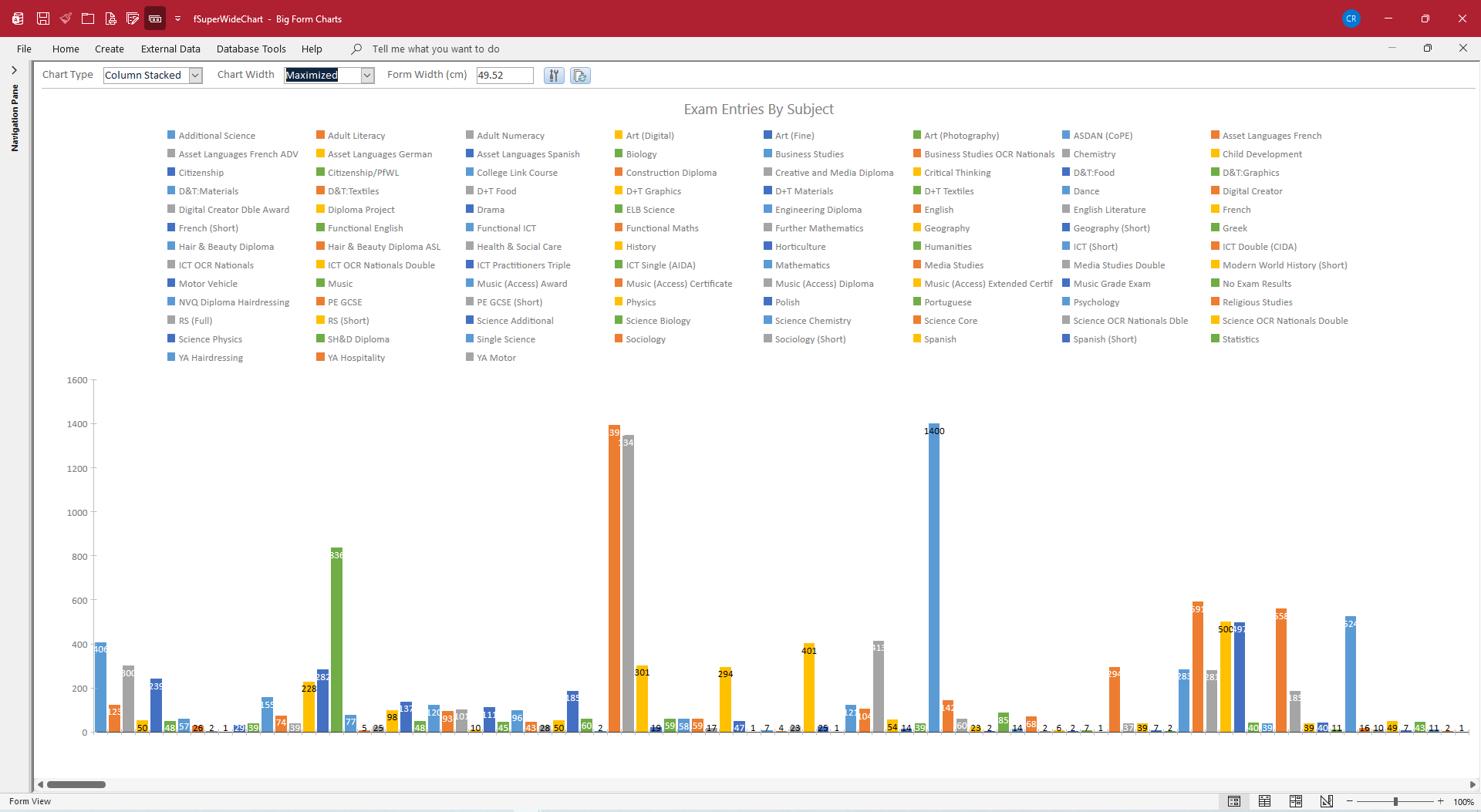
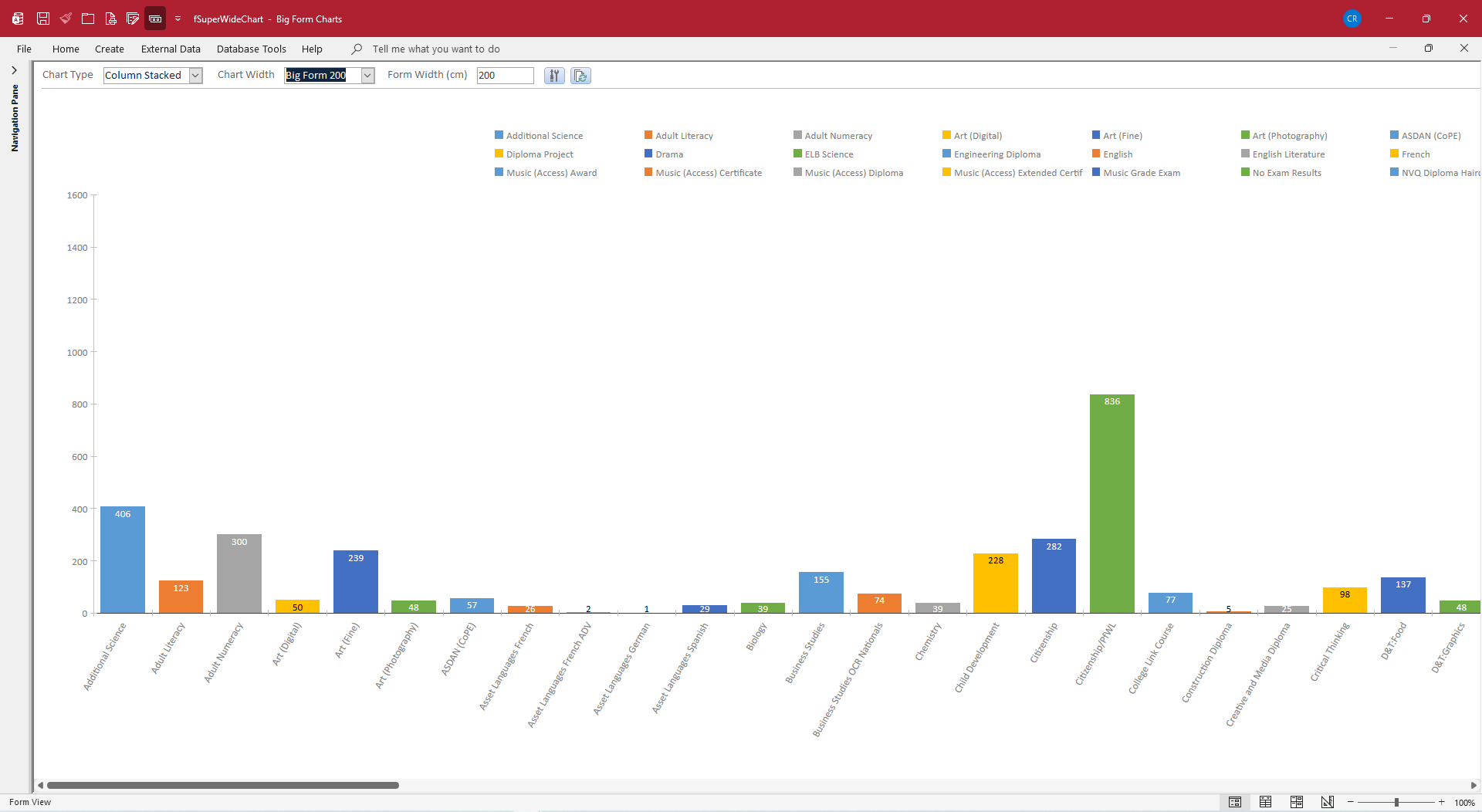
For example, modern charts appear to be limited to about 800 cm (8 metres) wide. The screenshots below show the same multi-column stacked chart at various widths.
The same data can also be displayed as a pareto chart.
Original restored form (approx 22 cm wide) - the chart data is unreadable
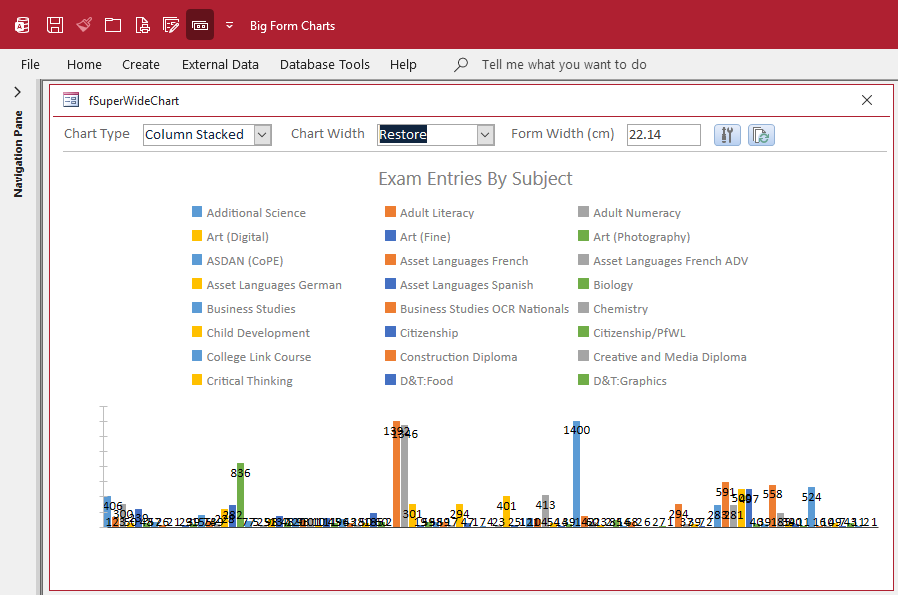
Maximized on 22 inch monitor (approx 50 cm wide) - better but still squashed
On a big form approx 200 cm wide - column data now much easier to read
On a big form approx 800 cm wide
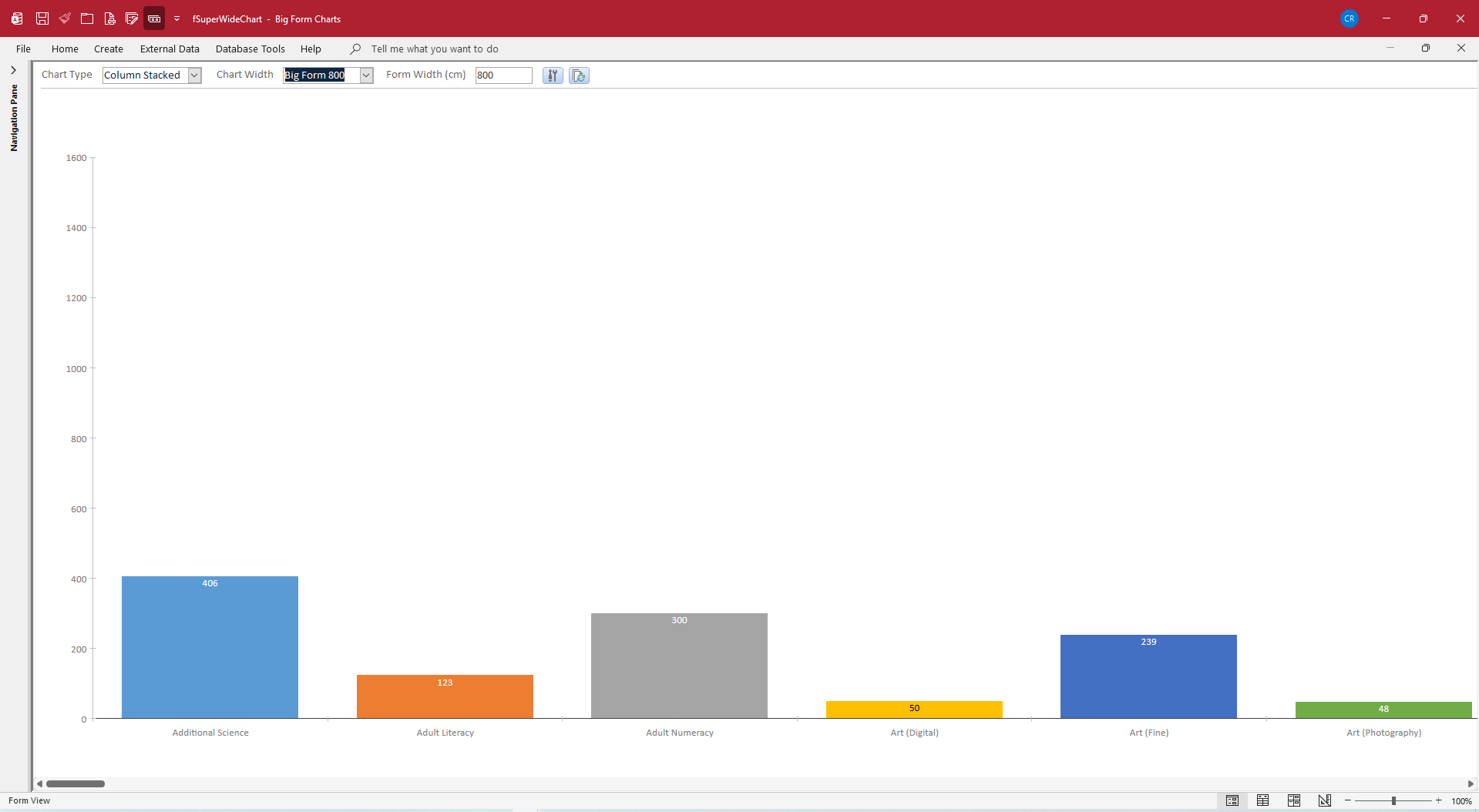
The chart does not expand any further when arranged to stretch across a form much wider than 800cm.
However, no matter what width form is used, it can still be zoomed in or out as required.
4. Zooming Issues with Very Wide Forms (close to WidthNew limit)
When big forms of 'reasonable widths' are zoomed, the sizes and positions of controls are shown correctly with no display issues.
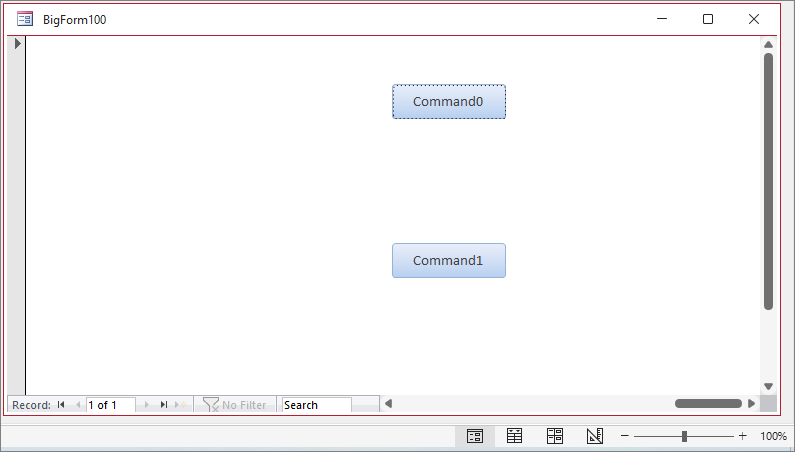
For example, the screenshots show a small section of a 100 cm wide form with two buttons close to the right edge of the form.
| 100% Zoom | 120% Zoom |
|---|---|
 |
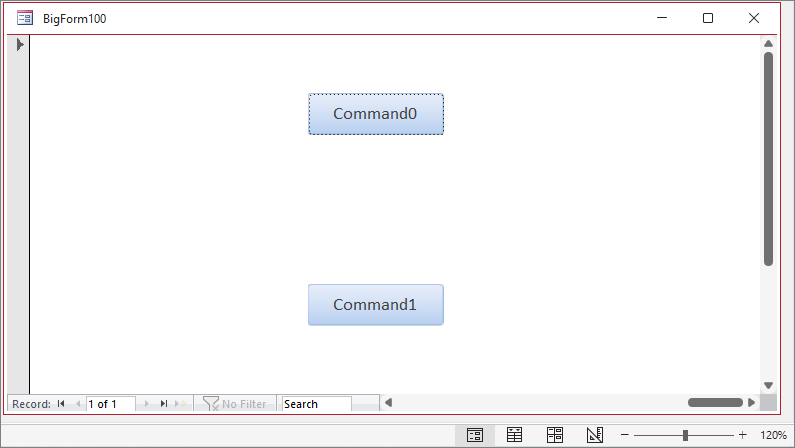 |
Even with a form of 1000 cm wide, there are still no display issues.
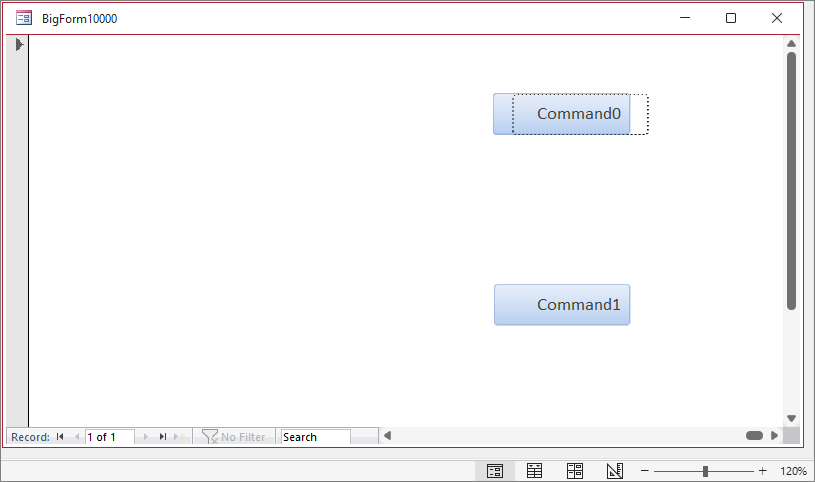
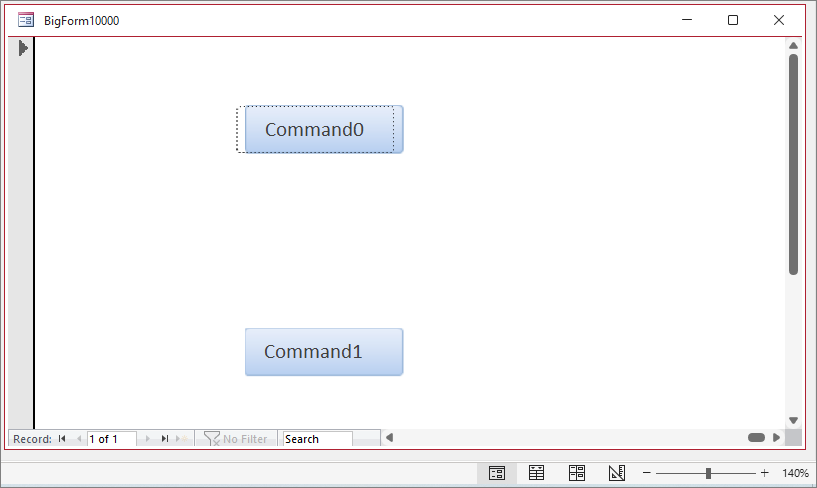
However, if the form width is increased significantly more, some display issues do begin to appear with the captions shifted to a different position to the sides of the buttons.
This uses a ridiculously large 10,000 cm wide form (100 metres)!
| 120% Zoom | 140% Zoom |
|---|---|
 |
 |
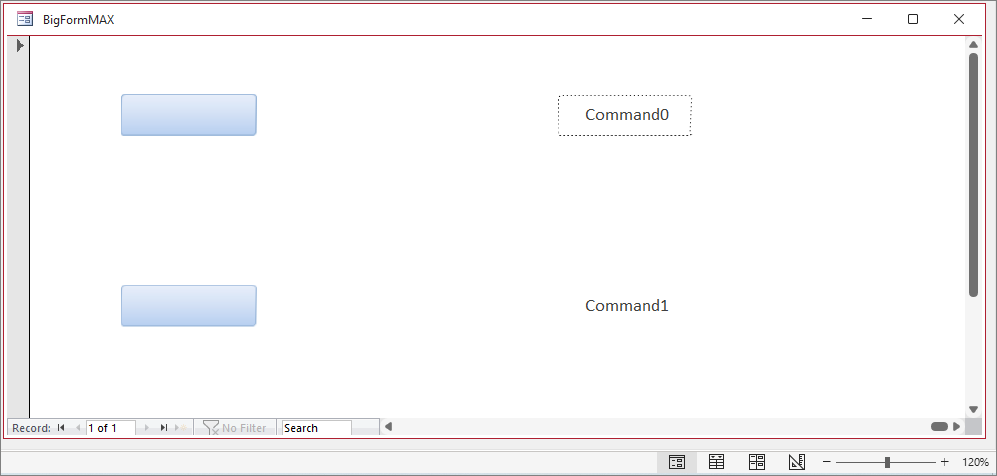
Increasing the width further exacerbates the issues. This is for a form at the maximum width of 236715 cm! (over 2.36 km!)
| 120% Zoom | 130% Zoom |
|---|---|
 |
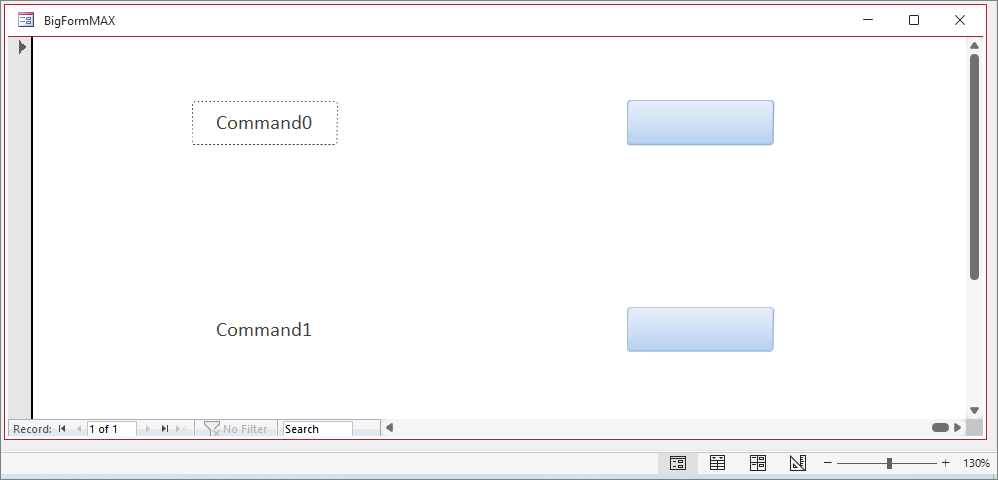 |
As the screenshots show, the command button captions are now completely separated to the left or right of the buttons.
This displacement occurs in cycles of 25% intervals with the buttons and captions aligned at 75%, 100%, 125%, 150% etc but incorrectly aligned otherwise.
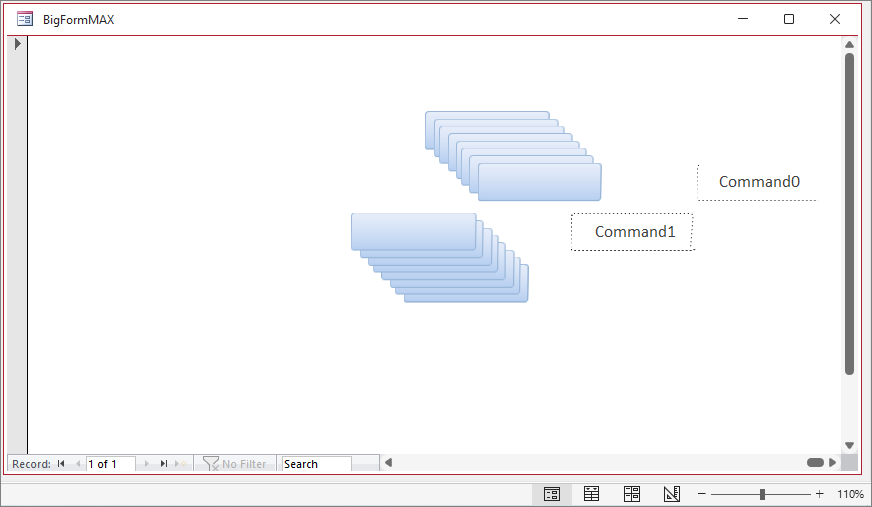
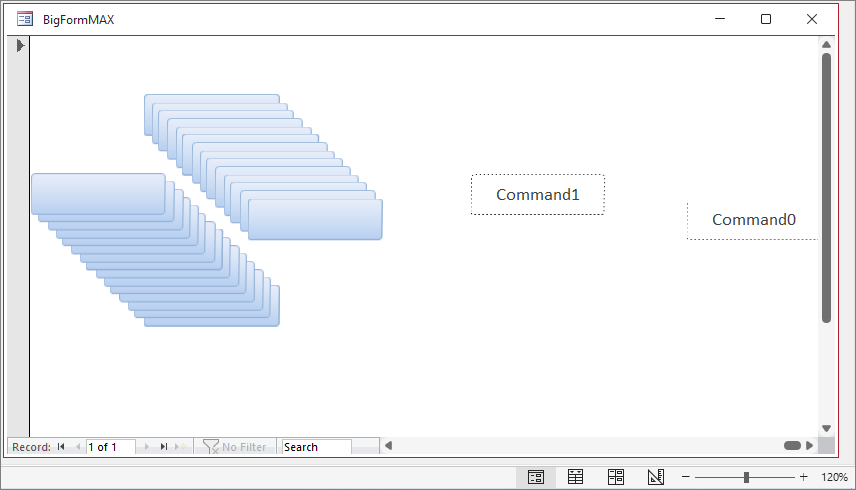
Button click events are then actioned by clicking on the caption (not the button). The code used moves the top button down and right with the bottom button moved up and left.
For this very extreme form width, artifacts are then displayed. The screenshots below were done after several button clicks at two zoom values.
| 110% Zoom | 120% Zoom |
|---|---|
 |
 |
These issues ONLY occur for huge forms that are far bigger than will ever be needed in a real-world situation. Even so, I have reported the issues to the Access team.
It is likely that these co-ordinate mismatches will be fixed before the feature is released to the Current Channel in the coming months.
5. BUG: Forms edited in version 2608 have their design changed when opened in an older version such as 2606 (FIXED 2026-07-24).
Version 2607 or earlier cannot open 'big forms' wider than the old 22 inch limit and an error message is displayed.
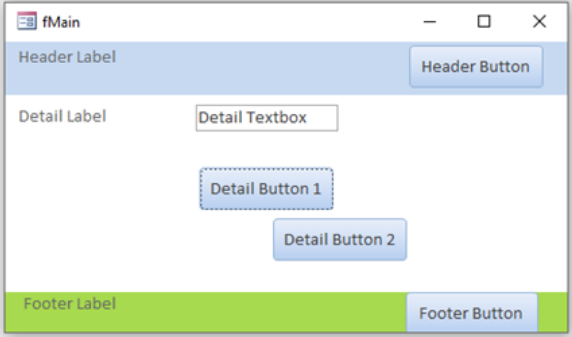
Smaller forms edited in version 2608 do open in version 2607 but the bug caused all controls to be moved to Top = 0; Left = 0 for each section and with identical Width / Height properties.
| Edited in Version 2608 | Opened in Version 2606 |
|---|---|
 |
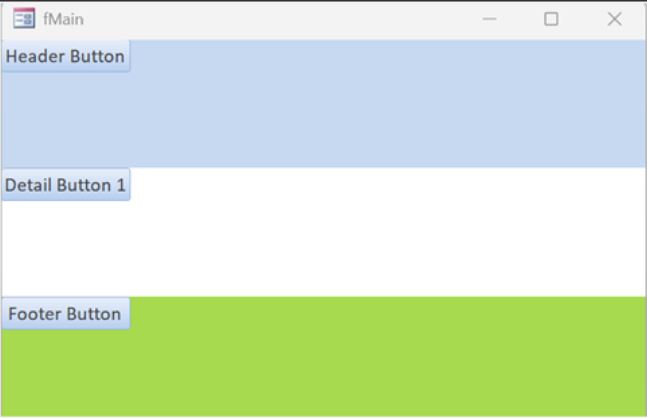 |
This bug affected all single and continuous forms, both standard and popup, that have been edited in 2608 and then re-opened in 2607 or earlier.
It also applied to databases where none of the forms ever exceeded the old width limits.
Datasheet forms are not affected.
This bug was reported to the Access team on 2026-07-12 with additional details supplied on 2026-07-18.
The fix was released to Beta channel version 2608 20321.20000 on 2026-07-24. All affected forms need to be re-saved in a fixed build.
Alternatively, affected forms can also be 'repaired' by using SaveAsText in version 2608 to save affected forms as text files.
If necessary, replace references to e.g. LeftNew with Left and reduce any values greater than 32767 to below the integer limit. Then import into v2606 using LoadFromText.
Download
Click to download the example databases used in this article (all have been updated for version 2608):
Big Form Tests Approx 3 MB (zipped)
Big Form Charts Approx 0.9 MB (zipped)
Test DB Approx 0.6 MB (zipped)
NOTE:
a) The first two example databases will currently only run in Access Insider Channels (Beta / Current Channel Preview) - version 2608 or later.
b) The code in these databases is not optimized and there may be some unintended display glitches.
c) The third database (TestDB) will run in version 2607 or earlier. The serious layout errors in the single and continuous forms have now been fixed (2026-07-24).
As is the case for all files downloaded from the internet, first unblock the downloaded files, then unzip, and save to a trusted location.
For more details, see my article:
Unblock downloaded files by removing the Mark of the Web
Feedback
Please use the email button in the contact form below to let me know whether you found this article useful or if you have any questions.
Please also consider making a donation towards the costs of maintaining this website. Thank you
| Colin Riddington | Mendip Data Systems | Last Updated 24 July 2026 |
|---|
|
Return to Access Articles Page
|
Return to Top
|