| First Published 23 Sept 2026 |
|---|

Language settings are normally changed from the Options menu:
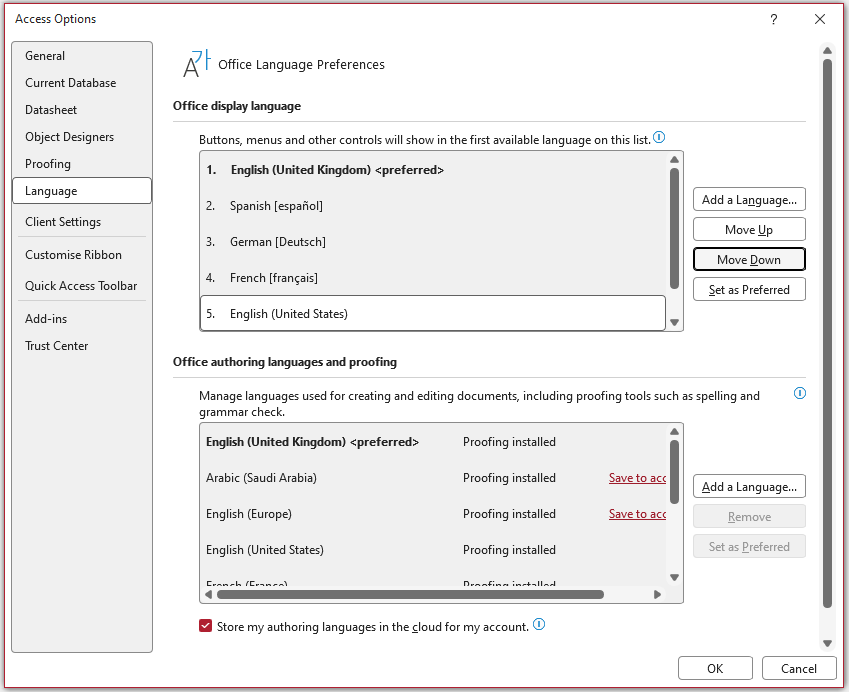
However, many developers need to test applications in different languages before deployment. The ability to change language within the application can be a useful time saver.
This can be done by editing the language settings stored in the registry at: HKEY_CURRENT_USER\SOFTWARE\Microsoft\Office\16.0\Common\LanguageResources
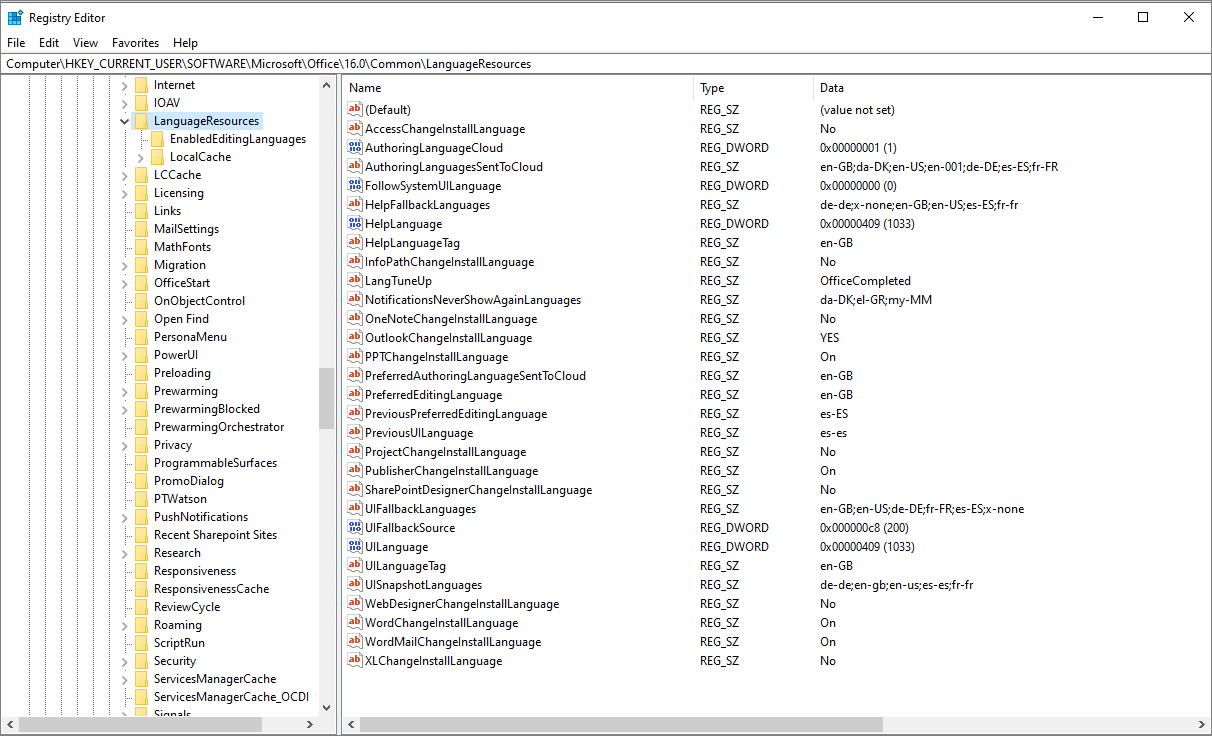
As with changes made in the Options menu, Access needs to be restarted for the changes to take effect.
Change the Office language using VBA
The example app contains a form and all code needed to change the Office language to any of the languages already installed.
The form shows the current Office language together with a combo box with all the installed Office languages:
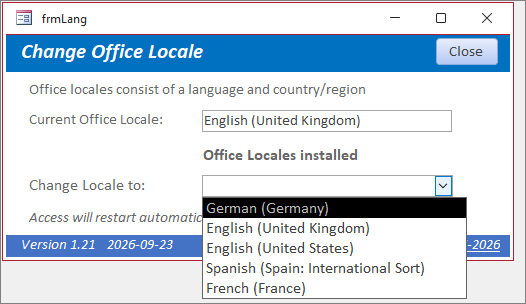
In fact, the combo box is used to change the Office locale which consists of both a language and country/region.
The locale names use the format en-GB, fr-FR etc., where the language is in lower case and the country/region is in upper case.
For display purposes, these are written as e.g. English (United Kingdom), French (France) etc.
In certain cases, the sort order is also specified. For example, es-ES is displayed as Spanish (Spain, International Sort).
Most of the code used by the form is in the standard module, modOfficeLang.
The GetLocaleInfoEx API is used together with a locale type constant to obtain the locale display names with a helper function, LocaleNameToDisplayName.
' Windows API declaration for GetLocaleInfoEx' Retrieves information about a locale using its name (e.g., "en-US")Private Declare PtrSafe FunctionGetLocaleInfoExLib"kernel32"_(ByVallpLocaleNameAs LongPtr, _ByVallcTypeAs Long, _ByVallpLCDataAs LongPtr, _ByValcchDataAs Long)As Long' Constant for LCTypePrivate ConstLOCALE_SLOCALIZEDDISPLAYNAMEAs Long= &H2' Helper function to convert locale name to display namePublic FunctionLocaleNameToDisplayName(ByVallocalenameAs String)As StringDimbufferAs StringDimlengthAs Long' Allocate buffer for resultbuffer=String$(256,vbNullChar)' Call APIlength=GetLocaleInfoEx(StrPtr(localename), _LOCALE_SLOCALIZEDDISPLAYNAME, _StrPtr(buffer), _Len(buffer))Iflength> 0Then' Trim null charactersLocaleNameToDisplayName=Left$(buffer,length- 1)ElseLocaleNameToDisplayName=vbNullStringEnd IfEnd Function
The current Office language is obtained by reading the UILanguageTag key value from the registry then converting to the display name:
Public FunctionGetCurrentOfficeDisplayName()As StringOn Error GoToErr_HandlerDimwshAs ObjectDimregPathAs StringDimlangTagAs StringregPath= "HKCU\Software\Microsoft\Office\16.0\Common\LanguageResources\"Setwsh=CreateObject("WScript.Shell")' Get the UI Display locale name (e.g. "en-US", "es-ES", "fr-FR")langTag=wsh.RegRead(regPath& "UILanguageTag")'convert to display nameGetCurrentOfficeDisplayName=LocaleNameToDisplayName(langTag)Exit_Handler:Setwsh=NothingExit FunctionErr_Handler:Setwsh=NothingMsgBox"Error getting Office display name: "&Err.Description,vbCritical, "Language Error"ResumeExit_HandlerEnd Function
The list of installed languages shown in the combo box is obtained by first reading the UISnapshotLanguages key from the registry e.g. de-de;en-gb;en-us;es-es;fr-fr.
Where this key is not yet populated, the UIFallbackLanguages key is used instead.
Public FunctionGetInstalledOfficeLanguages()As StringOn Error GoToErrHandlerDimwshAs ObjectDimregPathAs StringDimsnapshotAs StringDimarrLangs()As StringDimiAs LongDimlangTagAs String,displayNameAs StringDimrowSourceStrAs StringregPath= "HKCU\Software\Microsoft\Office\16.0\Common\LanguageResources\"Setwsh=CreateObject("WScript.Shell")' 1. Read the snapshot of UI languages actually installed on this PCOn Error Resume Nextsnapshot=wsh.RegRead(regPath& "UISnapshotLanguages")On Error GoToErrHandler' Fallback to UIFallbackLanguages if UISnapshotLanguages is not yet writtenIfLen(Trim(snapshot)) = 0ThenOn Error Resume Nextsnapshot=wsh.RegRead(regPath& "UIFallbackLanguages")On Error GoToErrHandlerEnd If' Debug.Print snapshotSetwsh=NothingIfLen(Trim(snapshot)) = 0ThenGetInstalledOfficeLanguages= ""Exit FunctionEnd If' 2. Split the list (e.g. "ca-es;en-gb;en-us;es-es")arrLangs=Split(snapshot, ";")' 3. Build the Value List: "Tag";"Friendly Name";Fori=LBound(arrLangs)To UBound(arrLangs)langTag=Trim(arrLangs(i))displayName=LocaleNameToDisplayName(langTag)' Ignore empty entries and the internal "x-none" entryIfLen(langTag) > 0AndLCase(langTag) <> "x-none"ThenlangTag=FormatLangTag(langTag)rowSourceStr=rowSourceStr&langTag& ";"&displayName& ";"End IfNexti' Replace any commas as this messes up the displayrowSourceStr=Replace(rowSourceStr, ",", ":")' Remove the trailing semicolonIfRight(rowSourceStr, 1) = ";"ThenrowSourceStr=Left(rowSourceStr,Len(rowSourceStr) - 1)End If' Debug.Print rowSourceStrGetInstalledOfficeLanguages=rowSourceStrExit FunctionErrHandler:'Handle error if langTag is empty or langTag=x-noneIfErr= -2147221502Then Resume NextSetwsh=NothingGetInstalledOfficeLanguages= ""End Function' Standardizes tags to standard casing (e.g., "ca-es" -> "ca-ES")Private FunctionFormatLangTag(ByValtagAs String)As StringDimparts()As Stringparts=Split(tag, "-")If UBound(parts) = 1ThenFormatLangTag=LCase(parts(0)) & "-"&UCase(parts(1))ElseFormatLangTag=tagEnd IfEnd Function
The list is then split into language tags (LangTag) which are used to build a value list for the combo box, ignoring any empty values.
The LangTag values are used as the hidden bound column. The display name for each locale is also obtained using the same function as before and used for the visible column in the combo box.
For some unknown reason, the registry array doesn't use the standard format so the FormatLangTag function also handles this.
The combo box AfterUpdate event handles the following steps:
• checks whether the selected language is different to the current language
• asks the user to confirm they wish to proceed
• runs code to switch the language values in the registry and restarts the database
Private SubcboLanguage_AfterUpdate()IfReplace(Me.cboLanguage.Column(1), ":", ",") =Me.txtCurrentLangThenFormattedMsgBox"The Office language has not been changed",vbInformation, "Language not changed", "", 0Me.cboLanguage= ""Exit SubEnd IfIf NotIsNull(Me.cboLanguage)ThenIfFormattedMsgBox("Are you SURE you want to change the Office language to "&Me.cboLanguage.Column(1) & "?"& _"@Click OK to confirm."&vbCrLf& "Access will restart automatically. @", _vbExclamation+vbOKCancel+vbDefaultButton2, "Change Office Language?", "", 0) =vbOKThenCallSwitchLanguage(Me.cboLanguage)RestartCurrentDatabaseElseMe.cboLanguage= ""End IfEnd IfEnd Sub
The SwitchLanguage code updates a number of registry keys:
SubSwitchLanguage(newLanguageAs String)SetOffice365Language(newLanguage)End SubPublic FunctionSetOffice365Language(ByVallangTagAs String,Optional ByValsetHelpAs Boolean=True)As BooleanOn Error GoToErr_HandlerDimwshAs ObjectDimregPathAs StringDimcurrentFallbackAs StringDimnewFallbackAs StringregPath= "HKCU\Software\Microsoft\Office\16.0\Common\LanguageResources\"Setwsh=CreateObject("WScript.Shell")' 1. Set the UI Display Language Tag (e.g. "en-US", "es-ES", "ca-ES")wsh.RegWrite regPath& "UILanguageTag",langTag, "REG_SZ"' 2. Ensure Office does NOT follow the Windows system display languagewsh.RegWrite regPath& "FollowSystemUILanguage", 0, "REG_DWORD"' 3. Update UIFallbackLanguages so the new language is at the top of the priority listOn Error Resume NextcurrentFallback=wsh.RegRead(regPath& "UIFallbackLanguages")On Error GoToErr_HandlerIfLen(currentFallback) > 0Then' Remove the target tag if already present in the list, then prepend itcurrentFallback=Replace(currentFallback,langTag& ";", "")currentFallback=Replace(currentFallback, ";"&langTag, "")newFallback=langTag& ";"¤tFallbackElsenewFallback=langTag& ";x-none"End Ifwsh.RegWrite regPath& "UIFallbackLanguages",newFallback, "REG_SZ"' 4. Optionally set Help and Editing language tagsIfsetHelpThenwsh.RegWrite regPath& "HelpLanguageTag",langTag, "REG_SZ"End Ifwsh.RegWrite regPath& "PreferredEditingLanguage",langTag, "REG_SZ"Exit_Handler:Setwsh=NothingSetOffice365Language=TrueExit FunctionErr_Handler:Setwsh=NothingSetOffice365Language=FalseMsgBox"Error setting Microsoft 365 language: "&Err.Description,vbCritical, "Language Error"ResumeExit_HandlerEnd Function
The RestartCurrentDatabase code is as follows:
Public SubRestartCurrentDatabase()DimstrPathAs StringDimstrAccessExeAs StringDimstrCommandAs String' 1. If you want to ensure the current active record is saved before restarting:' On Error Resume Next' If Screen.ActiveForm.Dirty Then Screen.ActiveForm.Dirty = False' On Error GoTo 0' 2. Get current database full pathstrPath=Application.CurrentProject.FullName' 3. Dynamically retrieve the Access installation path using SysCmdstrAccessExe=SysCmd(acSysCmdAccessDir) & "MSACCESS.EXE"' 4. Build shell execution string with a 1-second delay to release locksstrCommand= "cmd.exe /c timeout /t 1 /nobreak >nul & """&strAccessExe& """ """&strPath& """"' 5. Spawn background shell processShell strCommand,vbHide' 6. Quit current instance safelyApplication.Quit acQuitSaveAllEnd Sub
As far as the end user is concerned, the whole process is both seamless and almost instantaneous.
Acknowledgements
Once again, I am very grateful to my colleague, Xevi Batlle, whose idea this was. The core code was significantly based on Google Gemini API with further changes made by me.
Download
Click to download: Change Office Language v1.21 (ACCDB file - approx 0.5 MB (zipped)
As is the case for all files downloaded from the internet, first unblock the downloaded file, unzip then save to a trusted location.
For more details, see my article:
Unblock downloaded files by removing the Mark of the Web
Feedback
Please use the Email button in the contact form below to let me know whether you found this article useful or if you have any questions.
Please also consider making a donation towards the costs of maintaining this website. Thank you
| Colin Riddington | Mendip Data Systems | Last Updated 23 Sept 2026 |
|---|
|
Return to Code Samples Page
|
Return to Top
|