| First Published 10 Feb 2026 | Difficulty level : Moderate |
|---|

The JSON file format is very versatile and efficient allowing rapid data transfer. For this reason, it is widely used for online data.
Unfortunately, despite numerous requests over the years, Access does not natively support the import of JSON data to Access tables. Nor does it support the export of Access data to JSON files.
This article explores some of the workarounds to allow developers to integrate JSON data with Access
Import JSON data into Access
There are several ways that data from JSON files can be imported into Access. For example:
a) Use a free online tool to convert JSON to CSV such as JSON Lint then import the CSV file to Access. However this only works if the file has a simple structure with no subarrays.
The conversion process may also be subject to size limits unless a paid plan is purchased.
b) Import the JSON into Excel using Data | Get Data | From File | From JSON. From there, you will need to use Power Query to convert into a format which can be imported into Access.
This is a very powerful tool but is also difficult to master.
c) Use Tim Hall's VBA-JSON library which is available free from GitHub. This works well for many JSON files but does require significant user input for more complex data structures.
d) Alternatively, you can purchase my JSON Analyse and Transform for Access (JATFA) app.
This was designed to make importing and handling JSON files a straightforward and, in many cases, a largely automated task. The app can handle JSON files with up to 3 levels of subarrays.
Export Access data to JSON
If you just need a method of sharing table or query data, by far the easiest way is to export the data as a text file.
Alternatively, you can export to XML which allows the exported data to be viewed online.
Both of these are natively supported by Access. In addition, Access allows users to import data from text or XML files.
However, neither of those alone will help if you are required to provide your data in JSON format for a client or website.
Possible solutions here are more limited:
a) Export as text, save as CSV then use a free online CSV to JSON converter. This works well if the table structure is straightforward.
Once again, some free online conversion tools have a size restriction. Paid plans are also available for use with larger files.
b) Export to Excel. This does not allow direct conversion to JSON but a script based solution may be possible.
c) Write VBA code to loop through each field of each record and structure the output in JSON format. For example:
CODE:
FunctionExportToJSON(TableNameAs String)DimdbAsDAO.DatabaseDimrsAsDAO.RecordsetDimFieldAsDAO.FieldDimJSONFileAs StringDimJSONDataAs StringDimiAs IntegerOn Error GoToErr_Handler' Open the database and recordsetSetdb=CurrentDbSetrs=db.OpenRecordset("SELECT * FROM ["&TableName& "]")' Start building the JSON arrayJSONData= "["' Loop through each recordDo While Notrs.EOFJSONData=JSONData& "{"' Loop through each field in the recordFori= 0Tors.Fields.Count- 1SetField=rs.Fields(i)JSONData=JSONData& """"&Field.Name& """:"' Add quotes for text fields, no quotes for numbersIfIsNull(Field.Value)ThenJSONData=JSONData& "null"ElseIfField.Type=dbTextOrField.Type=dbMemoThenJSONData=JSONData& """"&Replace(Field.Value, """", "'") & """"ElseJSONData=JSONData&Field.ValueEnd If' Add a comma if not the last fieldIfi<rs.Fields.Count- 1ThenJSONData=JSONData& ","End IfNexti' Close the current record's JSON objectJSONData=JSONData& "}"' Add a comma if not the last recordrs.MoveNextIf Notrs.EOFThenJSONData=JSONData& ","End IfLoop' Close the JSON array and write to fileJSONData=JSONData& "]"JSONFile=CurrentProject.Path& "\"&TableName& ".json"OpenJSONFileForOutputAs#1#1,JSONDataClose#1MsgBox"JSON file created: "&JSONFile,vbInformation' Cleanuprs.CloseSetrs=NothingSetdb=NothingExit_Handler:Exit FunctionErr_Handler:MsgBox"Error "&Err& ": "&Err.Description& " in ExportToJSON procedure"ResumeExit_HandlerEnd Function
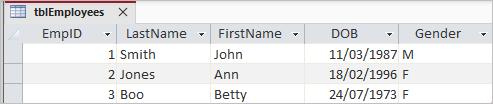
As an example, starting with this small Access table:
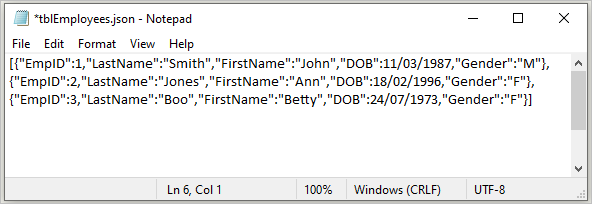
The output JSON file is created in less than 0.01 seconds and can be viewed in any text editor such as Notepad.
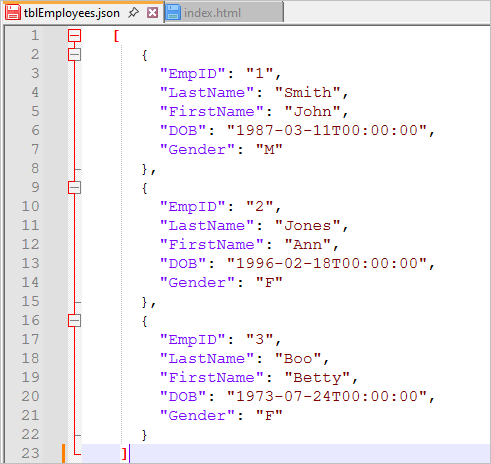
The JSON file structure with its key:value pairs and {} brackets is easier to read using 'pretty' (expanded) formatting. Using the Notepad++ text editor also makes it easier to visualise.
This code works well for tables with a relatively small number of fields and/or records.
However, for large tables, the length of the JSON string being processed repeatedly in a loop becomes very large and can cause Access to use all available resources.
In such cases, this process can be very time consuming and may cause Access to stop responding or even crash.
As a rough guide, a table with 1485 records and 7 fields completed the conversion in just under 2.5 seconds.
However, converting another table with 3116 records and 16 fields took about 167 seconds. Definitely too long to be of practical use.
The time taken will also depend on other factors such as CPU speed and the amount of RAM available.
I have used all the above solutions, but in my opinion, none provide the ideal solution.
However, there is another solution available which is relatively straightforward and requires NO CODE!
Export to JSON using PowerToys Advanced Paste
PowerToys is a powerful set of utilities and shell enhancement tools which are designed to help you customize Windows to suit your needs. The package contains a large number of very useful and free utilities for both power users and developers which in my opinion should really be standard features in Windows. The features available are updated and extended regularly.
PowerToys are not installed by default but the latest version can be downloaded from the Microsoft Store or GitHub
Once you have installed PowerToys, go to its Home | Settings screen and enable the Advanced Paste feature.
This tool allows you to paste the contents of the clipbard into any format you need including plain text, markdown, JSON, or various file formats (.txt, .html, .png) by using either the interface or keyboard shortcuts. It can also extract text from images by using local OCR technology and convert audio and video files to .mp3 or .mp4 formats.
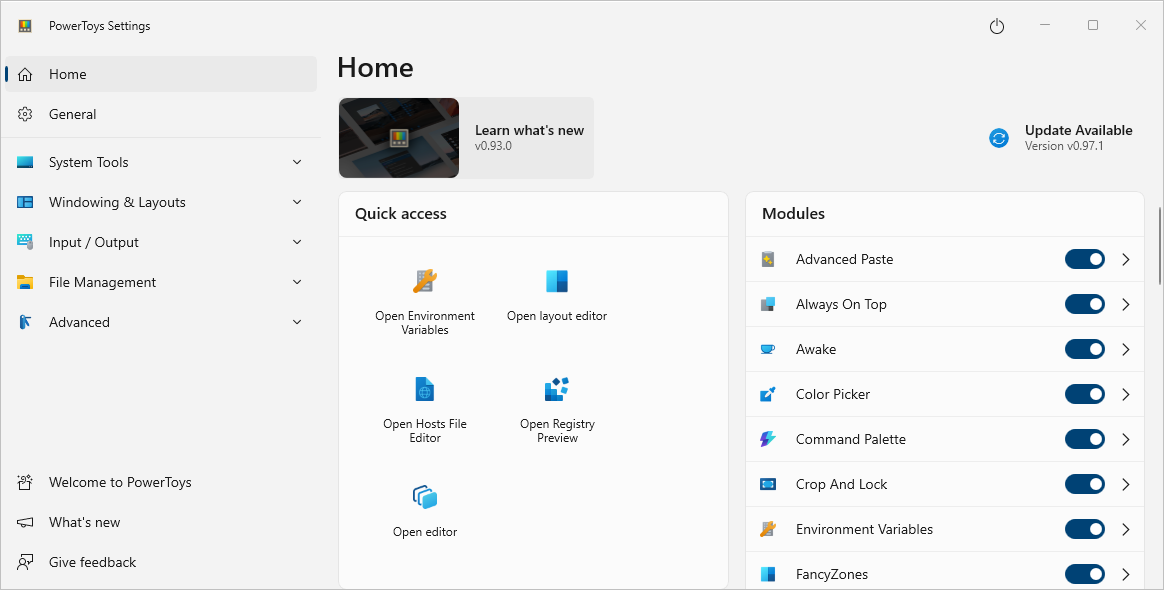
Click the arrow next to the toggle slider control to open another screen with additional info.
From this screen you can modify the shortcut to activate the Paste As JSON directly feature. I have used Win+Shift+J.
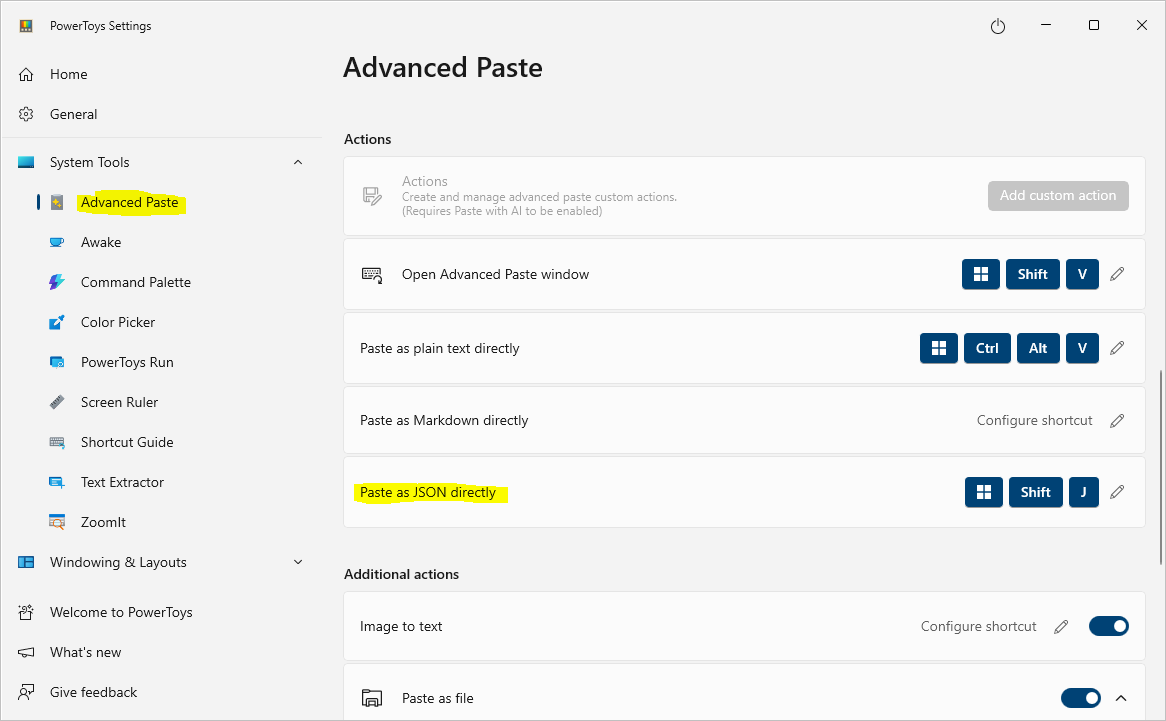
The feature replaces any formatting included with the clipboard text with a JSON formatted version of the text.
NOTE: There is also an Enable Paste with AI feature which may (possibly) be useful but I haven't tested this yet.
In my opinion, the documentation for the PowerToys Advanced Paste JSON conversion feature isn't as clear as it could be. The text to be converted MUST be well structured for this to be successful.
In my first attempts, I just copied a table, then used Win+Shift+J to paste the converted output. The result looks like a JSON file but it doesn't create paired objects and values.
For example, when I used the tool with table tblEmployees shown above, the output was:
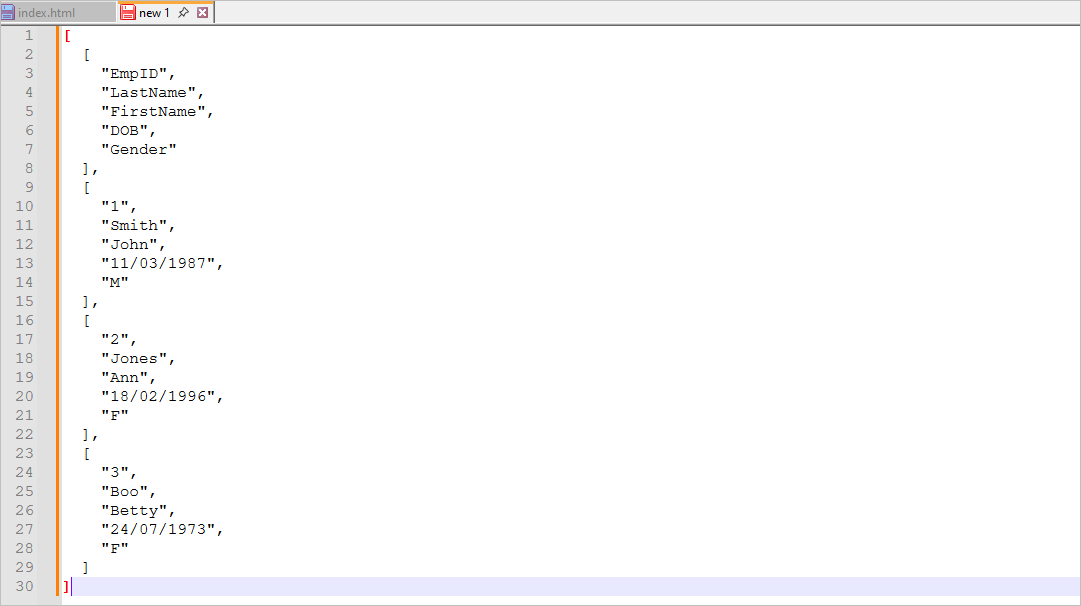
Although all the data was present, the lack of key:values pairs in the structure meant that it could not be used.
Exporting the data as text or HTML then applying the Paste as JSON feature also gave similar results to those above. Again no use for this purpose.
Finally, I exported the table data as XML:
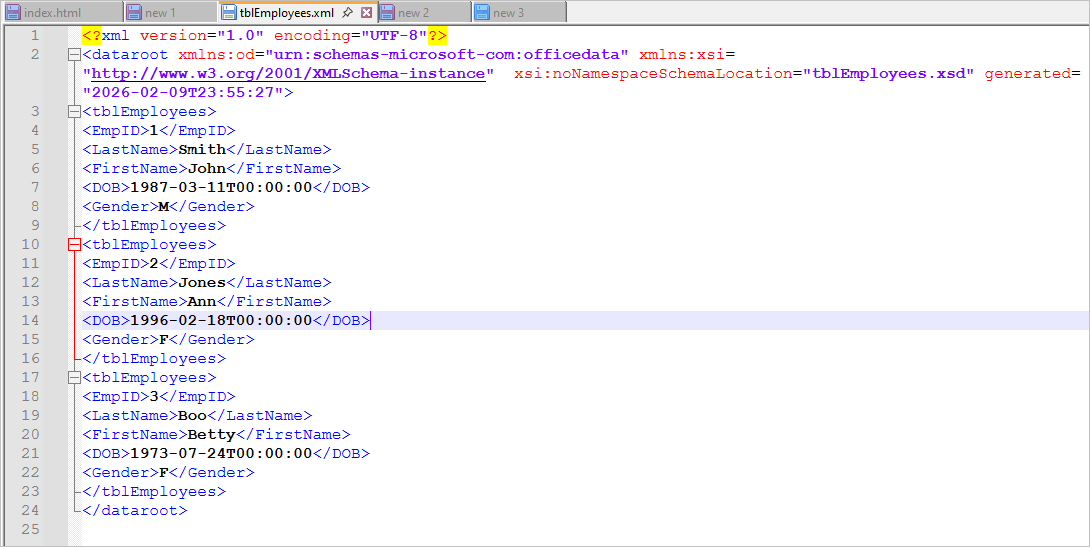
I then used Ctrl+A followed by Ctrl+C to select and copy all the text, followed by Win+Shift+J to paste it into a new Notepad++ tab.
The result was a well structured JSON file complete with key:value pairs, {} bracketing and pretty formatting.
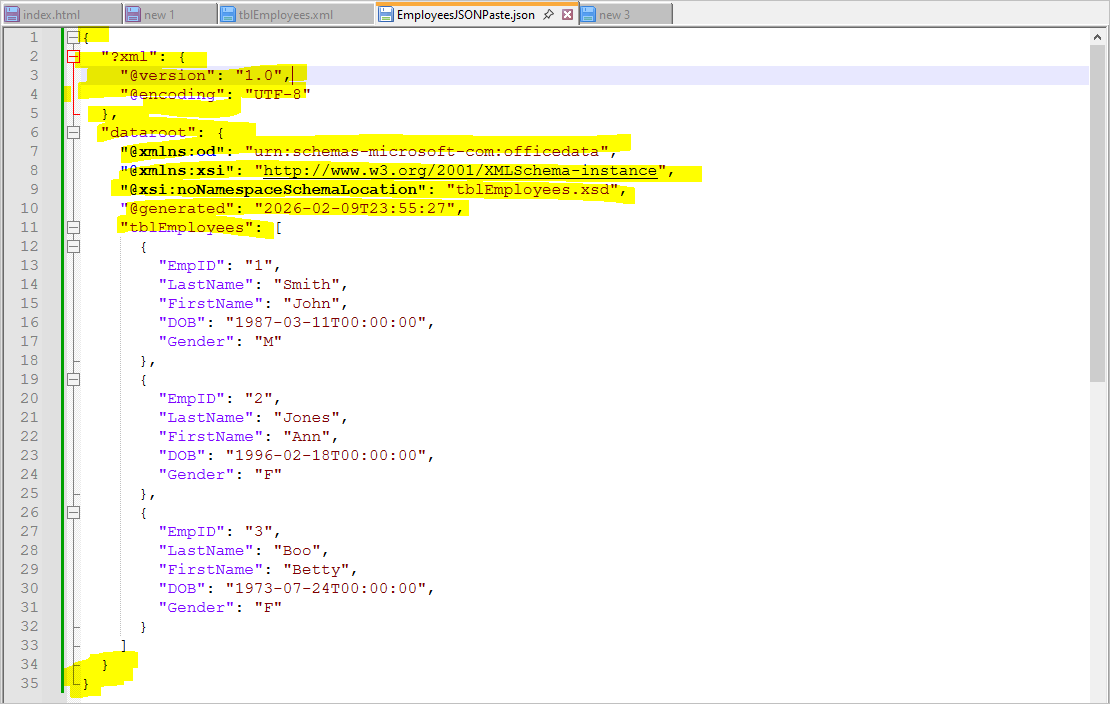
One final stage is necessary to make this a usable JSON file that can be read by other applications.
All the XML header and footer data highlighted in yellow needs to be deleted so that the file starts with a left square bracket '[' and ends with a right square bracket ']':
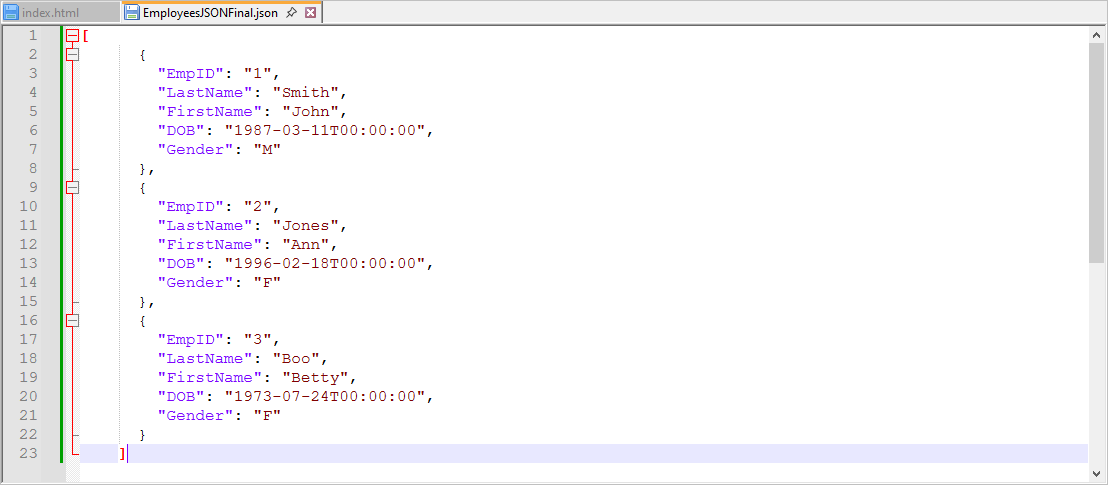
I have used this approach on a wide variety of tables and the results were perfect each time once the XML header and footer sections were removed.
The process is also very fast. For smaller tables, the JSON output is almost instantaneous. Even for large tables, the time taken is acceptable.
For example, pasting the JSON from an XML version of the table with 3116 records and 16 fields was instantaneous (compared to 167 seconds for the code listed earlier.
A larger table with almost 46,833 records and 49 fields was converted in 7 seconds. Another table with 175,547 records but only 6 fields took just 3 seconds.
NOTE:
• In each case, creating the XML files from Access in the first place took a similar time to the subsequent conversions to JSON.
• However a huge table of about 1.33 million records and 20 fields did fail to convert from XML to JSON.
Summary
For relatively small tables, using code to create JSON files from Access tables can work well.
However, for larger tables with many records and/or fields, converting first to XML then using PowerToys Advanced Paste is far more efficient (much faster).
This approach also has the advantage of creating the JSON file in expanded (pretty) format making it far easier to read.
Feedback
Please use the E-Mail button in the contact form below to let me know whether you found this article useful or if you have any questions.
Please also consider making a donation towards the costs of maintaining this website. Thank you
| Colin Riddington | Mendip Data Systems | Last Updated 10 Feb 2026 |
|---|
|
Return to Access Articles Page
|
Return to Top
|