| First Published 19 Feb 2026 |
|---|

This is a curiosity that I've only just noticed after over 30 years of using Access.
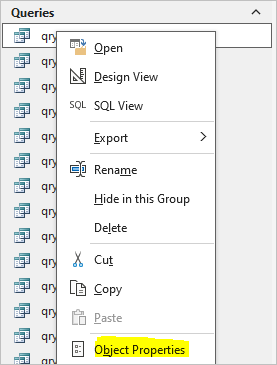
Right clicking on any database object in the navigation pane shows a context menu.
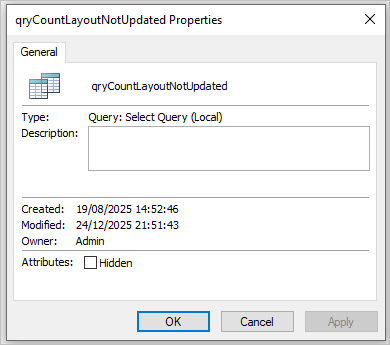
Click the object properties item (final item in the list) and the dialog appears with a checkbox allowing you to hide the object in the navigation pane.
| Nav Pane Context Menu | Object Property Sheet |
|---|---|
|
|
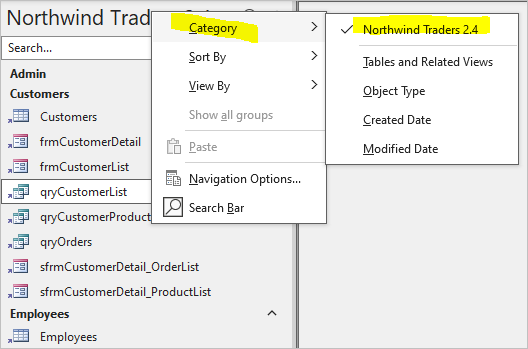
However, if the navigation pane category is set to Custom and objects are placed in custom groups, a different result occurs.
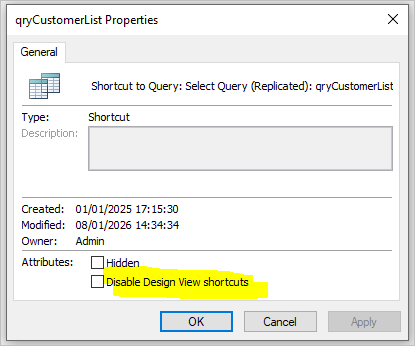
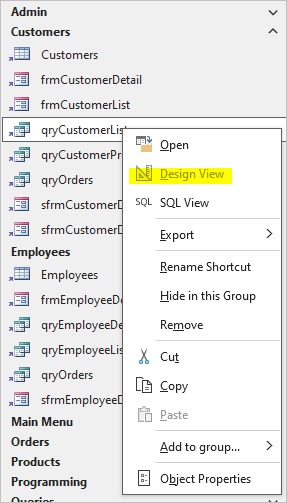
Objects in custom groups have an additional checkbox: Disable Design View Shortcuts
| Nav Pane Custom Group | Object Shortcut Property Sheet |
|---|---|
|
|
When that checkbox is ticked, Design view is then disabled in the navigation pane context menu . . . for that object shortcut only!
This does provide a very limited level of security against users accidentally modifying the design of objects in an ACCDB file. However, that is easily circumvented by doing any of the following:
• unticking the checkbox in the property sheet
• removing the object from the custom group
• changing the nav pane category to e.g. Object Type
So why does this option exist? To be honest, I'm not really sure.
Normally if you want to disable design view, you should distribute your database as an ACCDE file. However, this only disables design view for forms, reports and modules.
A stronger level of security can be obtained by disabling or hiding the Design View menu item which works for all objects in both ACCDE and ACCDE files.
This approach uses commandbars and is explained in my article: Disable Database Object Design View in ACCDB Files
Feedback
Please use the E-Mail button in the contact form below to let me know whether you found this article useful or if you have any questions.
Please also consider making a donation towards the costs of maintaining this website. Thank you
| Colin Riddington | Mendip Data Systems | Last Updated 19 Feb 2026 |
|---|
|
Return to Access Blog Page
|
Return to Top
|