| First Published 23 Jan 2026 | Last Updated 31 Jan 2026 | Difficulty level : Moderate |
|---|

The first article in this series showed how you can easily create the new style message boxes in Access using the WizMsgBox function (part of the hidden and undocumented Wizhook object).
I also discovered that recent changes to the way that the Eval function works with message boxes in Access have resulted in a change to the appearance of the messages it creates.
To explain this, I need to provide some additional context
Using the Eval function with the VBA MsgBox
The standard VBA MsgBox function uses this syntax where arguments in [] are optional:
MsgBox (Prompt, [Buttons As VbMsgBoxStyle = vbOKOnly], [Title], [HelpFile, Context]) As VbMsgBoxResult
The entire MsgBox can be wrapped with the Eval function as follows:
Eval ("MsgBox(""" & Prompt & """, " & Buttons & ", """ & Title & """, """ & HelpFile & """, " & Context & ")")
The prompt text can be split into up to 3 blocks separated by '@' symbols. For example:
Eval("MsgBox(""Bold text here@First line normal text.@Second line normal text."", 49, ""Eval MsgBox Title"", ""https://isladogs.co.uk/eval-new-style-msgbox/"",0)")
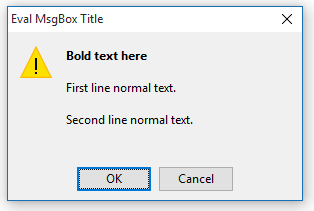
Until recently, the output when using Eval("MsgBox()") function was as follows. These screenshots are from Access 2010:
Eval MsgBox (HelpFile & Context omitted)
|
Eval MsgBox (HelpFile & Context included)

|
|---|
In both cases, all the text before the first '@' is in bold. This feature was identical to the old-style built-in Access message box (NOT the VBA MsgBox).
Including the HelpFile and Context arguments adds a Help button which, when clicked, opens the specified help page. This was also in the old-style Access message box and the VBA MsgBox.
Notice also the differences in vertical aligment and spacing in each case. This was more significant than I originally realised.
Using the FormattedMsgBox function
My FormattedMsgBox function acts as a wrapper to the Eval function to make it easier to work with.
Public FunctionFormattedMsgBox(PromptAs String,OptionalButtonsAsVbMsgBoxStyle=vbOKOnly, _OptionalTitleAs String="",OptionalHelpFileAs Variant,OptionalContextAs Variant)AsVbMsgBoxResultOn Error GoToErr_Handler'Originally from http://www.trigeminal.com/usenet/usenet015.aspIfIsMissing(HelpFile)OrIsMissing(Context)ThenFormattedMsgBox=Eval("MsgBox("""&Prompt& _""", "&Buttons& ", """&Title& """)")ElseFormattedMsgBox=Eval("MsgBox("""&Prompt& _""", "&Buttons& ", """&Title& """, """& _HelpFile& """, "&Context& ")")End IfExit_Handler:Exit FunctionErr_Handler:IfErr= 13Then Exit FunctionMsgBox"Error "&Err.Number& " in FormattedMsgBox procedure : "&Err.DescriptionResumeExit_HandlerEnd Function
As with my Wizhook MsgBoxW function, this can be improved by making use of a helper function, GetAppTitle.
By including this, we no longer need to specify a title. Where the title is omitted, the message uses the application title property when this has been set in Access Options.
Where this is blank, the message title defaults to 'Microsoft Access'.
Public FunctionFormattedMsgBox(PromptAs String,OptionalButtonsAsVbMsgBoxStyle=vbOKOnly, _OptionalTitleAs String= "",OptionalHelpFileAs Variant,OptionalContextAs Variant)AsVbMsgBoxResultOn Error GoToErr_Handler'Originally from http://www.trigeminal.com/usenet/usenet015.aspIfTitle= ""ThenTitle=GetAppTitle'CR 24/01/2026IfIsMissing(HelpFile)OrIsMissing(Context)ThenFormattedMsgBox=Eval("MsgBox("""&Prompt& _""", "&Buttons& ", """&Title& """)")ElseFormattedMsgBox=Eval("MsgBox("""&Prompt& _""", "&Buttons& ", """&Title& """, """& _HelpFile& """, "&Context& ")")End IfExit_Handler:Exit FunctionErr_Handler:IfErr= 13Then Exit FunctionMsgBox"Error "&Err.Number& " in FormattedMsgBox procedure : "&Err.DescriptionResumeExit_HandlerEnd Function'----------------------------------------------Private FunctionGetAppTitle()As StringDimdbAsDAO.Database,prpAs PropertyOn Error GoToErr_HandlerSetdb=CurrentDbGetAppTitle=db.Properties("AppTitle")Exit_Handler:Exit FunctionErr_Handler:Select CaseErr.NumberCase3270'Property Not Found'db doesn't have an app titleGetAppTitle= "Microsoft Access"Case ElseMsgBox"Error "&Err.Number& " "&Err.Description& " in procedure GetAppTitle",vbCritical, "GetAppTitle error"End SelectResumeExit_HandlerEnd Function
Using the FormattedMsgBox function, the previous Eval message box can now be written more simply as:
FormattedMsgBox "Bold text here!@First line normal text.@Second line normal text.",vbOKCancel + vbExclamation, "FormattedMsgBox Title"
OR . . .
FormattedMsgBox "Bold text here!@First line normal text.@Second line normal text.",vbOKCancel + vbExclamation, "FormattedMsgBox Title", _
"https;//isladogs.co.uk/eval-new-style-msgbox/index.html", 1
The results in this case, again using Access 2010, are as follows:
Formatted MsgBox (HelpFile & Context omitted)

Formatted MsgBox (HelpFile & Context included)

As you would expect, the results are identical to those before, including the differences in vertical spacing.
I have used the FormattedMsgBox function extensively for over 20 years, usually without including a HelpFile.
I have always preferred the slightly expanded layout even though I was aware that the 'reduced version' accurately reproduced the old style built-in Access message box.
However, following discussions with fellow UK developer, Neil Sargent, I was puzzled as to why he was seeing the 'new style' message box using the Eval("MsgBox()") function whilst I was still seeing the 'old style' message box. As a result, I did some further investigation.
To my surprise, I discovered that in recent versions of Access it is possible to create both styles of message box using the FormattedMsgBox or Eval ("MsgBox()") functions.
The output style depends on whether or not the optional HelpFile and Context arguments are used.
The screenshots below are from current versions of Access 365:
| Old Style Message Box Eval / Formatted MsgBox (HelpFile & Context omitted) 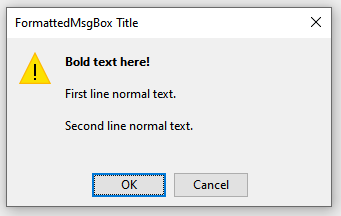
|
New Style Message Box Eval / Formatted MsgBox (HelpFile & Context included) 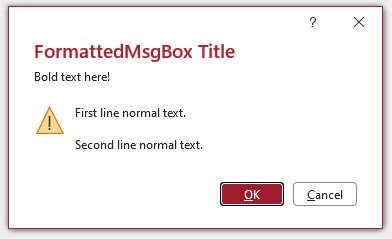
|
|---|
The message on the left is identical to that obtained using older versions of Access.
The message on the right is the new style Access message box where the help file is accessed by clicking the small '?' button at the top right.
So where does this leave us?
At first sight, this was very confusing. However, potentially we now have the best of both worlds!
Using the FormattedMsgBox / Eval("MsgBox()") function with all arguments included, now references the new built-in Access message box.
This also applies to the WizHook WizMsgBox where all arguments are required.
However, by omitting the HelpFile & Context arguments, the old style message with the bold header text is still available for those who prefer it.
The best approach is a matter of personal preference:
1. If you want to make use of both message styles in your apps, no changes are needed to the FormattedMsgBox code shown above.
2. If you only want to use the old style messages, you could modify the FormattedMsgBox function to only allow the first 3 arguments:
'Version with only 3 argumentsPublic FunctionFormattedMsgBox(PromptAs String,OptionalButtonsAsVbMsgBoxStyle=vbOKOnly, _OptionalTitleAs String= "")AsVbMsgBoxResultOn Error GoToErr_HandlerIfTitle= ""ThenTitle=GetAppTitleFormattedMsgBox=Eval("MsgBox("""&Prompt& """, "&Buttons& ", """&Title& """)")Exit_Handler:Exit FunctionErr_Handler:IfErr= 13Then Exit FunctionMsgBox"Error "&Err.Number& " in FormattedMsgBox procedure : "&Err.DescriptionResumeExit_HandlerEnd Function
3. If you only want to use the new style messages, modify the FormattedMsgBox function to always reference all 5 arguments (even if not used)
'Version with all 5 argumentsPublic FunctionFormattedMsgBox(PromptAs String,OptionalButtonsAsVbMsgBoxStyle=vbOKOnly, _OptionalTitleAs String= "",OptionalHelpFileAs String= "",OptionalContextAs Long= 0)AsVbMsgBoxResultOn Error GoToErr_HandlerIfTitle= ""ThenTitle=GetAppTitleFormattedMsgBox=Eval("MsgBox("""&Prompt& """, "&Buttons& ", """&Title& """, """&HelpFile& """, "&Context& ")")Exit_Handler:Exit FunctionErr_Handler:IfErr= 13Then Exit FunctionMsgBox"Error "&Err.Number& " in FormattedMsgBox procedure : "&Err.DescriptionResumeExit_HandlerEnd Function
The new style message is then shown even if the optional HelpFile & Context arguments are left blank or omitted.
However, the small '?' (help) button is only displayed next to the X close button if you use a value for lngHelpID that is greater than 0.
Alternatively, use my MsgBoxW function based on the Wizhook WizMsgBox function. The behaviour / features are identical.
4. Whichever approach you choose to use, if you want all existing and future messages to use that style, simply rename the FormattedMsgBox function as MsgBox.
By doing so, Access will use the custom MsgBox function instead of the default VBA MsgBox.
Comparison of Message Box Features
The table below compares the functionality of the different types of message box in Access 365.
| Feature | VBA MsgBox |
MessageBoxW API |
Formatted MsgBox (3 Args) |
New Style Access Message |
Formatted MsgBox (5 Args) |
Wizhook WizMsgBox |
|---|---|---|---|---|---|---|
| Large red title | No | No | No | Yes | Yes | Yes |
| Default button is red | No | No | No | Yes | Yes | Yes |
| X button becomes red on mouse over | No | No | No | Yes | Yes | Yes |
| New fluent UI icons | No | No | No | Yes | Yes | Yes |
| Supports 'Line1@Line2@Line3' notation to split prompt text into blocks | No | No | Yes | Yes | Yes | Yes |
| Bold text in first line before first '@' | No | No | Yes | No | No | No |
| Supports Unicode characters | No | Yes | Yes | Yes | Yes | Yes |
| Supports right aligned text | Yes | Yes | No | No | No | No |
| Supports right to left button layout in e.g. Arabic / Hebrew systems | Yes | Yes | No | No | No | No |
| Grows automatically with title / message length | Yes | Yes | Yes | Yes | Yes | Yes |
| Supports line breaks in message prompt | Yes | Yes | Yes | Yes | Yes | Yes |
| Wraps long lines of unbroken prompt text | Yes | Yes | No | Yes | Yes | Yes |
| Opens on the same monitor as the Access app | Yes | Yes | Yes | Yes | Yes | Yes |
| Help file functionality | Help button | No | No | '?' button | '?' button | '?' button |
| System sounds dependant on the icon | Yes | Yes | Yes | Yes | Yes | Yes |
| Changes appearance according to the Office theme used | No | No | No | Yes | Yes | Yes |
| Responds to Ease of Access settings | No | No | No | Yes | Yes | Yes |
| Maximum characters in title | 122 | 73 | 132 | 132 | 132 | 132 |
| Maximum characters in message prompt | 1023 | >30000 | >4000 | 2999 | 2999 | 2999 |
| Copy to clipboard feature | Yes | Yes | No | No | No | No |
| Vertical scrollbar if there is too much text to fit | No | No | No | No | No | No |
| Timeout feature | No | No | No | No | No | No |
NOTE:
a) All features are identical for the final 3 columns. The different messages are effectively identical.
b) None of the message boxes listed above support a timeout feature. I intend to write a follow up article on adding a timeout to message boxes in the near future.
New Style Messages in other Office Apps
The new style messages are also created in other Office apps with the title and default button in Excel green or Word blue (etc).
However those apps simply call the Windows operating system's message-box API. This means that new style messages cannot be directly replicated in e.g. Excel.
Neither Eval nor Wizhook can be used as these functions are ONLY available in Access.
Even if the Access reference library is loaded in other Office apps, using either function to create a message will then just open Access where the message will be displayed.
The only workaround to achieve similar functionality would be to create your own replica user form. This would be a lot of work!
Acknowledgements
Thanks to Axel Heyne for providing very useful data which I included in the comparison table above. See post #48 in the lengthy New Style Message Box thread at Access World Forums.
Once again, a huge thank you to Neil Sargent whose detailed feedback significantly helped refine my understanding of the processes involved in both parts of this article.
Postscript
Whilst writing this article, my Win 11 tablet was updated to Current Channel build 2512 build 19530.20184 (released 21 Jan).
I then found that all the new style messages with the red title and default button had reverted to the old style with the bold first line. This reversion also applied to Eval and Wizhook messages.
Repairing Office didn't fix this. In the end, I was able to restore the new style messages by changing to the latest Beta Channel version 2602 build 19713.20000.
After doing so, I was able to revert to the original Current Channel build and this time the new style messages were back in place.
There is no registry setting that manages the setting. It would appear that the message style is controlled by a 'feature gate type remote switch'.
For some reason, updating the Win 11 tablet had originally turned that switch off but, by changing channels, I was able to over-ride this.
Feedback
Please use the E-Mail button in the contact form below to let me know whether you found this article useful or if you have any questions.
Please also consider making a donation towards the costs of maintaining this website. Thank you
Colin Riddington Mendip Data Systems Last Updated 31 Jan 2026
Return to Access Articles Page
Page 2 of 2
1
2
Return To Top