
First Published 20 Sept 2025
Like all Office apps, Access has a large number of right click context menus which provide various actions available in that context. For example:
| Form Header Context Menu | Navigation Pane Group Header Context Menu | Query Design View Context Menu |
|---|---|---|
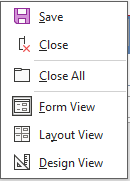 |
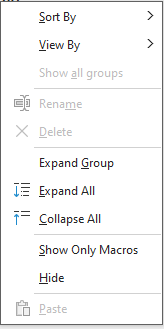 |
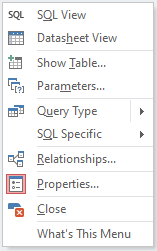 |
These context menus are managed using CommandBars, with details stored in the registry. CommandBars also manage ribbon menus, task pane wizards and the status bar.
Very rarely these right click context menus may not behave correctly, with certain commands hidden or disabled. Or the commands may not provide the usual functionality.
Problems like this are most likely to be observed after a version update and, in my experience, are most likely to occur where a commandbar has been customised, directly or indirectly.
Some examples of commandbar errors that I have seen are:
Item
CommandBar error
Correct Menu
Incorrect Menu
a)
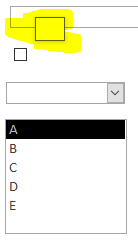
Empty context menu AKA 'Empty square' bug
All menu items are hidden leaving an empty square
In older versions of Access, this had a dotted border
For more details, see related article a) below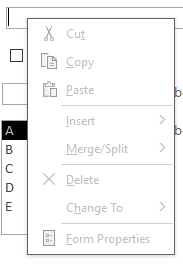
b)
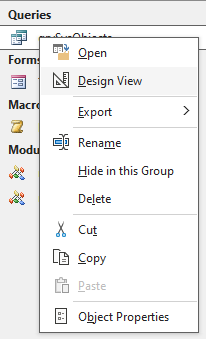
Query SQL View menu missing
SQL View was added to the navigation pane query context menu in version 2311.
Occasionally the item may be missing or not behave correctly
For more details, see related article b) below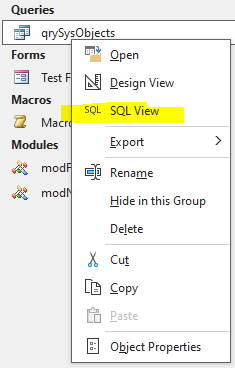
c)
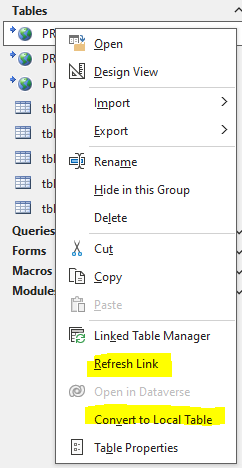
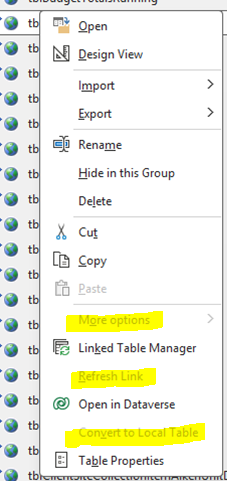
Linked table menu errors
Refresh Link / Convert to local table both disabled (as for local tables)
More options item present (but disabled) - used with SharePoint lists
Related Articles:
a) The Strange Dotted Square Bug
b) Open Queries Directly in SQL View
Fixing CommandBar Errors
1. Using Code
You can use a utility such as Dale Fye's excellent Access Shortcut Tool add-in to determine the name of the relevant commandbar and the Index value of the menu item.
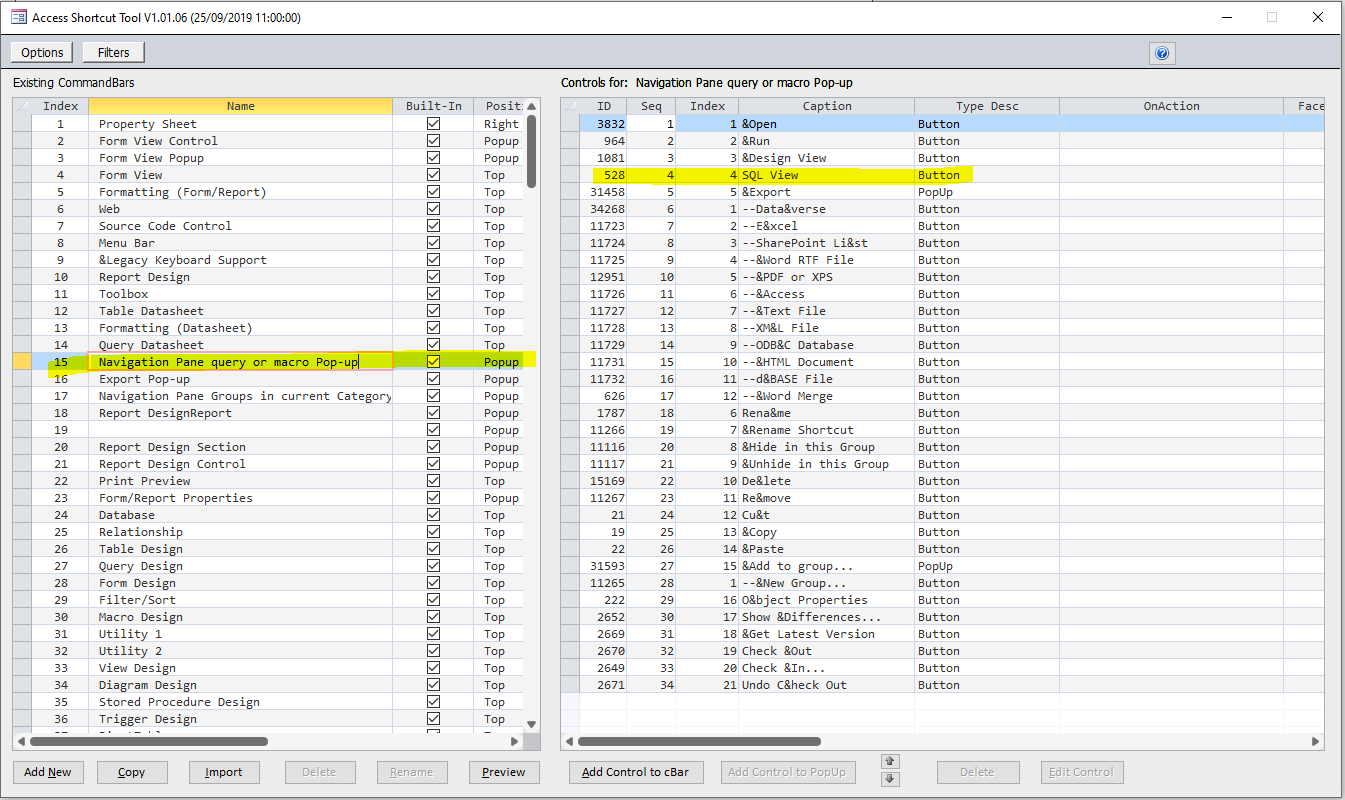
For example, the commandbar used in b) above is called Navigation Pane query or macro Pop-up and SQL View index = 4.
With this information, you can correct the error(s) using code - in this case by making the item visible.
Function FixNavPaneQueryCommandBar() With CommandBars("Navigation Pane query or macro Pop-up") .Controls(4).Visible = True 'SQL view End WithEnd Function
2. Edit the Registry
For Access 2016 onwards, all commandbar information is stored in the registry at: HKEY_CURRENT_USER\SOFTWARE\Microsoft\Office\16.0\Access\Settings\CommandBars
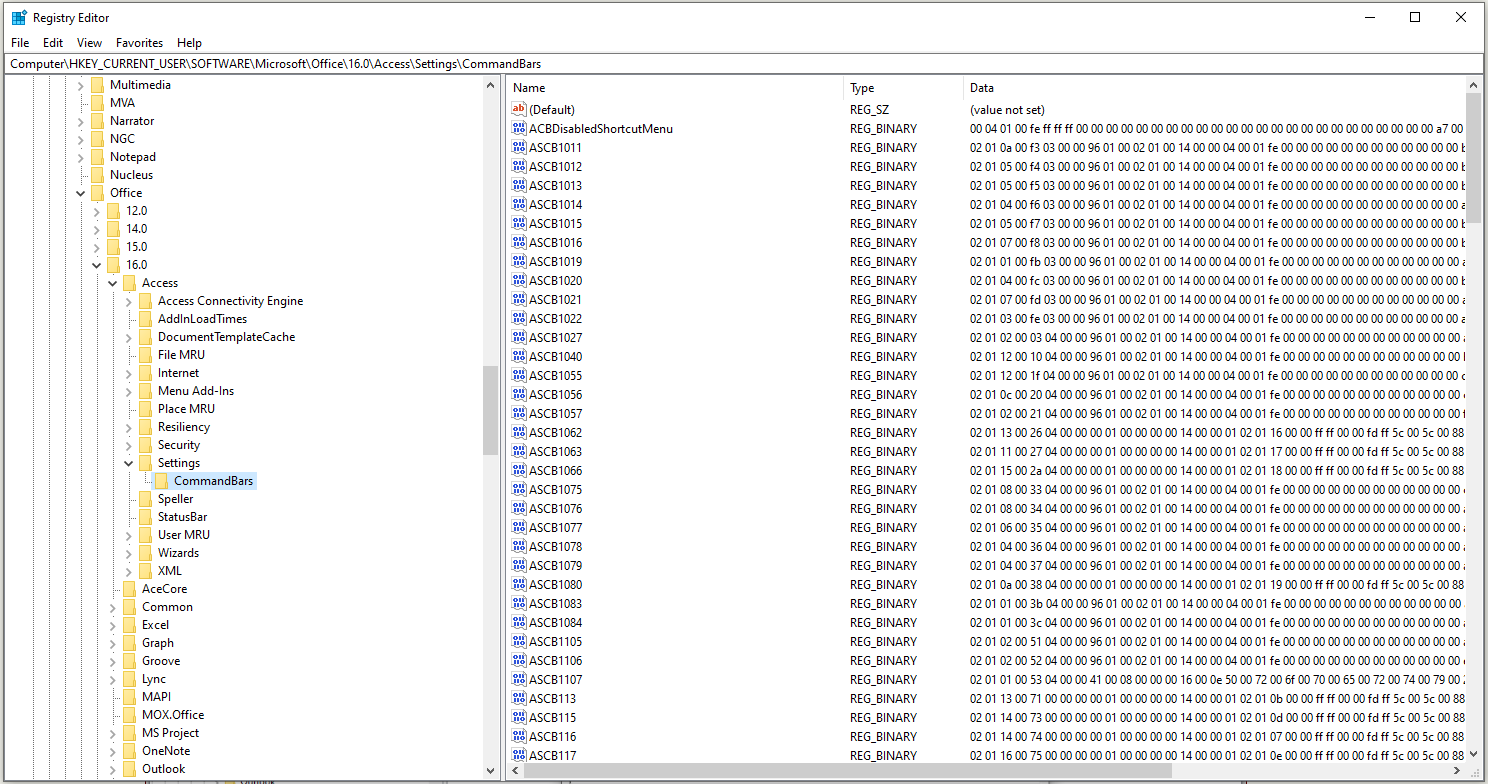
For older Access versions, replace the 16.0 with the appropriate version number e.g. Access 2010 = 14.0
If you know the name of the relevant commandbar e.g. ASCB 1107, you could delete that key. Access will automatically rebuild the registry entry when the related item is next used.
However, there is a MUCH easier way which I would strongly recommend.
It may sound drastic but is perfectly safe. However, as always when editing the registry it is a good idea to first make a backup as a precaution.
Right click on the Settings | CommandBars key and click Export to export the entire folder to a .reg text file.
Now right click again and click Delete.
Access will automatically rebuild the folder and all the commandbar keys with correct entries as each item is used.
NOTE:
Thanks to Access team member, Shane Groff, for suggesting that registry solution to me back in 2023. I have used it to successfully fix several issues since that time.
I have NEVER had any problems using this approach. However on the unlikely event it doesn't work for you, just import the backup file into the registry.
Feedback
Please use the E-Mail button in the contact form below to let me know whether you found this article useful or if you have any questions.
Please also consider making a donation towards the costs of maintaining this website. Thank you
Colin Riddington Mendip Data Systems Last Updated 20 Sept 2025
Return to Access Blog Page
Return to Top