| Version 1.2 | First Published 12 May 2026 | Last Updated 14 May 2026 |
|---|

This article arose from a question raised by a former Access MVP. His client had a complex form containing multiple subforms that he wanted to resize and reposition by dragging on the form borders. That part worked fine but below the last subform was an option group that he wanted to reposition by setting its top property. However doing this increased the height of the option group!
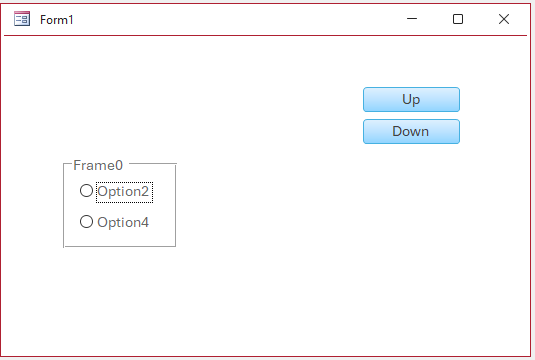
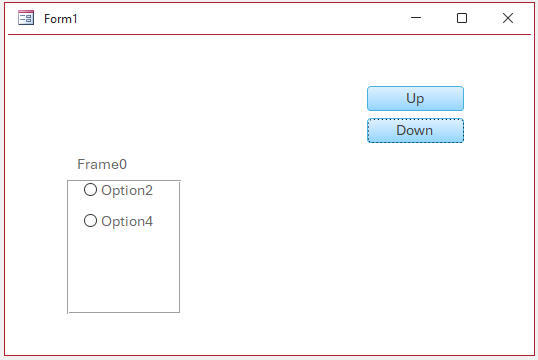
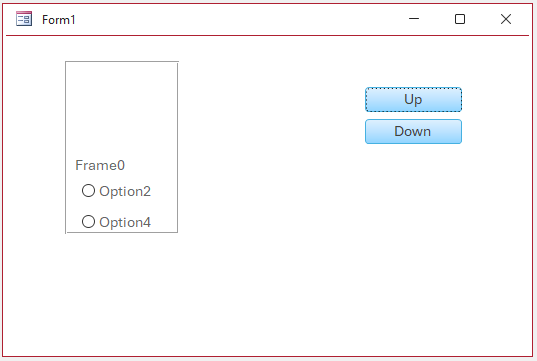
The simplified example form below shows the problem. Each button click moves the option group container frame up/down by 200 twips as shown in the short video below:.
Repeated clicks on the same button cause the height to increase because the option buttons must always stay within the option group frame so e.g. the bottom position is constrained but the code forces the top position to move up (or vice versa).
| Original form | Option group moved down | Option group moved up |
|---|---|---|
 |
 |
 |
The very simple button code used in Form1 of the attached example app is as follows:
'Form1:'This code only moves the option group frame.'The components of the option group are left behind.Private Subcmd_Down_Click()If Me.Frame0.Top+Me.Frame0.Height< 4 * 1440ThenMe.Frame0.Top=Me.Frame0.Top+ 200End IfEnd SubPrivate Subcmd_Up_Click()If Me.Frame0.Top> 200ThenMe.Frame0.Top=Me.Frame0.Top- 200End IfEnd Sub
The problem occurs because, despite the control name, the components of an option group behave independently in form view. They do not automatically move together with the container.
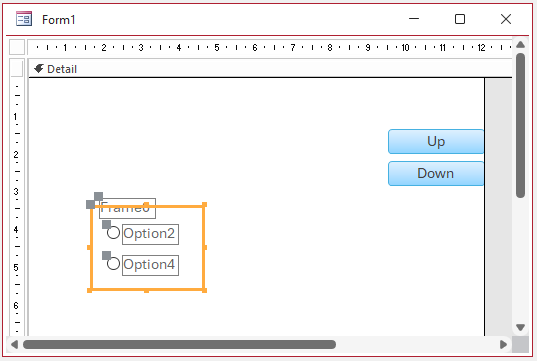
By contrast, in both design view and layout view, Access 'helpfully' manages the option group components so they do move as a group when the container frame is selected!
Design View
NOTE:
This issue does NOT affect other controls made up of several components such as subforms and tab controls. See Form0 in the attached app.
To prevent the option group height increasing in form view, the command button code should be modified to move all components together as a group.
Form2 in the example app shows a very simple way of doing this by just listing all option group components in the code:
'Form2:'This code lists all the controls of the option group to move them'as a group. It works but is inefficientPrivate Subcmd_Down_Click()If Me.Frame0.Top+Me.Frame0.Height< 4 * 1440ThenMe.Frame0.Top=Me.Frame0.Top+ 200Me.Label1.Top=Me.Label1.Top+ 200Me.Label3.Top=Me.Label3.Top+ 200Me.Label5.Top=Me.Label5.Top+ 200Me.Option2.Top=Me.Option2.Top+ 200Me.Option4.Top=Me.Option4.Top+ 200End IfEnd SubPrivate Subcmd_Up_Click()If Me.Frame0.Top> 200ThenMe.Frame0.Top=Me.Frame0.Top- 200Me.Label1.Top=Me.Label1.Top- 200Me.Label3.Top=Me.Label3.Top- 200Me.Label5.Top=Me.Label5.Top- 200Me.Option2.Top=Me.Option2.Top- 200Me.Option4.Top=Me.Option4.Top- 200End IfEnd Sub
Whilst this works, it is clearly inefficient. A better approach uses the control tag property and loops through all the controls in turn identifying which should be moved.
For example, in the following code from Form3, all the option group components have a tag value = "OG".
ConstOFFSETAs Long= 200DimctrlAsControl'Form3:'This code uses the Tag property to loop through the option group'and its controls to move them as a groupPrivate Subcmd_Down_Click()If Me.Frame0.Top+Me.Frame0.Height< 4 * 1440ThenFor EachctrlIn Me.ControlsIfctrl.Tag= "OG"Thenctrl.Top=ctrl.Top+OFFSETNextEnd IfEnd SubPrivate Subcmd_Up_Click()If Me.Frame0.Top>OFFSETThenFor EachctrlIn Me.ControlsIfctrl.Tag= "OG"Thenctrl.Top=ctrl.Top-OFFSETNextEnd IfEnd Sub
The result is that all the controls in the option group move together without the height increasing.
Another good approach was suggested by Xevi Batlle and is used in Form4. This identifies all the option group controls and loops through these in the same way.
ConstOFFSETAs Long= 200DimctrlAsControl'Form4:'This code was suggested by Xevi Batlle'It loops through all the option group controls to move them as a group.Private Subcmd_Down_Click()If Me.Frame0.Top+Me.Frame0.Height< 4 * 1440ThenFor EachctrlIn Me.ControlsIfctrl.ControlType=acOptionGroupThenctrl.Top=ctrl.Top+OFFSETCallListOptionGroupContents(ctrl,OFFSET)End IfNextEnd IfEnd SubPrivate Subcmd_Up_Click()If Me.Frame0.Top>OFFSETThenFor EachctrlIn Me.ControlsIfctrl.ControlType=acOptionGroupThenctrl.Top=ctrl.Top-OFFSETCallListOptionGroupContents(ctrl, -OFFSET)End IfNextEnd IfEnd SubSubListOptionGroupContents(optGroupAsControl,OFFSETAs Long' Loop through each control inside the option groupFor EachctrlInoptGroup.Controlsctrl.Top=ctrl.Top+OFFSETNextctrlSetctrl=NothingEnd Sub
Download
Click to download the example app used in this article:
Option Group Move v1.2 ACCDB file - Approx 0.4 MB (zipped)
As is the case for all files downloaded from the internet, first unblock the downloaded file, unzip then save to a trusted location.
For more details, see my article:
Unblock downloaded files by removing the Mark of the Web
UPDATE 14 May 2026
The above code used in Form3 and Form4 can also be used successfully when the option group controls are horizontally aligned.
Both sets of code work perfectly for small OFFSET values such as 200 twips (approx 0.35 cm).
However, for larger OFFSET values such as 800 twips (approx 1.4cm), both sets of code will give incorrect results.
There are two reasons for this:
• if the offset value is too large the components could try to move outside the frame which is prohibited
• controls in an option group are referenced from top to bottom. Changing the top property value by a large offset may alter the control order and prevent the looping code working correctly.
If you are happy to limit the offset to a relatively small value, there is no issue.
However, in the second part of this article, I will provide modified code that also works correctly with large offsets.
Feedback
Please use the E-Mail button in the contact form below to let me know whether you found this article useful or if you have any questions.
Please also consider making a donation towards the costs of maintaining this website. Thank you
| Colin Riddington | Mendip Data Systems | Last Updated 14 May 2026 |
|---|
Return to Code Samples Page
Page 1 of 2
Page 1
Page 2
Return To Top