First Published 23 Aug 2025

Introduction
VBE_Extras is an excellent add-in for the Visual Basic Editor (VBE) that works in all Office apps: Word / Excel / PowerPoint / Outlook (classic) as well as Access.
It has a huge range of features that both enhance and extend the functionality of the VBE.
I have been using parts of it extensively for about a year and have still only scratched the surface of what it can do to streamline my working practices.
The author of VBE_Extras,John Mallinson, led a presentation to the Access Europe User Group in Feb 2025 where he demonstrated some of the main features of his add-in.
The meeting was recorded and the video is available on the Access Europe YouTube channel at https://youtu.be/JSvmGNualx0 or you can click below:
Since then, the author of the add-in has continued to add new features, some of which have been particularly useful to me. I will outline several of these recent features below.
1. Copy As HTML
This is available from the Extras | Other Tools menu:
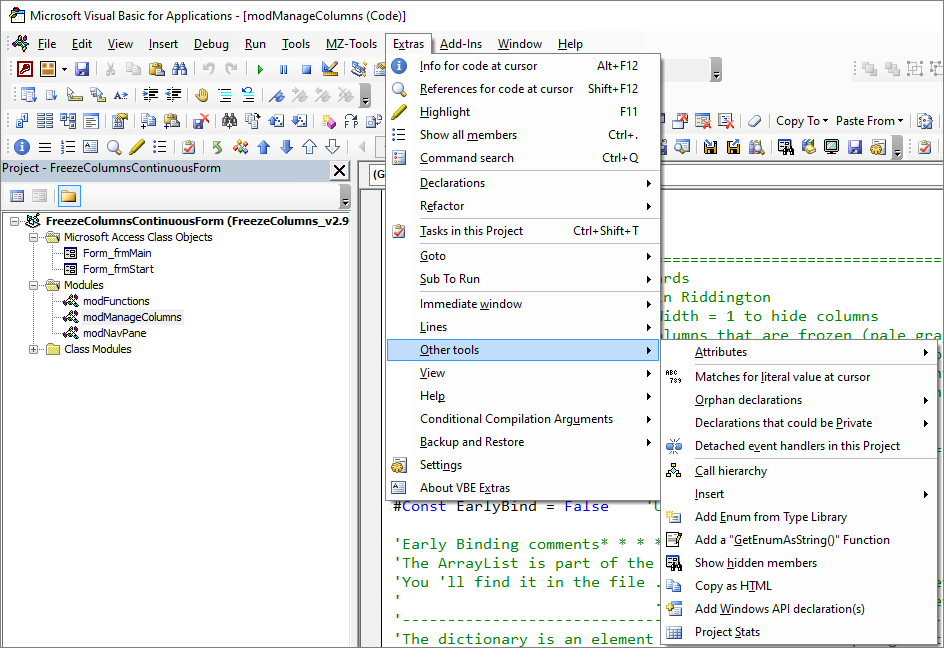
The feature is used to copy code lines or procedures as HTML for pasting into other documents. In my case, it has significantly simplified the transfer of code to my web articles.
The feature has various options that can be adapted for your purposes. These allow you to specify the colours and font for the copied VBA code, use a saved theme and specify the HTML desination / scope. The HTML created will retain the formatting / indentation of the original code
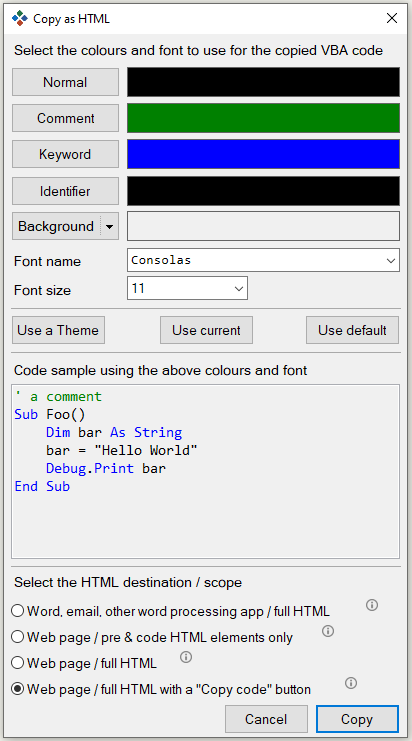
For example, I used the options shown above to automatically generate the following code block with a border and Copy Code button
SubCheckFilterFormat(frmAsForm)'Colin RiddingtonOn Error GoToErr_Handler'Used to highlight filtered columns as pale greenFor EachctlInfrm.ControlsIfctl.ControlType=acTextBoxAndstrWhereLike"*"&ctl.Name& "*"Thenctl.BackColor=colPaleGreenNextExit_Handler:Exit SubErr_Handler:IfErr= 438Then Resume Next'error for controls that have no backcolor property e.g. lineMsgBox"Error "&Err.Number& " in CheckFilterFormat procedure : "&Err.DescriptionResumeExit_HandlerEnd Sub
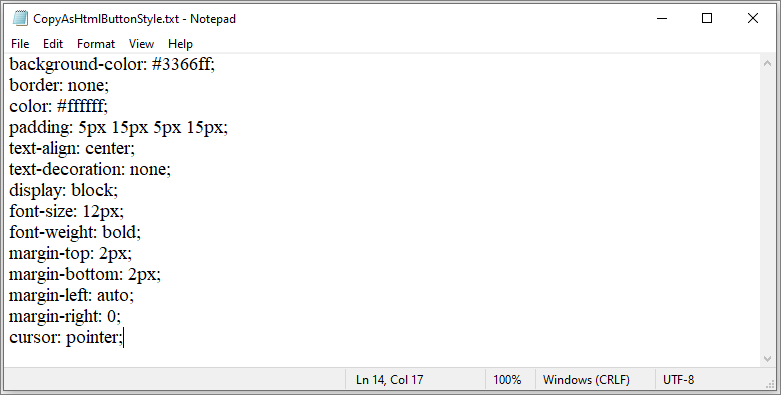
Further customisation can be done using cascading style sheet (CSS) text files in the VBE_Extras settings folder.
For example, this CSS file specifies the default button style:
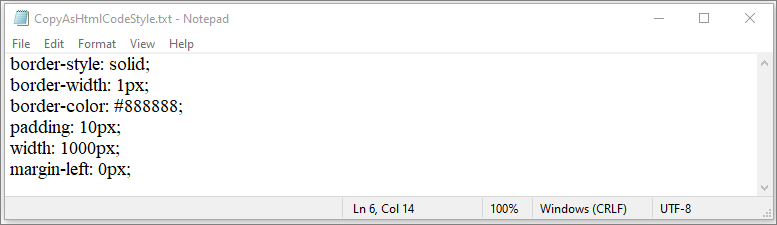
Another CSS file can be used to specify the default style for the code block:
For a detailed explanation of this feature see the VBE_Extras Help file or the blog article: Copy VBA Code in colour
2. Add Windows API declaration(s)
VBE_Extras has detailed information about around 1750 API declarations together with a even larger number of related Enums, Type statements and constants.
These can be accessed from the Extras | Other Tools menu.
A dialog box opens:
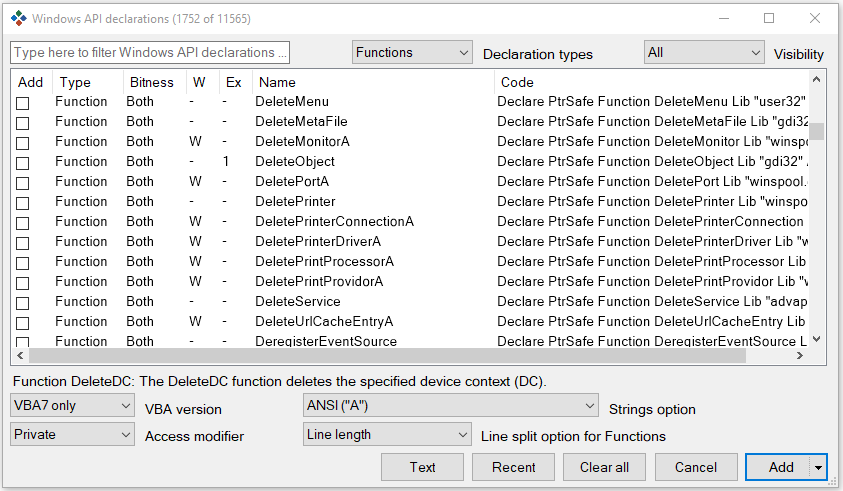
Hover over any API Name to show a popup with an outline of its purpose. For example:
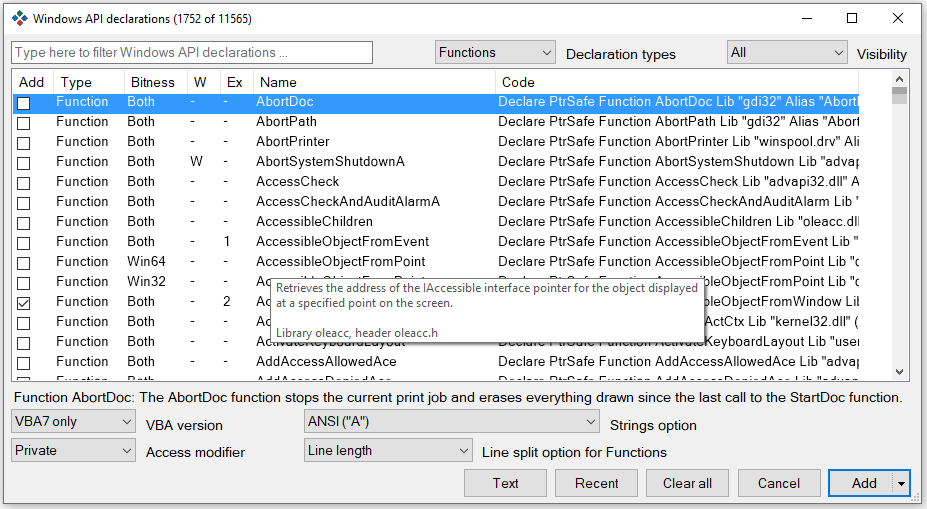
Click the Add checkbox for any APIs you want to add to your VBA project then click the Add button. The APIs will be added to the declarations section of the current module.
Where an API depends on one or more API, type statement or enum, VBE_Extras will ask whether to include those as well.
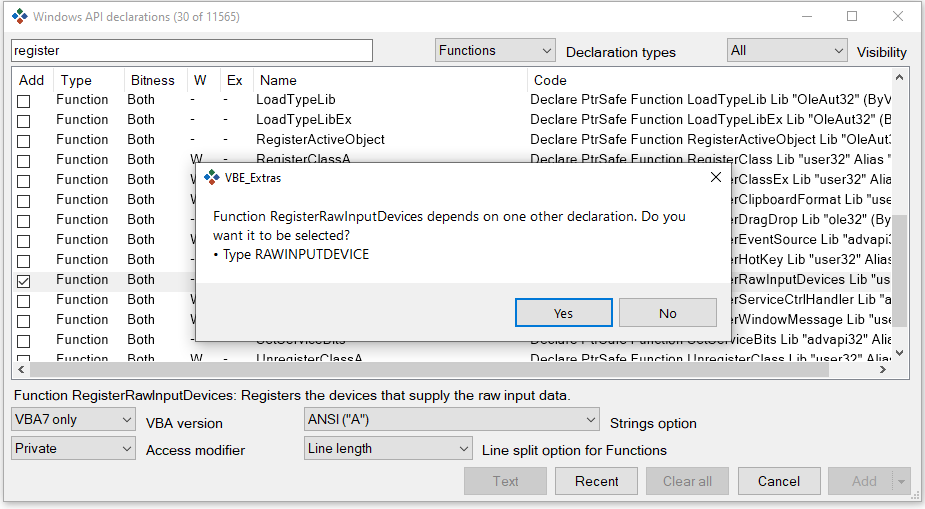
The dialog box has many options to modify / filter the output including:
• Type any string in the top left textbox to filter
• Chosse declaration type combo - functions / enums / types etc
• VBA version - VBA7 (default) or VBA7 and older. If the latter is chosen, conditional compilation is added.
• ANSI / Unicode string options
• Access modifier - Private / Public
• Line Split options
Many APIs have links to articles where an example of their use is provided. The number of examples is listed in the Ex column. For example, there are 3 examples for the ReleaseDC API.
Right click on the API to view a list of options:
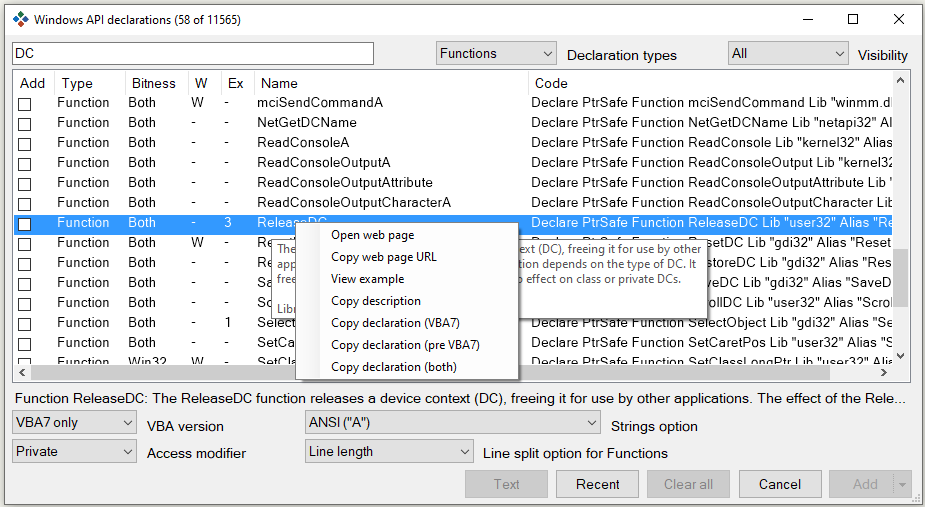
Click View example then select from the available examples:
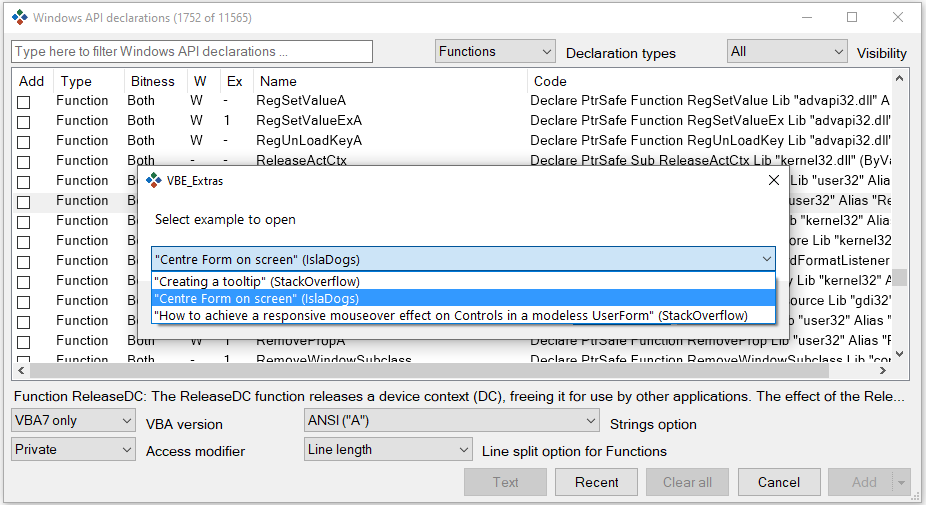
This will open the default browser to the external webpage for the selected example.
For a detailed explanation of this feature see the VBE_Extras Help file or the blog article: Automatically add Windows API declaration(s)
3. Use F1 to get help on API declarations
A built-in VBE feature is that users can select any function or keyword then click F1 to open the Microsoft help article related to the selected item.
Surprisingly, this functionality is not 'natively' available from the VBE for API declarations, types, enums etc. If you click F1 on any of those items, a 'Keyword not found' web page will open.
However, VBE_Extras extends the use of the F1 key to open the related Microsoft help article for any API (etc) known to VBE_Extras. According to the documentation, this currently works for almost 10,000 declararations.
For more details of this feature, see the VBE_Extras Help file or the blog article: Using 'F1' to view Windows API web pages
Trial Version / Full Version
The features described above are just a small subset of the many items available with VBE_Extras.
I am not in any way involved with the development of this Office add-in. However, I would strongly recommend it for anyone doing development work with Office applications.
VBE_Extras can be downloaded (as a 60 day free trial with full functionality) from Download VBE_Extras
If you find the add-in useful, you can purchase the fully licensed version for just $30 USD per year from VBE_Extras licences
Feedback
Please use the E-Mail button in the contact form below to let me know whether you found this article useful or if you have any questions.
Please also consider making a donation towards the costs of maintaining this website. Thank you
Colin Riddington Mendip Data Systems Last Updated 23 Aug 2025
|
Return to Access Blog Page
|
Return to Top
|