| Version 1.03 | First Published 25 March 2026 |
|---|

Introduction
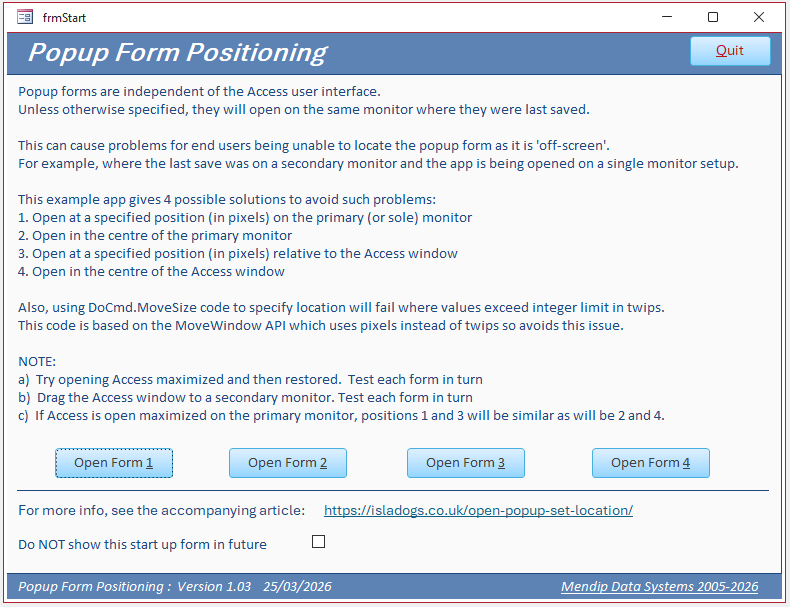
Popup forms are independent of the Access user interface.
Unless otherwise specified, they will open on the same monitor where they were last saved.
This can cause problems for end users being unable to locate the popup form as it is 'off-screen'.
For example, where the last save was on a secondary monitor and the app is being opened on a single monitor setup.
This example app gives 4 possible solutions to avoid such problems:
1. Open at a specified position (in pixels) on the primary (or sole) monitor
2. Open in the centre of the primary monitor
3. Open at a specified position (in pixels) relative to the Access window
4. Open in the centre of the Access window
NOTE:
a) Try opening Access maximized and then restored. Resize or move the Access window. Test each form in turn.
b) Drag the Access window to a secondary monitor. Test each form in turn.
The screenshot below is for a single monitor with a very small Access window near the top right of the monitor:
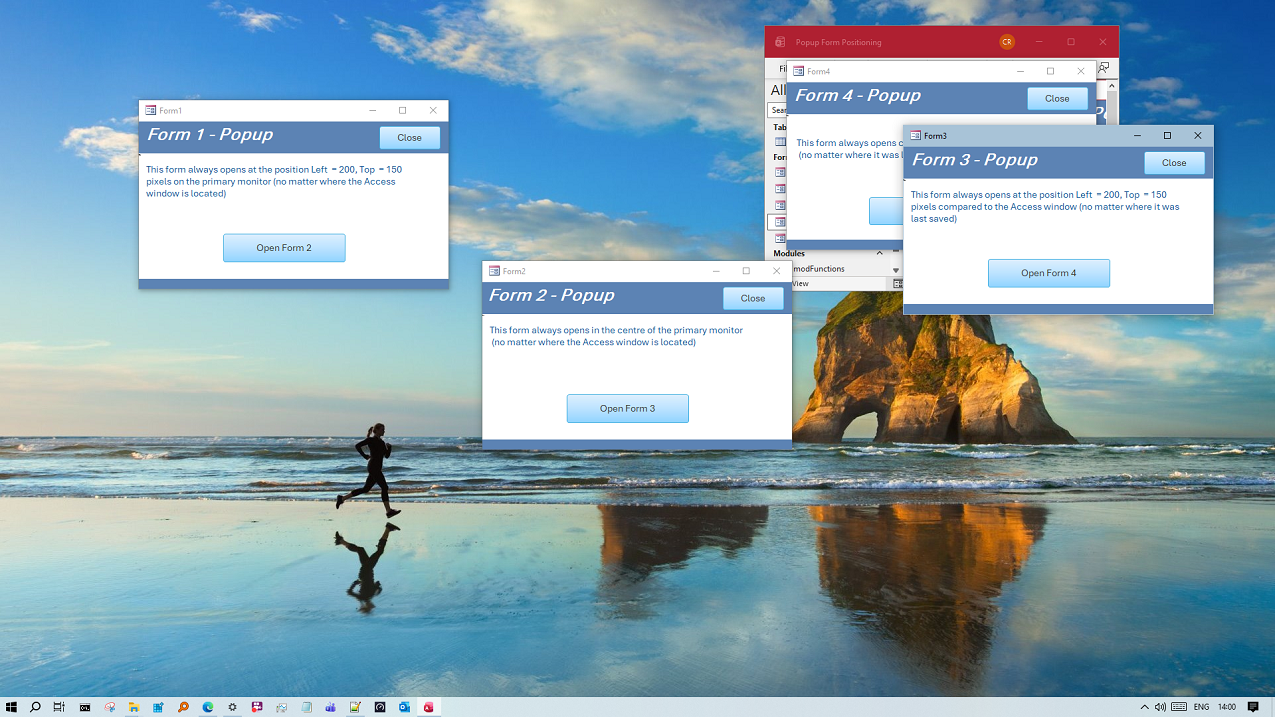
If Access is open maximized on the primary monitor (or a single monitor), the positions of forms 1 and 3 will be similar as will be forms 2 and 4.
The next screenshot shows the result on a two monitor setup with the primary monitor on the left and a maximized Access window on the right monitor:
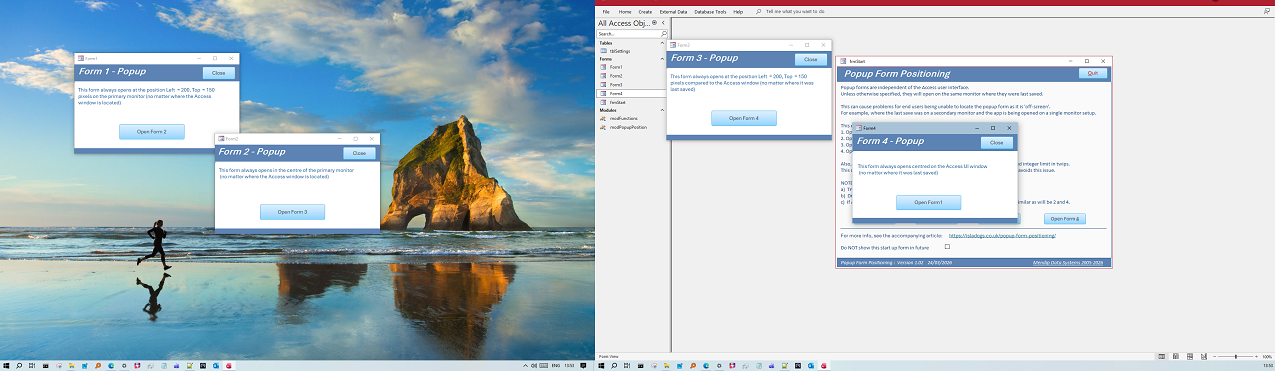
The final screenshot shows the same two monitor setup but with the primary monitor on the right and a restored Access window on the left monitor:
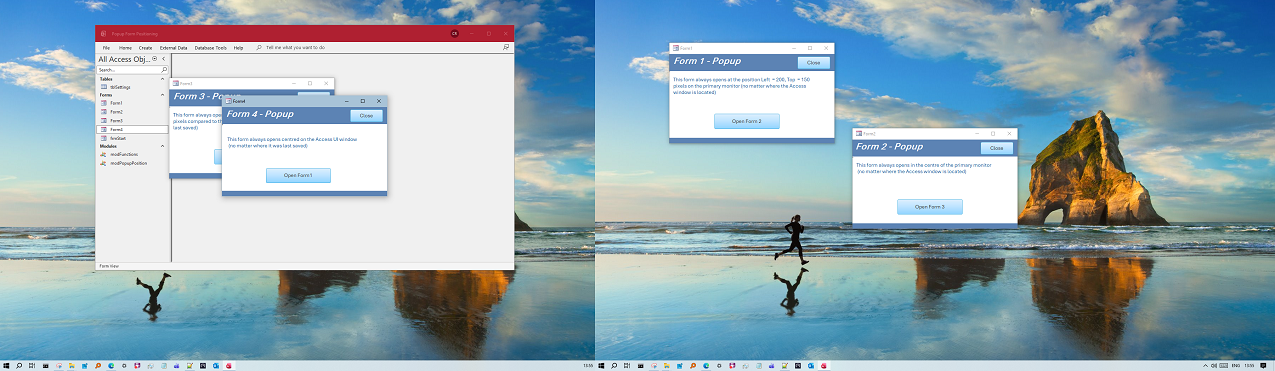
How the Code Works
The standard method of specifying the startup position for a form is using DoCmd.MoveSize code in the Form_Load event.
Syntax:
DoCmd.MoveSize (Right, Down, Width, Height) where all values are in twips (1440 twips = 1 inch; 567 twips = 1 cm.
For example, using DoCmd.MoveSize 4000, 2000 will open a form with the top left corner 4000 twips from the left and 2000 twips down from the top left of the containing window.
For a standard Access form, the containing window is the Access application user interface. For a popup form, the containing window is the primary monitor.
However code like this will fail where either of the values exceed the integer limit (32767) in twips.
For example, if you have a two monitor setup with the primary monitor on the left and the Access application open on the right monitor.
To avoid this issue, the code used here is instead based on the MoveWindow API which uses pixels instead of twips. Normally, 1 pixel = 15 twips; 96 pixels = 1 inch.
Module Code:
Import this code into a standard module e.g. modPopupPosition
Option Compare DatabaseOption Explicit'---------------------------------------------------------------------------------------' Form : modPopupPosition' DateTime : 10/12/2022' Author : Colin Riddington (Mendip Data Systems)' Website : https://www.isladogs.co.uk' Purpose : Code to open popup forms at specified locations on primary monitor or relative to Access window' Copyright : The code in the utility MAY be altered and reused in your own applications' provided the copyright notice is left unchanged (including Author, Website and Copyright)' You are NOT allowed to sell, resell or repost this on other sites such as online forums' without permission from the author. However, links back to the above websites ARE allowed.' If you find this code useful please place a link to my website on your own web site' so that others may benefit as well.' Updated : March 2026.'---------------------------------------------------------------------------------------'===========================' Windows API Declarations'===========================Private Type RECT Left As Long Top As Long Right As Long Bottom As LongEnd Type'API to get window sizePrivate Declare PtrSafe Function GetWindowRect Lib "user32" (ByVal hWnd As LongPtr, lpRect As RECT) As Long'API to select window for primary monitorPrivate Declare PtrSafe Function GetDesktopWindow Lib "user32" () As LongPtr'API to move the selected window (form)Private Declare PtrSafe Function MoveWindow Lib "user32" _ (ByVal hWnd As LongPtr, ByVal X As Long, ByVal Y As Long, _ ByVal nWidth As Long, ByVal nHeight As Long, _ ByVal bRepaint As Long) As Long'===========================' ENUM: Popup behaviours'===========================Public Enum PopupPositionMode OffsetPrimary = 1 CentrePrimary = 2 OffsetAccess = 3 CentreAccess = 4End Enum'===========================' MAIN ENTRY POINT'===========================Public Sub PositionPopup(frm As Form, _ ByVal Mode As PopupPositionMode, _ Optional ByVal Xpx As Long = 0, _ Optional ByVal Ypx As Long = 0) Dim rDesk As RECT Dim rAccess As RECT Dim rForm As RECT Dim hForm As LongPtr Dim hAccess As LongPtr hForm = frm.hWnd hAccess = Application.hWndAccessApp ' Desktop (primary monitor) GetWindowRect GetDesktopWindow(), rDesk ' Access window GetWindowRect hAccess, rAccess ' Form current size GetWindowRect hForm, rForm Dim formW As Long: formW = rForm.Right - rForm.Left Dim formH As Long: formH = rForm.Bottom - rForm.Top Dim newX As Long, newY As Long Select Case Mode '========================================== ' 1. SPECIFIED LOCATION ON PRIMARY MONITOR '========================================== Case OffsetPrimary newX = rDesk.Left + Xpx newY = rDesk.Top + Ypx '========================================== ' 2. CENTRE OF PRIMARY MONITOR '========================================== Case CentrePrimary newX = rDesk.Left + ((rDesk.Right - rDesk.Left) - formW) \ 2 newY = rDesk.Top + ((rDesk.Bottom - rDesk.Top) - formH) \ 2 '========================================== ' 3. SPECIFIED LOCATION RELATIVE TO ACCESS '========================================== Case OffsetAccess newX = rAccess.Left + Xpx newY = rAccess.Top + Ypx '========================================== ' 4. CENTRE OF ACCESS WINDOW '========================================== Case CentreAccess newX = rAccess.Left + ((rAccess.Right - rAccess.Left) - formW) \ 2 newY = rAccess.Top + ((rAccess.Bottom - rAccess.Top) - formH) \ 2 End Select '=========================== ' APPLY POSITION '=========================== MoveWindow hForm, newX, newY, formW, formH, TrueEnd Sub
You can now use the PositionPopup procedure with suitable arguments to specify the position of any popup form with just one line of code in the Form_Load event:
1. Specified Location on the primary monitor
Private SubForm_Load()PositionPopupMe,OffsetPrimary, 200, 150End Sub
2. Centre of primary monitor
Private SubForm_Load()PositionPopupMe,CentrePrimaryEnd Sub
3. Specified location relative to the Access UI window
Private SubForm_Load()PositionPopupMe,OffsetAccess, 200, 150End Sub
4. Centred on the Access UI window
Private SubForm_Load()PositionPopupMe,CentreAccessEnd Sub
Choose the approach that works best for your purposes.
Alternatively, the module code could be easily adapted to 'snap' the popup form to one of the corners of the Access window or primary monitor.
Download
Click to download:
Popup Form Positioning v1.03 (ACCDB - approx 0.6 MB (zipped)
As is the case for all files downloaded from the internet, first unblock the downloaded file, unzip then save to a trusted location.
For more details, see my article:
Unblock downloaded files by removing the Mark of the Web
Version History
| Version | Release Date | Notes |
|---|---|---|
| 1.02 | 2026-03-23 | Initial release |
| 1.03 | 2026-03-25 | Fixed broken link on start form. Removed unused APIs. Thanks to Xevi Batlle for informing me of both issues. |
Feedback
Please use the E-Mail button in the contact form below to let me know whether you found this article useful or if you have any questions.
Please also consider making a donation towards the costs of maintaining this website. Thank you
| Colin Riddington | Mendip Data Systems | Last Updated 25 March 2026 |
|---|
|
Return to Code Samples Page
|
Return to Top
|