| First Published 27 Feb 2026 | Last Updated 3 Mar 2026 |
|---|

All Access developers will be aware that you can change the appearance of each form section (header/detail/footer) and the border style (sizable / thin / none / dialog) either from the property sheet or in code.
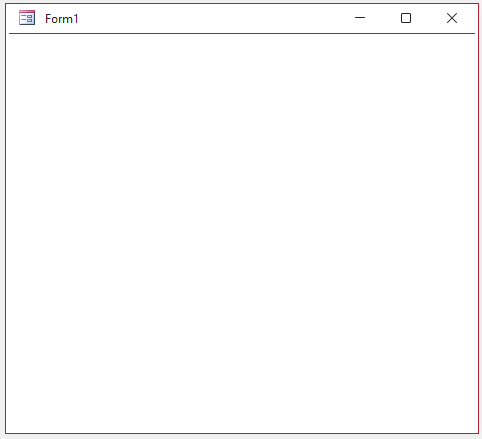
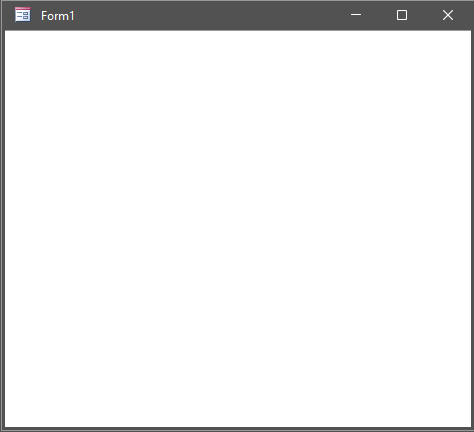
For standard forms, there are no options to change the title bar colour or border colour other than by changing the Office theme.
| White / Colorful Theme | Black / Dark Grey Theme |
|---|---|
 |
 |
However, additional customisation is possible for popup forms as these are top level windows and independent of the Access user interface.
1. Customisation using Windows Settings (Windows 10 AND 11)
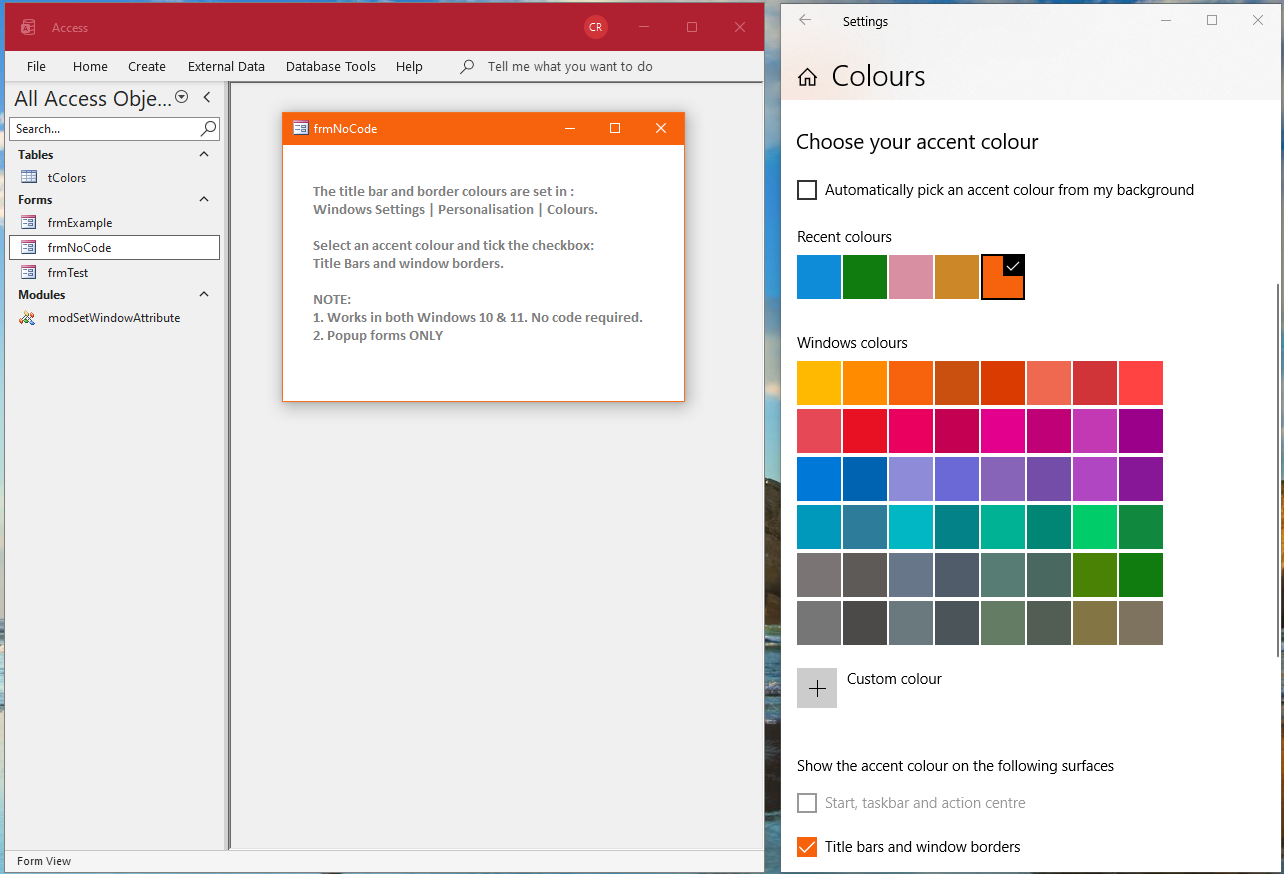
In both Windows 10 and 11, this can be done from Windows Settings | Personalisation | Colours.
Select an accent colour and tick the checkbox Title Bars and window borders.
The title bar & border colour of Access popup forms will be updated to match the selected accent colour when the form is active. For example:
Orange Accent Colour:
Purple Accent Colour:
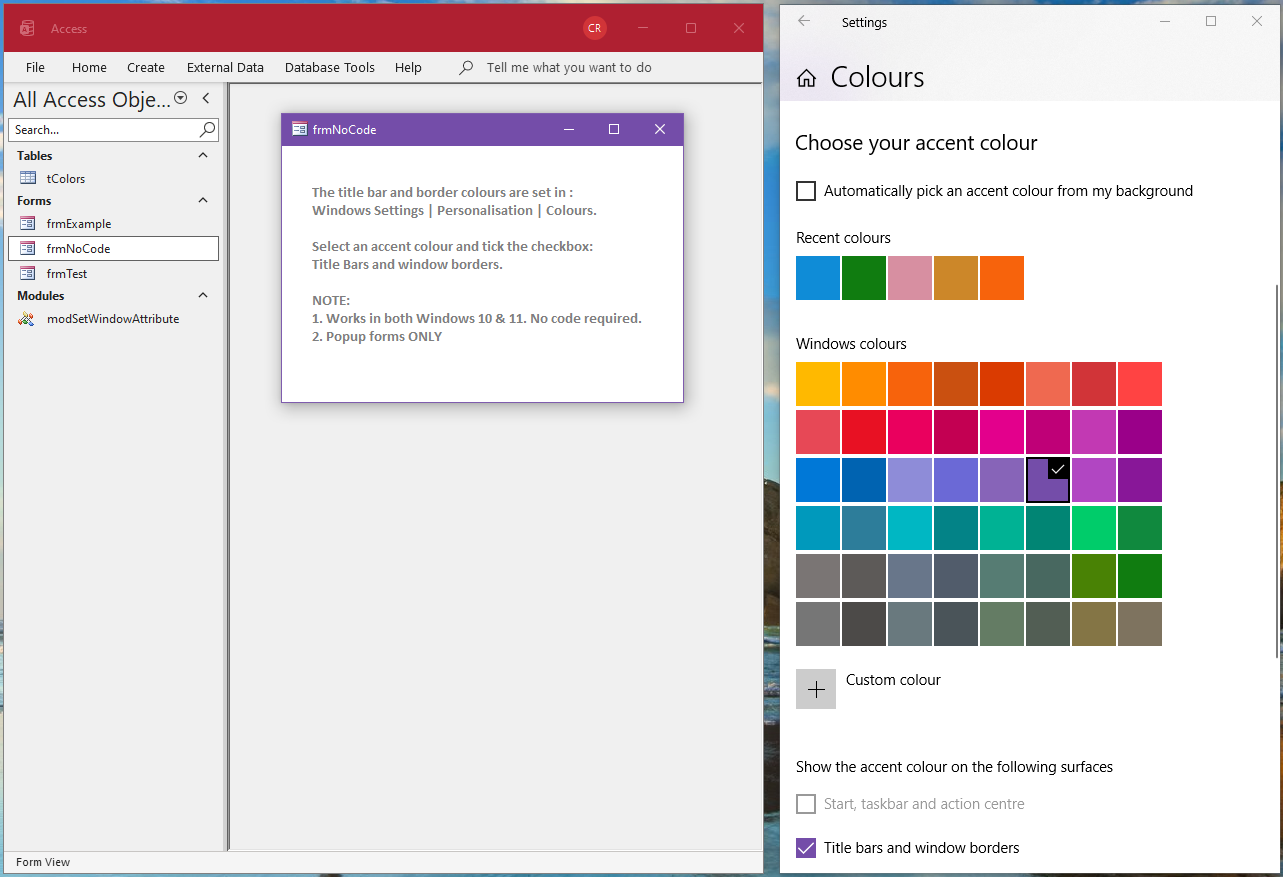
The selected colour is used regardless of the Windows theme (Light / Dark) or Office theme (Black / Dark Grey / White / Colorful).
However, that colour is also then used for the title bar of ALL Access popup forms and dialogs including message boxes, input boxes and error messages. For example:
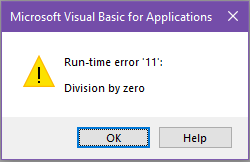
In addition, it also applies to ALL Windows apps which are top level windows e.g. File Explorer, Edge browser etc. In other words, customisation as standardisation!
2. Additional Customisation using an API (Windows 11 ONLY)
Desktop Windows Manager (DWM) was first introduced with Windows Vista and extended with Windows 7 mainly to manage the Windows Aero functionality.
Some of this functionality has since been significantly modified in later versions of Windows.
There are several Desktop Windows Manager APIs which were of little interest to Access developers prior to Windows 11.
However, the little known DwmSetWindowAttribute API has gained additional functionality starting with Windows 11 version 22000.
Syntax:
Private Declare PtrSafe Function DwmSetWindowAttribute Lib "dwmapi.dll" _
(ByVal hwnd As LongPtr, ByVal dwAttribute As Long, _
ByRef pvAttribute As Any, ByVal cbAttribute As Long) As Long
NOTE:
The function return value type is HRESULT. If successful, the value is 0. Otherwise it returns an HRESULT error code.
For more details, see the official MS documentation: DwmSetWindowAttribute function (dwmapi.h)
This API allows Access developers to independently set the following properties for each popup form:
• title bar background colour
• title bar caption text colour
• border colour
• corner style
• title bar dark mode
• title bar backdrop style
The first 5 properties were first supported in Windows 11 build 22000 and support for the backdrop style property was added in Windows 11 build 22621.
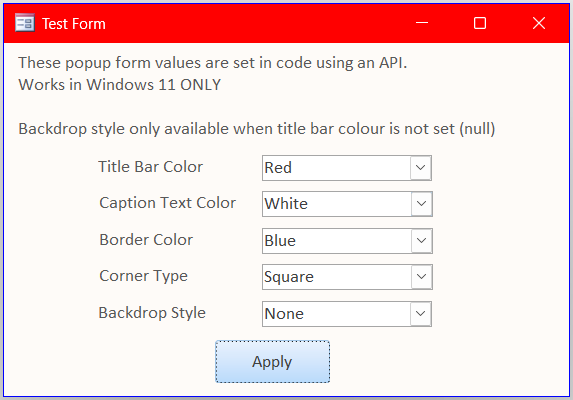
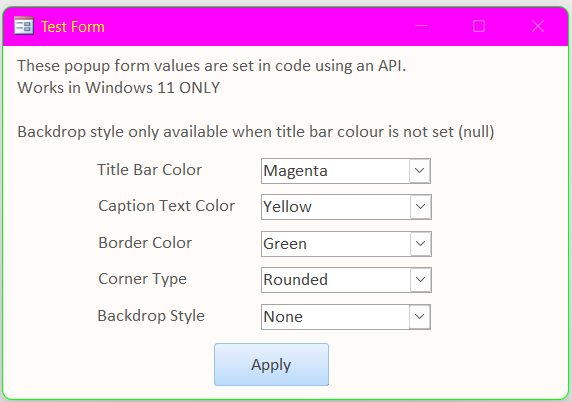
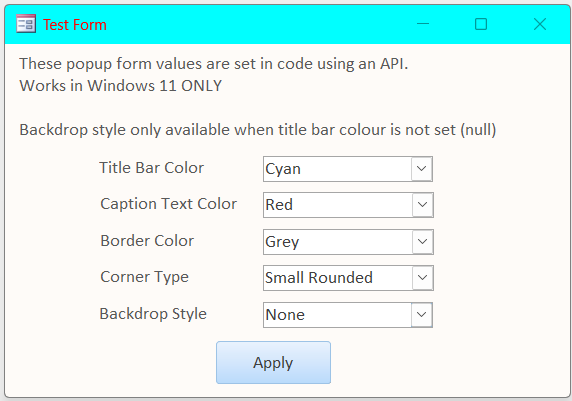
The following examples are just a few of the many property combinations that are possible:
| Red title bar, white caption, blue border, square corners | Magenta title bar, yellow caption text, green border, rounded corners |
|---|---|
 |
 |
| Cyan title bar, red caption, grey border, small rounded corners | Black title bar, white caption text, no border, rounded corners |
 |
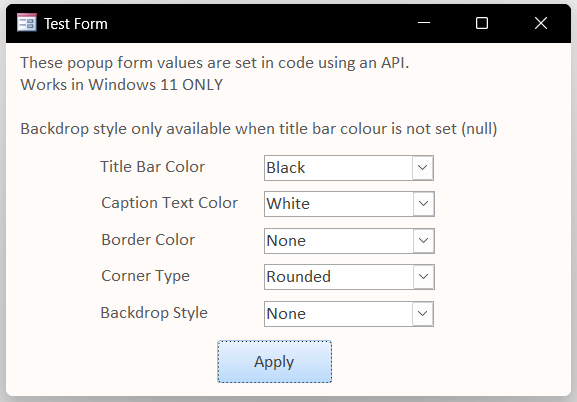 |
All the above use standard colours which can be rather 'brash'. Using custom colours can give a more attractive appearance. Customised form colours could be useful for corporate branding.
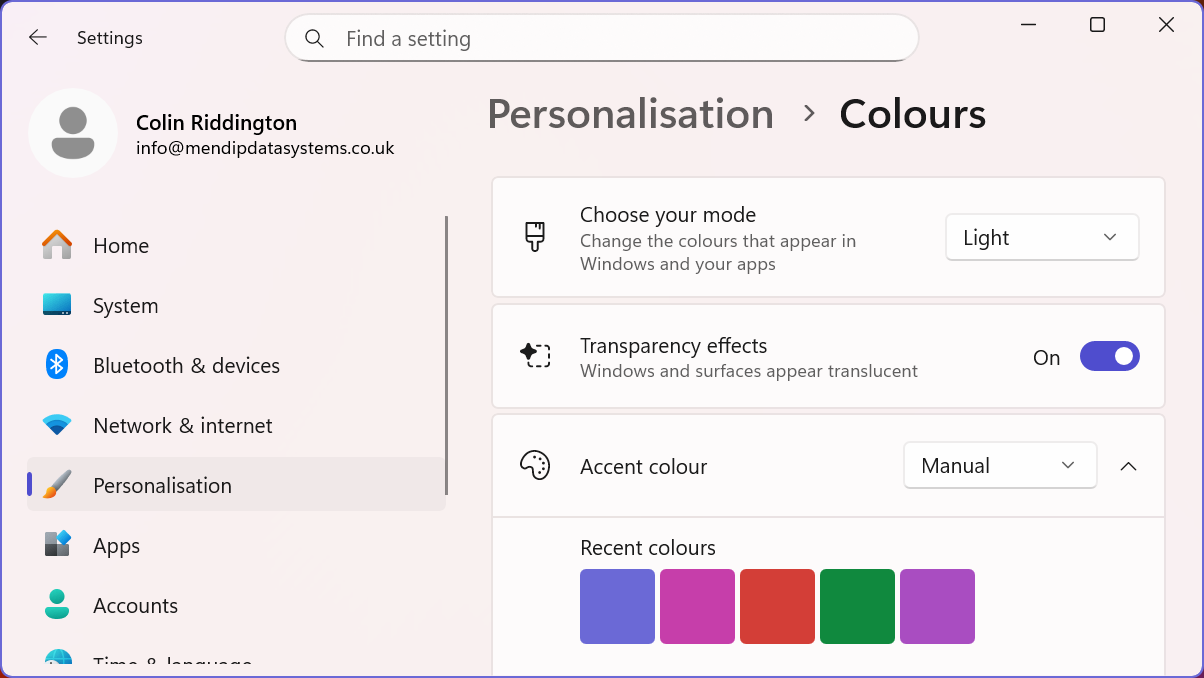
The backdrop style setting allows you to use transparency in the form title bar. For this to work, enable Transparency Effects in Windows Settings | Personalisation | Colours.
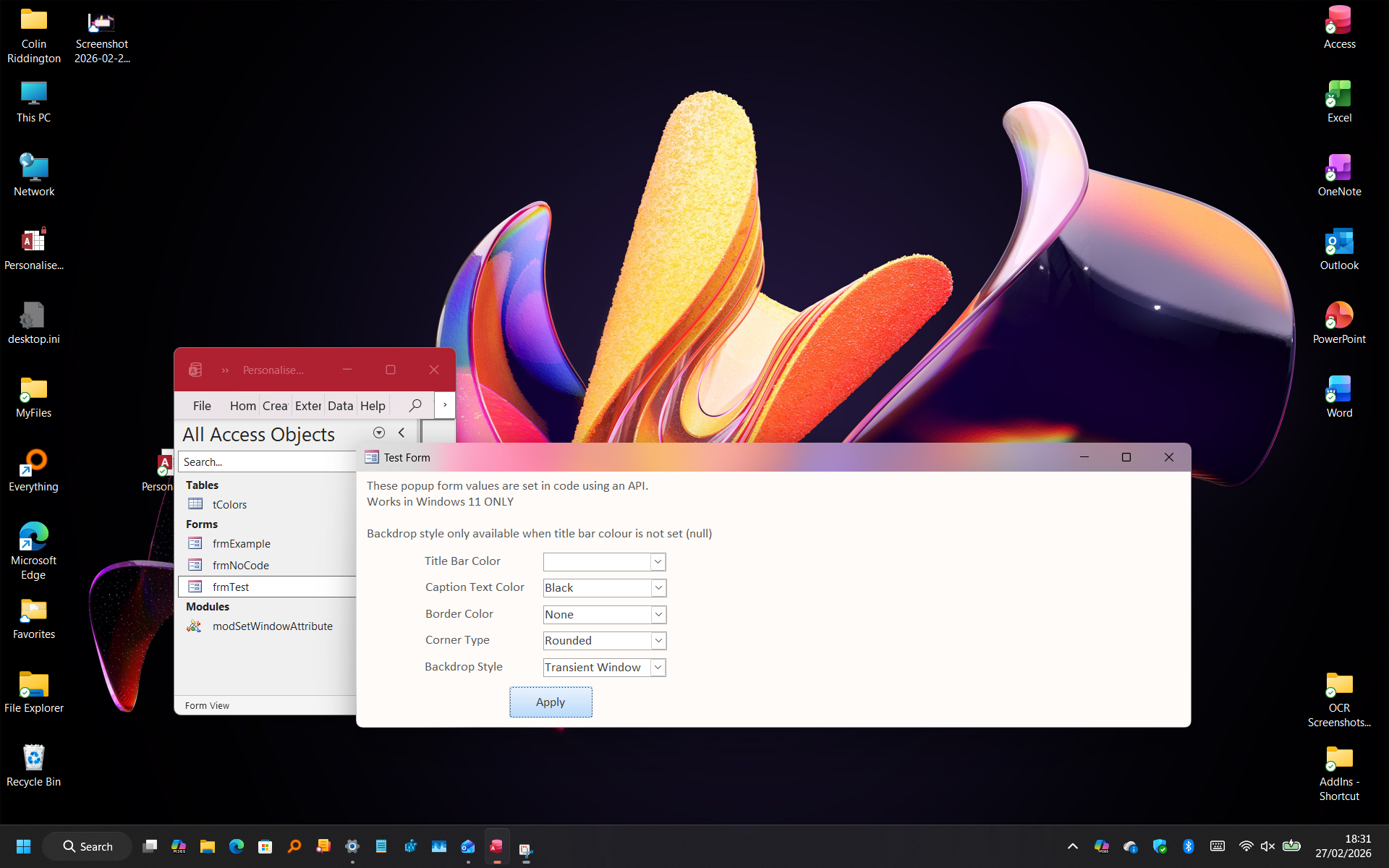
Backdrop style (main window / transient window / tabbed window) cannot be used with solid colours so it only has an effect when the title bar colour is not set (null).
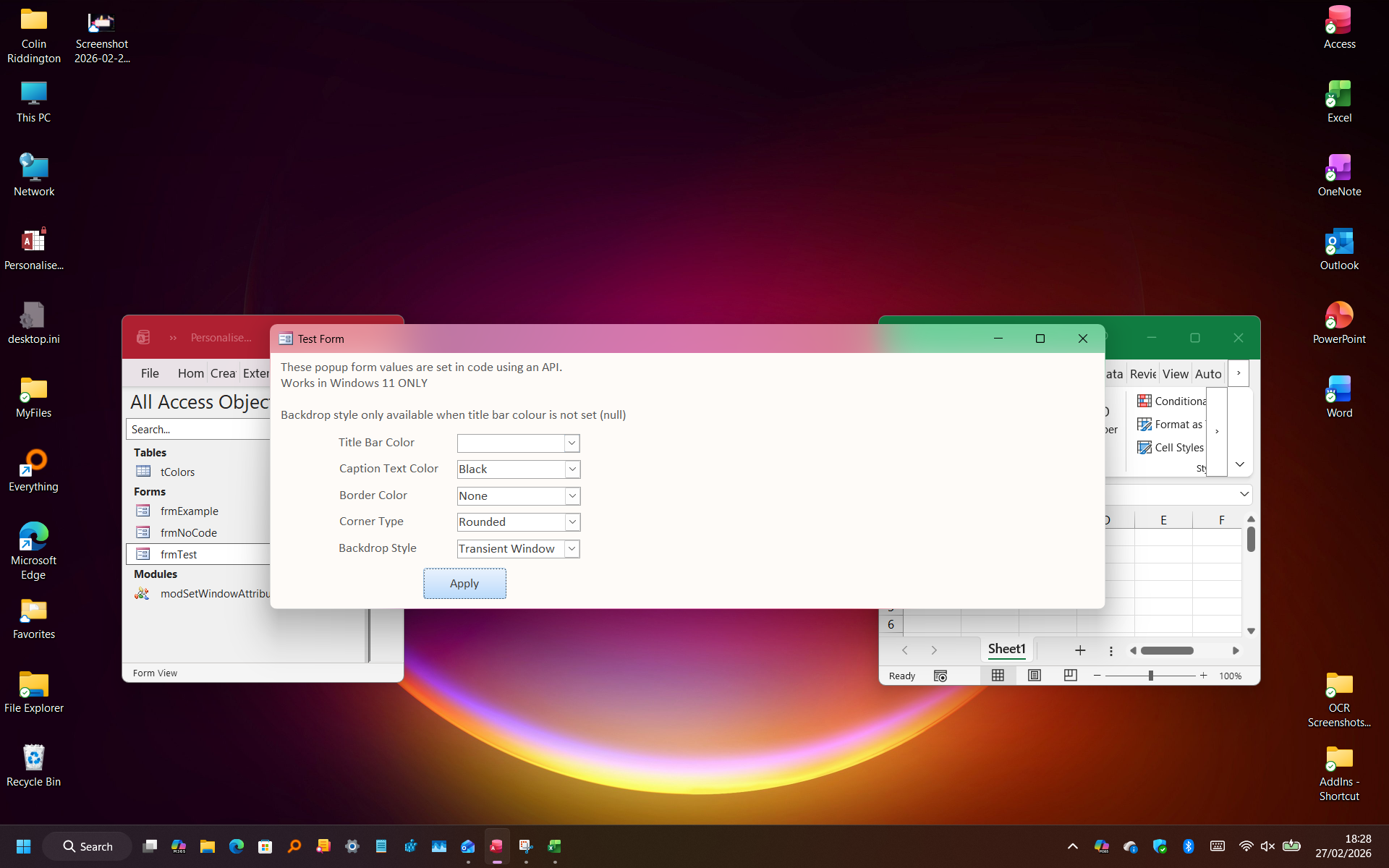
The most useful of these settings is probably transient window where the title bar becomes translucent showing the colours of the background object.
This can be seen most clearly if the popup form is moved outside the Access window across a brightly coloured background such as the Windows desktop. For example:
Here is the same form on a different background:
The API code and related functions are placed in a standard module:
Module Code:
Option Compare DatabaseOption Explicit' MS Documentation' https://learn.microsoft.com/en-us/windows/win32/api/dwmapi/nf-dwmapi-dwmsetwindowattribute' Requires Windows 11 build 22000 or laterPrivate Declare PtrSafe FunctionDwmSetWindowAttributeLib"dwmapi.dll"( _ByValhwndAs LongPtr, _ByValdwAttributeAs Long, _ByRefpvAttributeAs Any, _ByValcbAttributeAs Long)As Long'backdrop stylePublic ConstDWMSBT_AUTOAs Long= 0' system decidesPublic ConstDWMSBT_NONEAs Long= 1Public ConstDWMSBT_MAINWINDOWAs Long= 2' Mica-like for main windowsPublic ConstDWMSBT_TRANSIENTWINDOWAs Long= 3' Acrylic-likePublic ConstDWMSBT_TABBEDWINDOWAs Long= 4' Tabbed / Mica Alt stylePrivate ConstDWMWA_WINDOW_CORNER_PREFERENCE= 33Private ConstDWMWA_BORDER_COLORAs Long= 34Private ConstDWMWA_CAPTION_COLORAs Long= 35Private ConstDWMWA_TEXT_COLORAs Long= 36Private ConstDWMWA_SYSTEMBACKDROP_TYPEAs Long= 38' key constant added in Win11'dark modePrivate ConstDWMWA_USE_IMMERSIVE_DARK_MODEAs Long= 20'corner stylePublic ConstDWMWCP_DEFAULTAs Long= 0Public ConstDWMWCP_DONOTROUNDAs Long= 1Public ConstDWMWCP_ROUNDAs Long= 2Public ConstDWMWCP_ROUNDSMALLAs Long= 3' Special value to hide the border (suppress drawing)Public ConstDWMWA_COLOR_NONEAs Long= &HFFFFFFFE' or -2&Public SubSetCaptionTextColor(frmAsAccess.Form,colorNumberAs Long)DwmSetWindowAttribute frm.hwnd,DWMWA_TEXT_COLOR,colorNumber, 4End SubPublic SubSetTitleBarColor(frmAsAccess.Form,colorNumberAs Long)DwmSetWindowAttribute frm.hwnd,DWMWA_CAPTION_COLOR,colorNumber, 4End SubPublic SubSetBorderColor(frmAsAccess.Form,colorNumberAs Long)DwmSetWindowAttribute frm.hwnd,DWMWA_BORDER_COLOR,colorNumber, 4End SubPublic SubSetBackDropType(frmAsAccess.Form,backDropTypeAs Long)DwmSetWindowAttribute frm.hwnd,DWMWA_SYSTEMBACKDROP_TYPE,backDropType, 4End SubPublic SubSetCornerType(frmAsAccess.Form,cornerTypeAs Long)DwmSetWindowAttribute frm.hwnd,DWMWA_WINDOW_CORNER_PREFERENCE,cornerType, 4End Sub' Toggles the title bar dark mode for a specific window.Public SubSetFormDarkMode(frmAsAccess.Form,ByValUseDarkModeAs Boolean)DimnDarkModeAs Long' Convert Boolean to 1 (True) or 0 (False)nDarkMode=IIf(UseDarkMode, 1, 0)' Apply the attribute (4 is the byte size of a Long)DwmSetWindowAttribute frm.hwnd,DWMWA_USE_IMMERSIVE_DARK_MODE,nDarkMode, 4End Sub
The code behind the test form used above is as follows:
Form code:
Option Compare DatabaseOption ExplicitPrivate SubcboBackdrop_AfterUpdate()'clear title bar color combo if backdrop style specifiedIf NotIsNull(Me.cboBackdrop)Then Me.cboTitleBarColor=NullEnd SubPrivate SubcboTitleBarColor_AfterUpdate()'clear backdrop style combo if title bar color specifiedIf NotIsNull(Me.cboTitleBarColor)Then Me.cboBackdrop= "None"End SubPrivate SubcmdApply_Click()DimcornerTypeAs LongDimbackDropTypeAs Long'title bar colorIf NotIsNull(Me.cboTitleBarColor)ThenCallSetTitleBarColor(Me,Me.cboTitleBarColor.Column(2))Else'set to none (null) if backdrop style specifiedCallSetTitleBarColor(Me,DWMWA_COLOR_NONE)End If'caption text colorCallSetCaptionTextColor(Me,Me.cboCaptionText.Column(2))'border colorIf Me.cboBorder= -2Then'no border colorCallSetBorderColor(Me,DWMWA_COLOR_NONE)ElseCallSetBorderColor(Me,Me.cboBorder.Column(2))End If'corner styleCallSetCornerType(Me,Me.cboCorner.Column(1))'backdrop typeCallSetBackDropType(Me,Me.cboBackdrop.Column(1))End Sub
NOTE:
The procedures listed above have no error handling and will fail silently if used in a standard form or older Windows builds.
If you want to add error handling, add code to each procedure to check for a non-zero value returned by the API. For example:
Public SubSetTitleBarColor(frmAsAccess.Form,colorNumberAs Long)DimhrAs Longhr=DwmSetWindowAttribute(frm.hwnd,DWMWA_CAPTION_COLOR,colorNumber, 4)Ifhr<> 0ThenMsgBox"Failed to set title bar color."&vbCrLf& _"HRESULT: "&hr&vbCrLf&vbCrLf& _"This code is only valid for popup forms in recent builds of Windows 11",vbCritical, "Code failed"End IfEnd Sub
This will return an error message in Windows 10 or with standard forms:
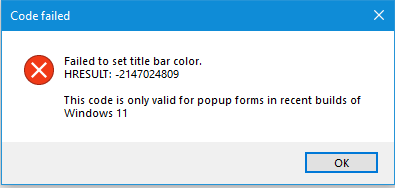
To set the appearance of a form automatically when it loads, just add suitable code to the Form_Load event. For example:
Private SubForm_Load()Me.cmdDarkMode.Caption= "Toggle Dark Mode ON"'title bar colorCallSetTitleBarColor(Me,RGB(164, 55, 58))'Access red'caption text colorCallSetCaptionTextColor(Me,vbWhite)'border colorCallSetBorderColor(Me,RGB(92, 131, 180))'mid blue'corner styleCallSetCornerType(Me, 2)'rounded'backdrop type' Call SetBackDropType(Me, 0) 'noneEnd Sub
Using the above code, the form looks like this when it loads:
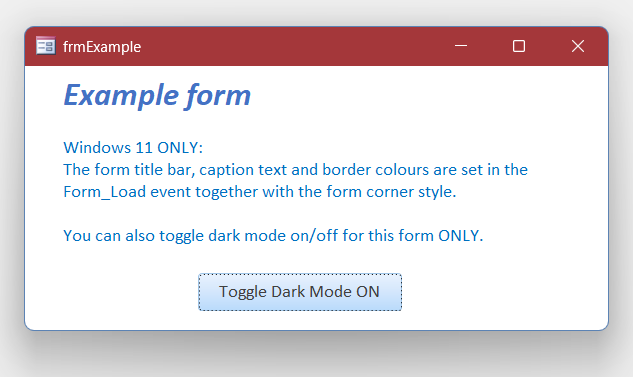
Click the button to enable dark mode for the title bar on this form ONLY.
The title bar turns black and the form shadow becomes darker / more pronounced. The Office theme colour is not affected!
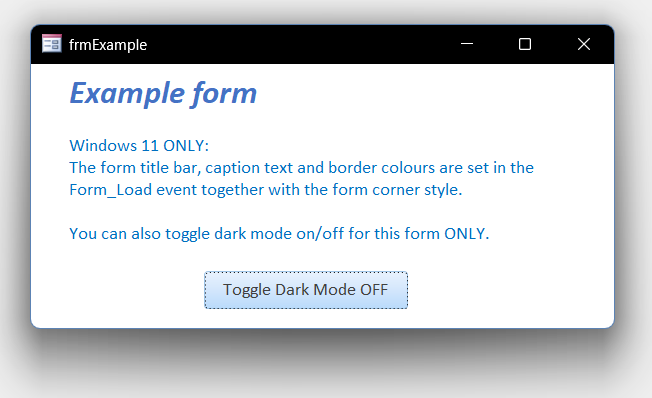 Click again to revert to light mode and a standard title bar / form shadow appearance
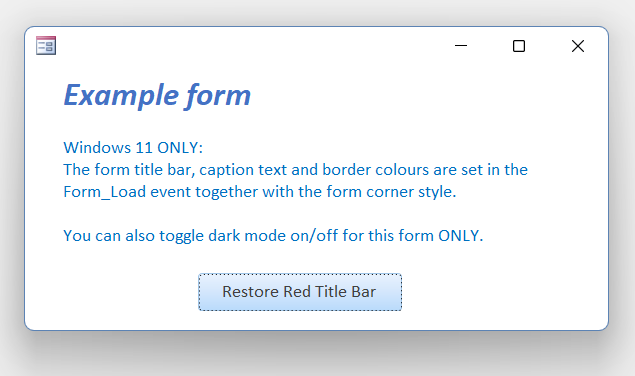
Click the button once more to restore the original form appearance with the red title bar. Obviously this could be done in two steps if preferred.
The button click code is very simple:
Private SubcmdDarkMode_Click()Select Case Me.cmdDarkMode.CaptionCase"Toggle Dark Mode ON"CallSetTitleBarColor(Me,DWMWA_COLOR_NONE)CallSetFormDarkMode(Me,True)Me.cmdDarkMode.Caption= "Toggle Dark Mode OFF"Case"Toggle Dark Mode OFF"CallSetFormDarkMode(Me,False)Me.cmdDarkMode.Caption= "Restore Red Title Bar"Case"Restore Red Title Bar"CallSetTitleBarColor(Me,RGB(164, 55, 58))'Access redMe.cmdDarkMode.Caption= "Toggle Dark Mode ON"End SelectEnd Sub
NOTE:
Rounded corners can also be created using the CreateRoundRectRgn and SetWindowRgn APIs.
These provide greater control over the process including specifying the number of pixels for the rounding. For full details, see my article
Rounded Corners in Forms
Version History
| Version | Release Date | Notes |
|---|---|---|
| 1.0 | 2026-02-27 | Initial release |
| 1.1 | 2026-03-01 | Added title bar dark mode option |
| 1.2 | 2026-03-03 | Removed unused RECT Type code. Fixed tab order on frmTest |
Acknowledgements
Thanks to Xevi Batlle who alerted me to the various possibilities of the DWM API used in this article and provided a significant part of the code used.
Download
Click to download the example app together with all code used in this article:
Personalised Popup Forms v1.2 ACCDB - approx 0.5 MB (zipped)
As is the case for all files downloaded from the internet, first unblock the downloaded file, unzip then save to a trusted location.
For more details, see my article:
Unblock downloaded files by removing the Mark of the Web
All the functionality described in this article is available in Access 365 version 2603 build 19822.20000 and Windows 11 build 26200.7922.
It is possible that certain features may be added or removed in the future.
Feedback
Please use the E-Mail button in the contact form below to let me know whether you found this article useful or if you have any questions.
Please also consider making a donation towards the costs of maintaining this website. Thank you
| Colin Riddington | Mendip Data Systems | Last Updated 3 Mar 2026 |
|---|
|
Return to Code Samples Page
|
Return to Top
|