| First Published 6 June 2026 |
|---|

This article was prompted by a client request to a former Access MVP:
The client is using overlapping windows display. He wants to maximize a popup form (Form2) to the full size of his screen using the Maximize button in the form title bar.
There is a button on this form, that hides the form and opens or makes visible the main menu.
On the main menu, there is a button which checks to see whether Form2 is loaded.
If so, it sets the visible property of the form to True. But this does not restore the form to its maximized state.
The issue here is that when one form is open in a restored state, Access applies that state to all subsequently opened forms. Similarly, if the calling form is maximized, all subsequently opened forms will also be maximized. VBA code must be used to manage the load state of each form individually.
The attached example database shows one method of achieving this result.
It contains two forms, frmMain and Form2. When frmMain is opened from the navigation pane followed by Form2, both open in their restored state:
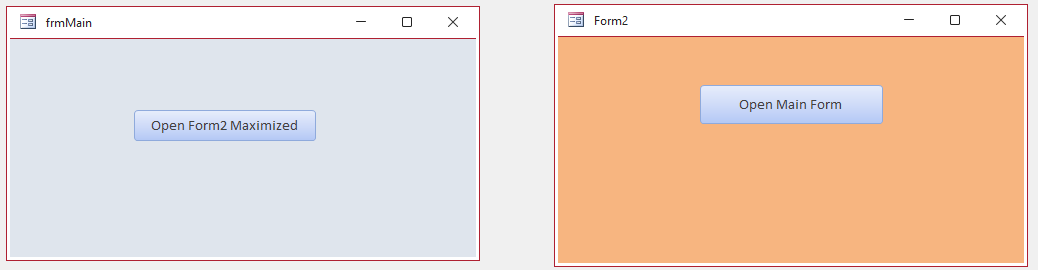
However if Form2 is opened first, it is maximized. If frmMain is then opened, code in its Activate event ensures it opens restored. Immediately Form2 also becomes restored.
To replicate the client's requirements, when the app is opened the AutoExec macro first opens the main form, frmMain, then opens Form2 hidden (and also restored).
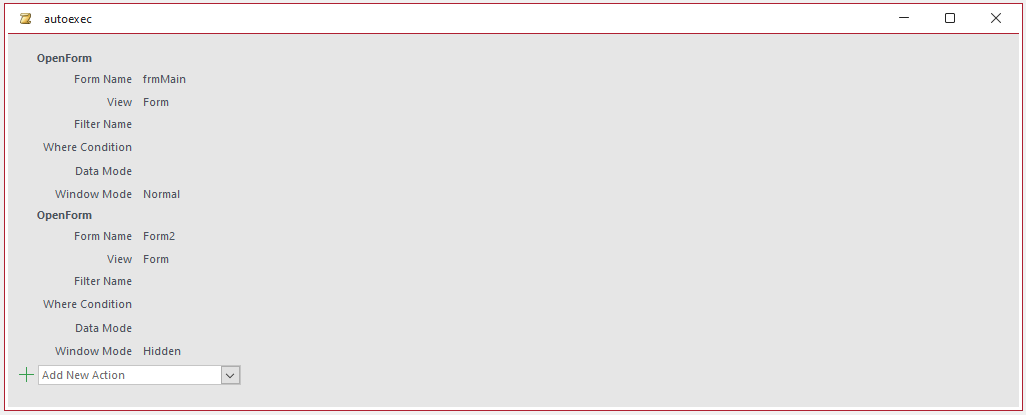
The code in form frmMain is very simple:
Private SubForm_Activate()DoCmd.RestoreEnd SubPrivate SubcmdForm2_Click()IfCurrentProject.AllForms("Form2").IsLoadedThenForms!Form2.Visible=TrueForms!Form2.MaximizeFormEnd IfEnd Sub
As stated above, the Activate event code ensures frmMain always opens in its restored state.
The button click event opens Form 2 then maximizes it using a public event MaximizeForm in Form2.
The code in form Form2 is also very straightforward:
Private SubForm_Load()DoCmd.RestoreMe.Visible=FalseEnd SubPublic SubMaximizeForm()DoCmd.MaximizeMe.Visible=TrueEnd SubPrivate SubcmdMain_Click()Me.Visible=FalseDoCmd.OpenForm"frmMain"End Sub
The Form_Load event ensures the form opens both hidden and restored. This is bypassed here as the form has already been opened from the autoexec macro.
The MaximizeForm subprocedure maximizes the form then makes it visible. It is a public event so it can be called from frmMain.
The button click event hides the form and opens frmMain, which also means the hidden form is now restored again.
That's it. QED!
Download
Click to download the example app:
Maximize Form Popup_v1.1 ACCDB - Approx 0.4 MB (zipped)
As is the case for all files downloaded from the internet, first unblock the downloaded file, unzip then save to a trusted location.
For more details, see my article:
Unblock downloaded files by removing the Mark of the Web
Feedback
Please use the Email button in the contact form below to let me know whether you found this article useful or if you have any questions.
Please also consider making a donation towards the costs of maintaining this website. Thank you
| Colin Riddington | Mendip Data Systems | Last Updated 6 June 2026 |
|---|
|
Return to Code Samples Page
|
Return to Top
|