
First Published 25 Aug 2025
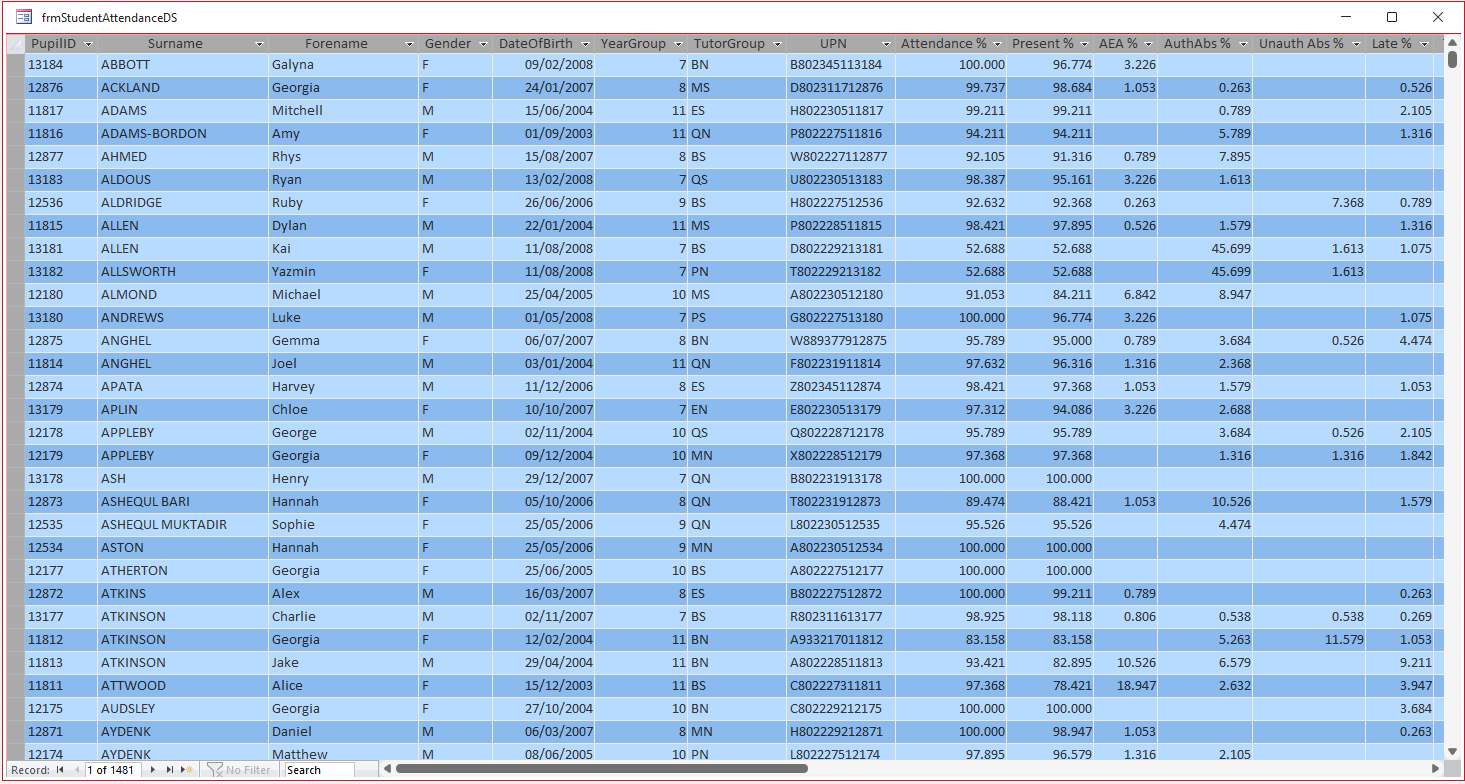
The keyboard short Ctrl+A is often used to select all data in a datasheet form. All fields in all records are highlighted to indicate they have been selected. For example:
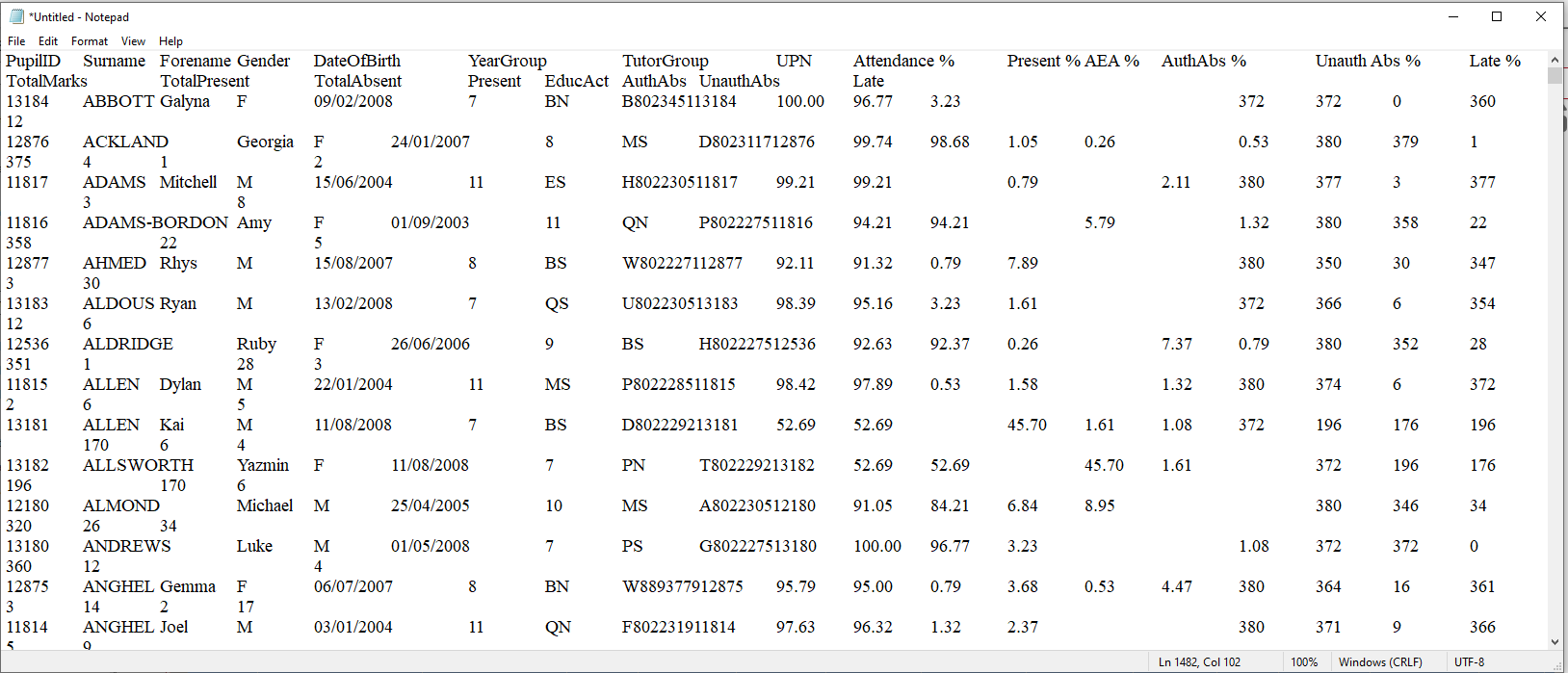
Once selected, you can then copy (Ctrl+C) all data and paste (Ctrl+V) into another document such as Excel or Notepad:
You can also select a number of consecutive records and just copy those into another document.
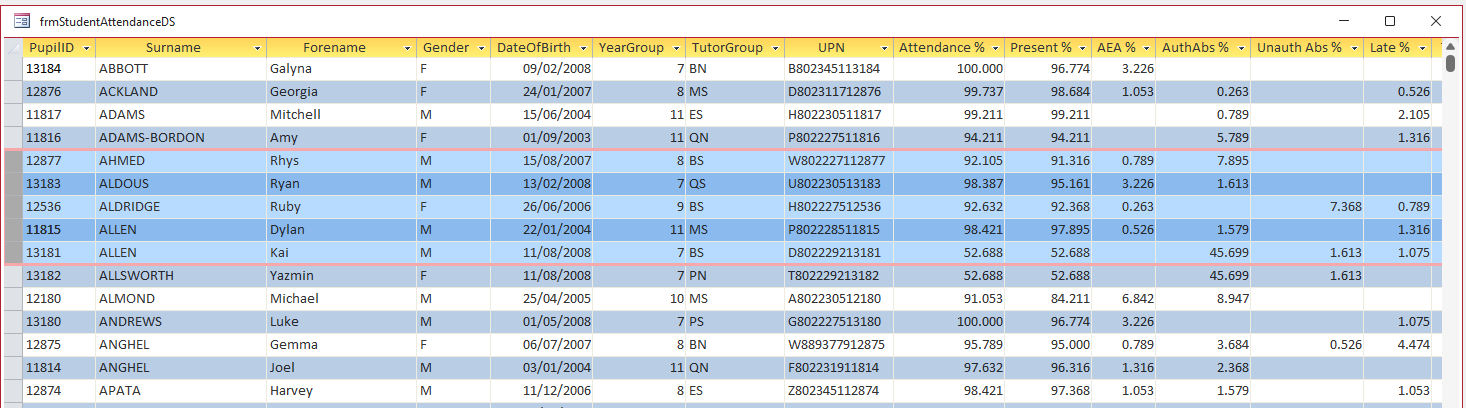
The field headings are automatically copied as well
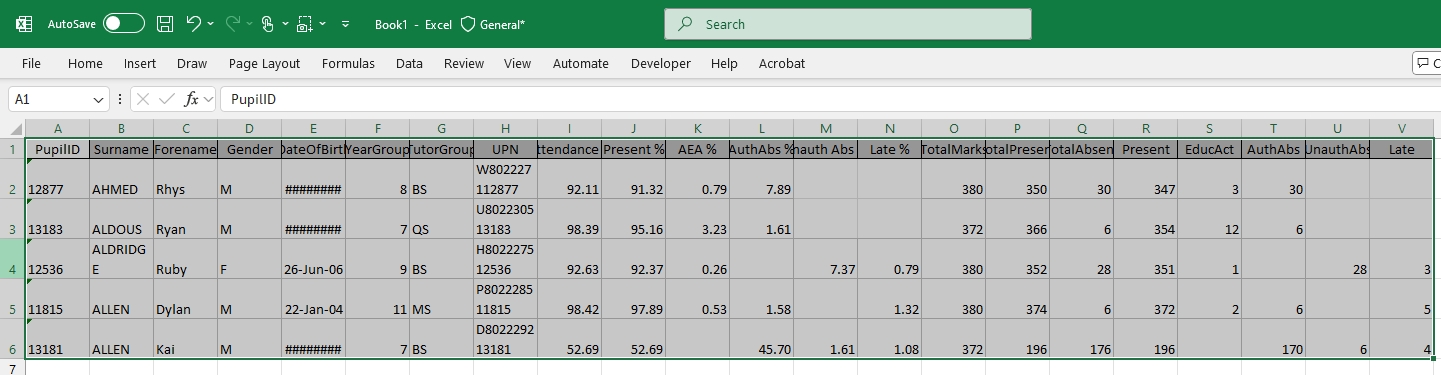
Doing each of these is of course equivalent to using Export to Excel or Export to Text features from the context menu or the Export Data wizards.
NOTE: Non-consecutive records cannot be selected by this method. Filter the data using a query or using right-click context filtering.
The same methods work with a continuous form. However the only visual clue after pressing Ctrl+A is that all the record selectors are highlighted:
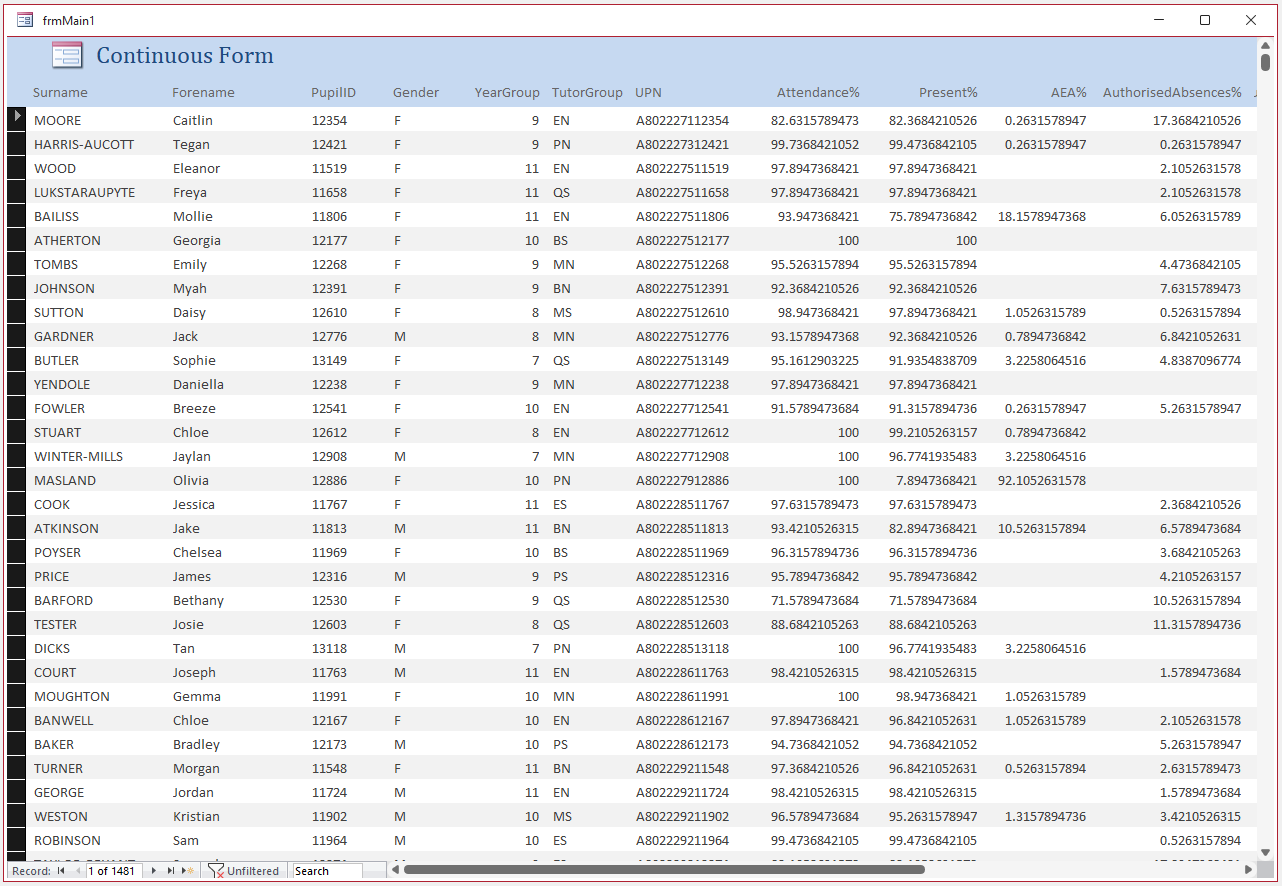
If record selectors are disabled, there is no visual clue that all the records have been selected.
However, in either case you can still copy and paste the data into another document.
Exactly the same behaviour applies in a single form or a split form. Ctrl+A selects all the data in all records.
Feedback
Please use the E-Mail button in the contact form below to let me know whether you found this article useful or if you have any questions.
Please also consider making a donation towards the costs of maintaining this website. Thank you
Colin Riddington Mendip Data Systems Last Updated 25 Aug 2025
|
Return to Access Blog Page
|
Return to Top
|