| First Published 6 June 2026 |
|---|

The new form zooming feature is now in the Current Channel and is already proving very popular with both developers and end users.
For more details on the zooming feature including current and future developments, known issues and fixes, see my companion article: Zooming Feature Now Rolling Out
To help you make the best use of this feature, this article outlines some factors you should consider when designing forms:
1. Button/label captions
Control widths are displayed in inches / cm but are managed in twips where 1440 twips = 1 inch; 567 twips = 1 cm. However, font sizes are measured in points where 20 twips = 1 point.
This can cause rounding issues at certain zoom values.
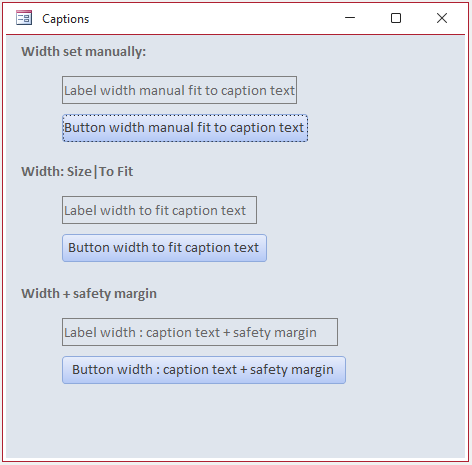
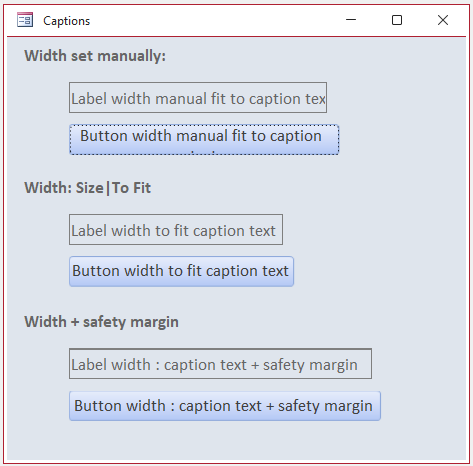
Do not manually size a control to tightly fit the caption width or some caption text may be 'lost' at the right edge on zoom.
Better results are obtained using Size | To Fit but best of all, allow a safety margin for width. Similarly for height.
| 100% zoom | 110% zoom | |
|---|---|---|
 |
 |
2. Scrollbars
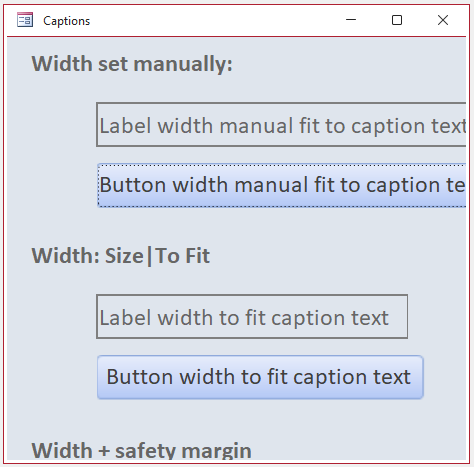
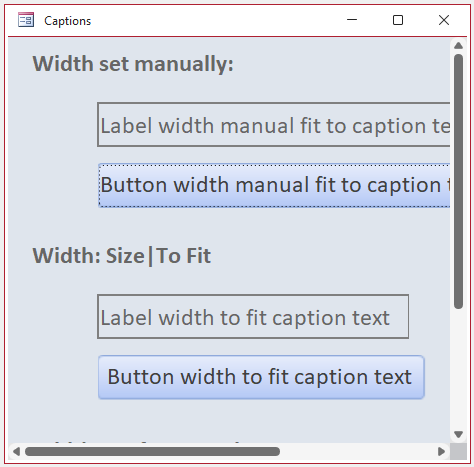
Currently the form dimensions are NOT zoomed along with form contents. This can result in some controls not being accessible when zoom level is increased.
To avoid problems, use both scrollbars on all non-maximized forms (at least until the Access team modifies the feature so that form dimensions change with zoom along with form contents).
| 160% zoom - no scrollbars | 160% zoom - both scrollbars | |
|---|---|---|
 |
 |
In addition, as forms are always zoomed from the top left corner, ensure that the most important / frequently used controls are not at the right or bottom edges of the form.
NOTE:
Once VBA support is added, scrollbars could be added on zoom using code in the Form_Current event e.g. If Me.Zoom > 100 Then Me.Scrollbars = 3 'both horizontal and vertical.
Until then, could check form width at form load and save as variable lngFormWidth, then use If Me.Width > lngFormWidth Then Me.Scrollbars = 3 in the Form_Current event
3. Control sizes and alignments
Using controls that are almost, but not quite the same size, or with slightly different alignments can look ugly and is often an indication of a badly designed form.
Any slight differences in position or size will become more obvious at higher zoom levels.
To avoid this issue, ensure that controls are correctly aligned and either identically sized or deliberately different in size where appropriate.
4. Avoid ActiveX controls
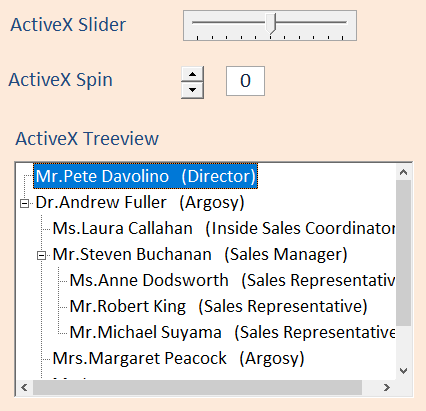
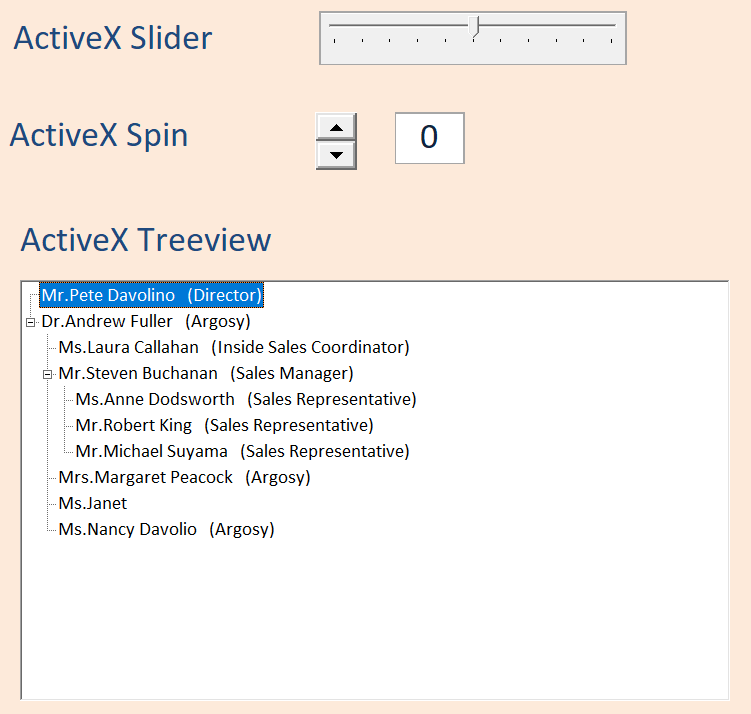
The contents of ActiveX controls such as the text in a TreeView control are not resized when zoomed. Where possible, replace ActiveX controls with native Access controls.
| 100% Zoom - ActiveX controls | 180% Zoom - ActiveX controls | |
|---|---|---|
 |
 |
Feedback
Please use the E-Mail button in the contact form below to let me know whether you found this article useful or if you have any questions.
Please also consider making a donation toward the costs of maintaining this website. Thank you
| Colin Riddington | Mendip Data Systems | Last Updated 6 June 2026 |
|---|
|
Return to Access Blog Page
|
Return to Top
|