
First Published 8 Sept 2025
There are two groups of controls in Access: Windowed and Non-Windowed.
Documentation on this topic is very sparse and many sources such as CoPilot give incorrect or contradictory information.
Hopefully, this article is correct. If not, please let me know!
Windowed Controls:
• have their own Windows window handle (hWnd) though this may be inaccessible
• are managed directly by the Windows OS and can receive messages independently.
• behave like standalone windows embedded in a form.
• are displayed on top of non-windowed controls
Examples:
• Subform, Modern chart, Listbox, Edge browser, Legacy browser, most ActiveX controls
Non-Windowed Controls:
• are drawn and managed by Access and mostly don’t have a separate window handle
• depend on the parent form to handle their rendering and interaction.
• are displayed behind windowed controls
Examples:
a) Textbox, Combobox, Command button, Checkbox, Option button, Classic chart (ActiveX)
b) Label, Image, Line, Rectangle, Tab control, Page Break, Attachment, Navigation
Why it matters:
• Subclassing & API Calls:
Windowed controls can be subclassed or targeted with Windows API calls (e.g., SendMessage, GetWindowLong). Non-windowed controls in group b) can’t.
• Z-order & Overlapping:
Windowed controls always float above non-windowed ones. You can’t (normally) layer a non-windowed control over a windowed one (but see below)
• Rendering issues:
Non-windowed controls may flicker less but are harder to manipulate at a low level.
• Custom drawing:
Paint messages can’t easily be intercepted for non-windowed controls.
Testing the Z-Order:
To demonstrate which controls can be placed on top of the Z-Order, I modified a form from my Automatic Form Resizing (AFR) app with examples of most Access control types.
This is the original form (frmExample3) as taken from that app in design view:
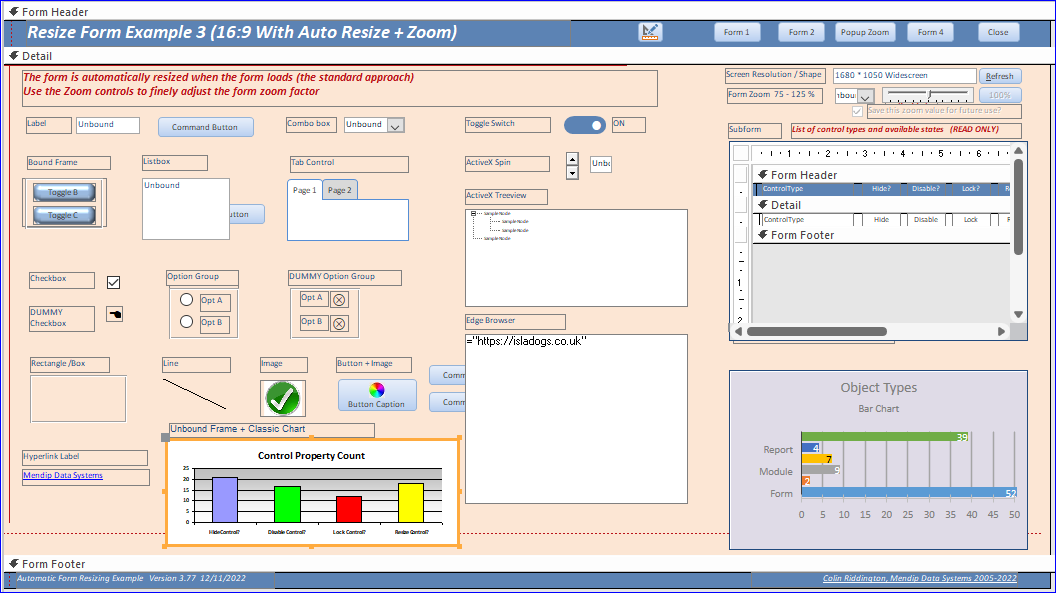
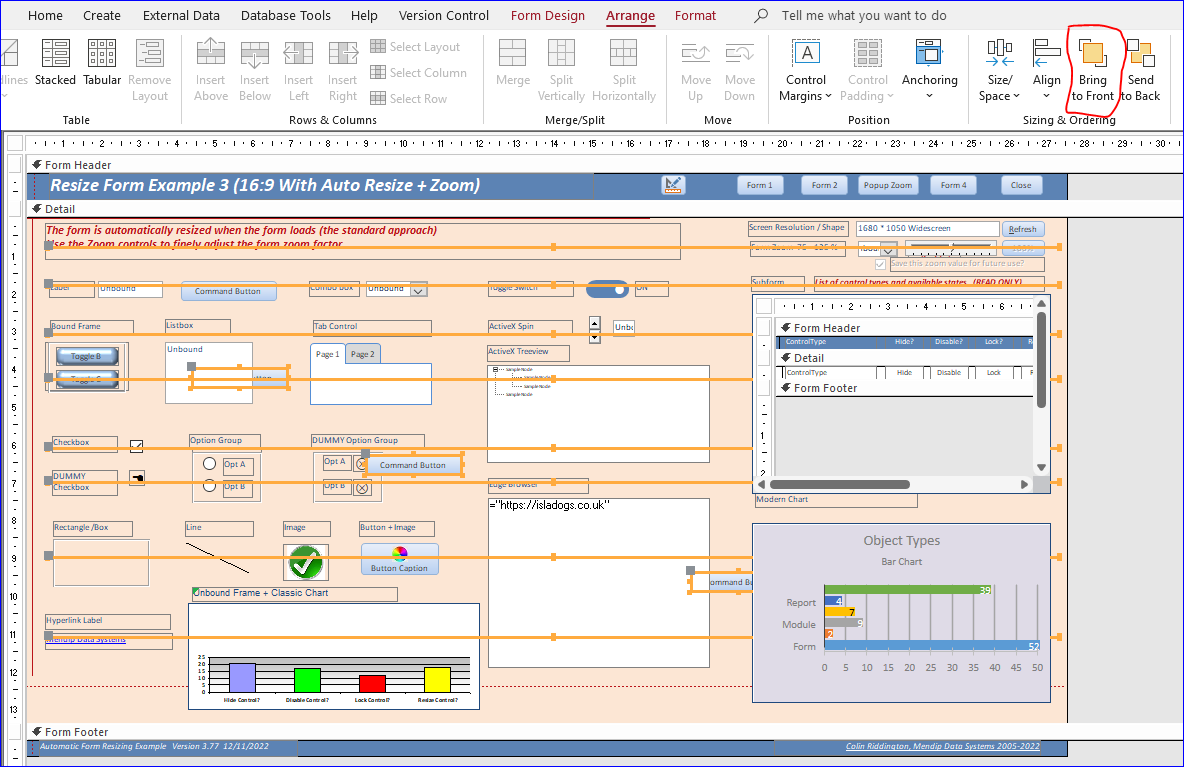
For the purpose of this article I have overlaid the form with several lines and additional command buttons.
Each of these controls is deliberately overlapping other controls and I have set all of the added controls to be arranged at the front in design view.
However, when opened in form view, the Z-order is (as expected) dependant on the type of control.
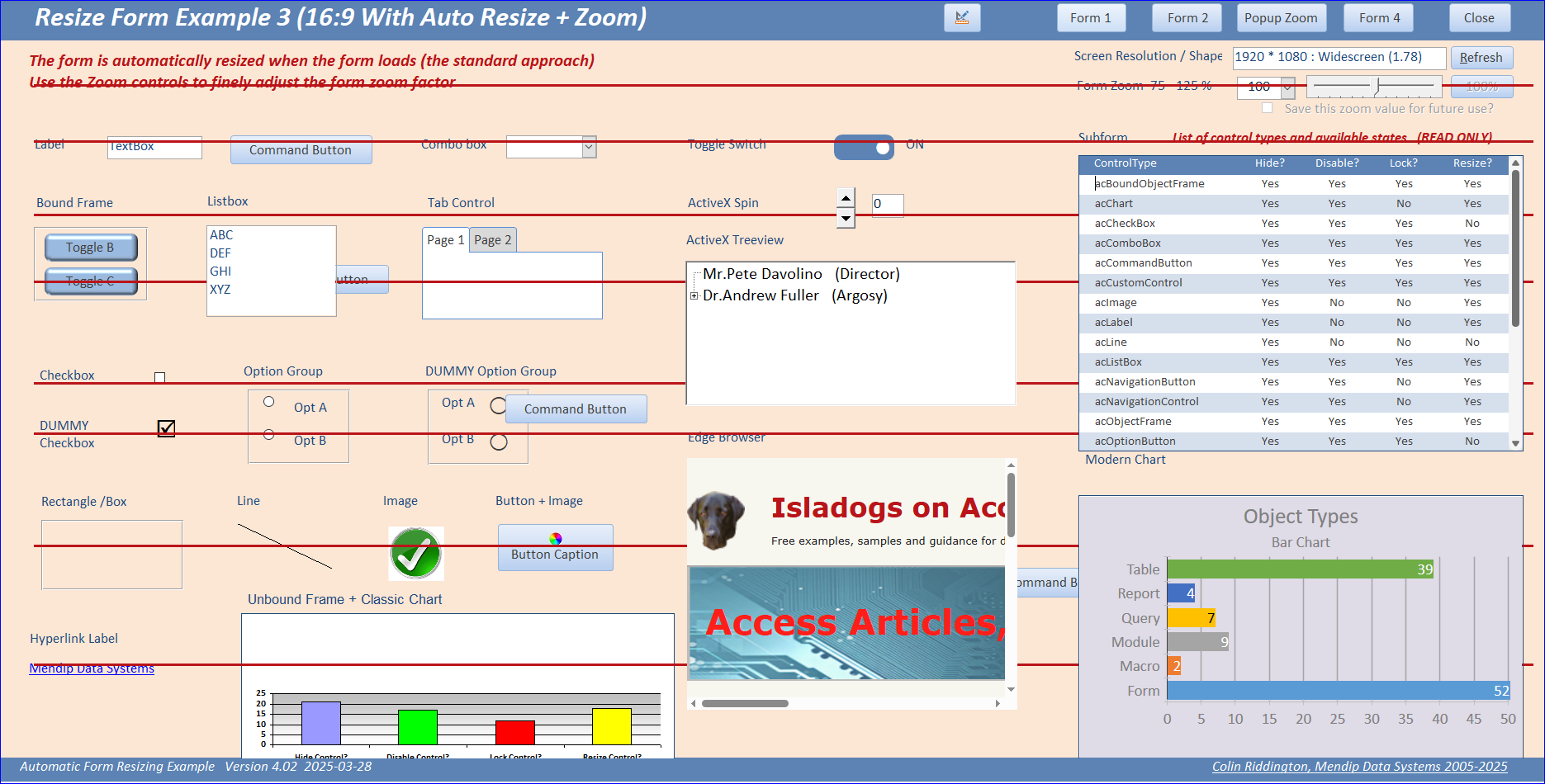
The non-windowed line controls CAN overlay any of the other non-windowed controls e.g. combobox, textbox etc
However, the windowed controls always appear at the top: listbox, subform, modern chart, browser controls, most ActiveX controls
The ONLY controls that can overlay any windowed control is another windowed control. At least, that SHOULD BE the case!
However, as I was preparing this article, I accidentally found a strange exception to the rule.
Former MVP, Dale Fye, asked whether it was possible to overlay a modern chart with a horizontal line.
In my reply, I originally stated that it was possible for a classic chart but not for a modern chart.
To illustrate my reply, I then used a different form (frmModernClassicChart) from my automatic form resizing app containing both types of chart.
I attempted to overlay both charts with a line and a (windowed) subform of zero height (to resemble a line).
This is the form in design view with both line and 'subform' supposedly arranged in front. The modern chart is on the left; classic chart to the right.
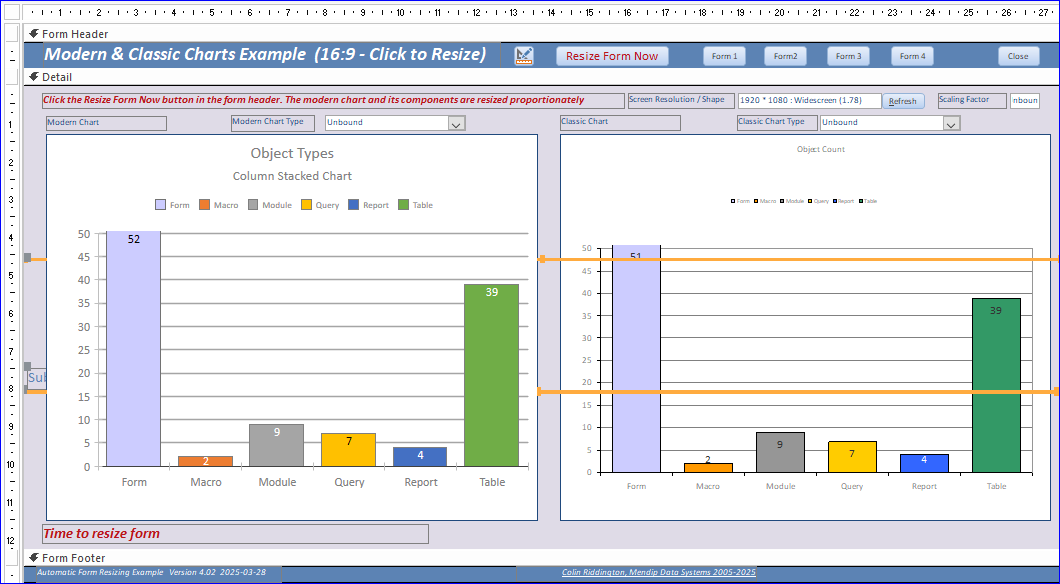
Here it is again in form view. As expected, the modern chart is on top of both the line and 'subform' . . . proving the point I intended to make.
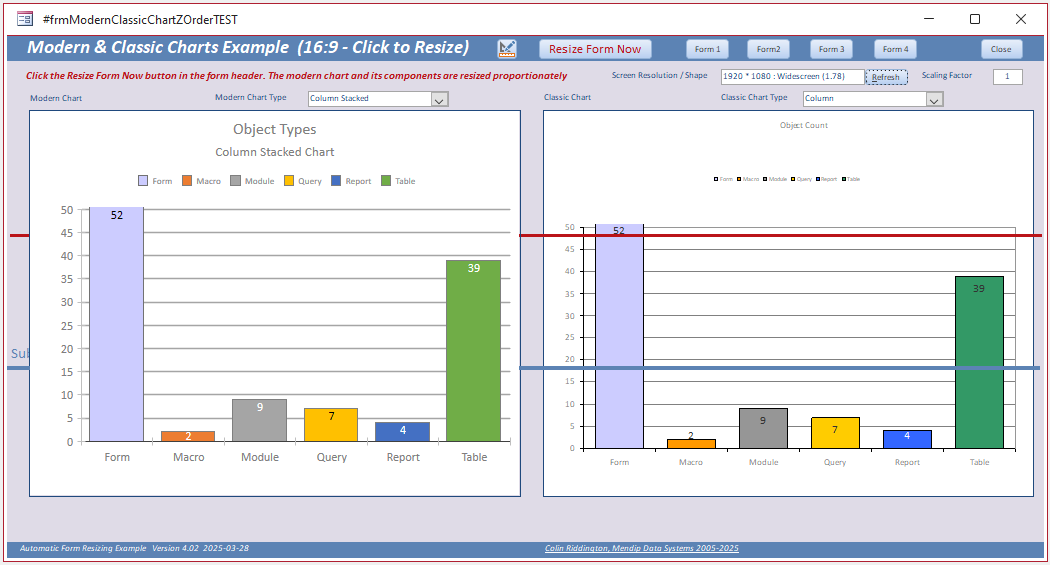
I then clicked the button to resize the form. To my complete surprise, the moderm chart was now BEHIND both the 'subform' and line control. The latter should NOT be possible!
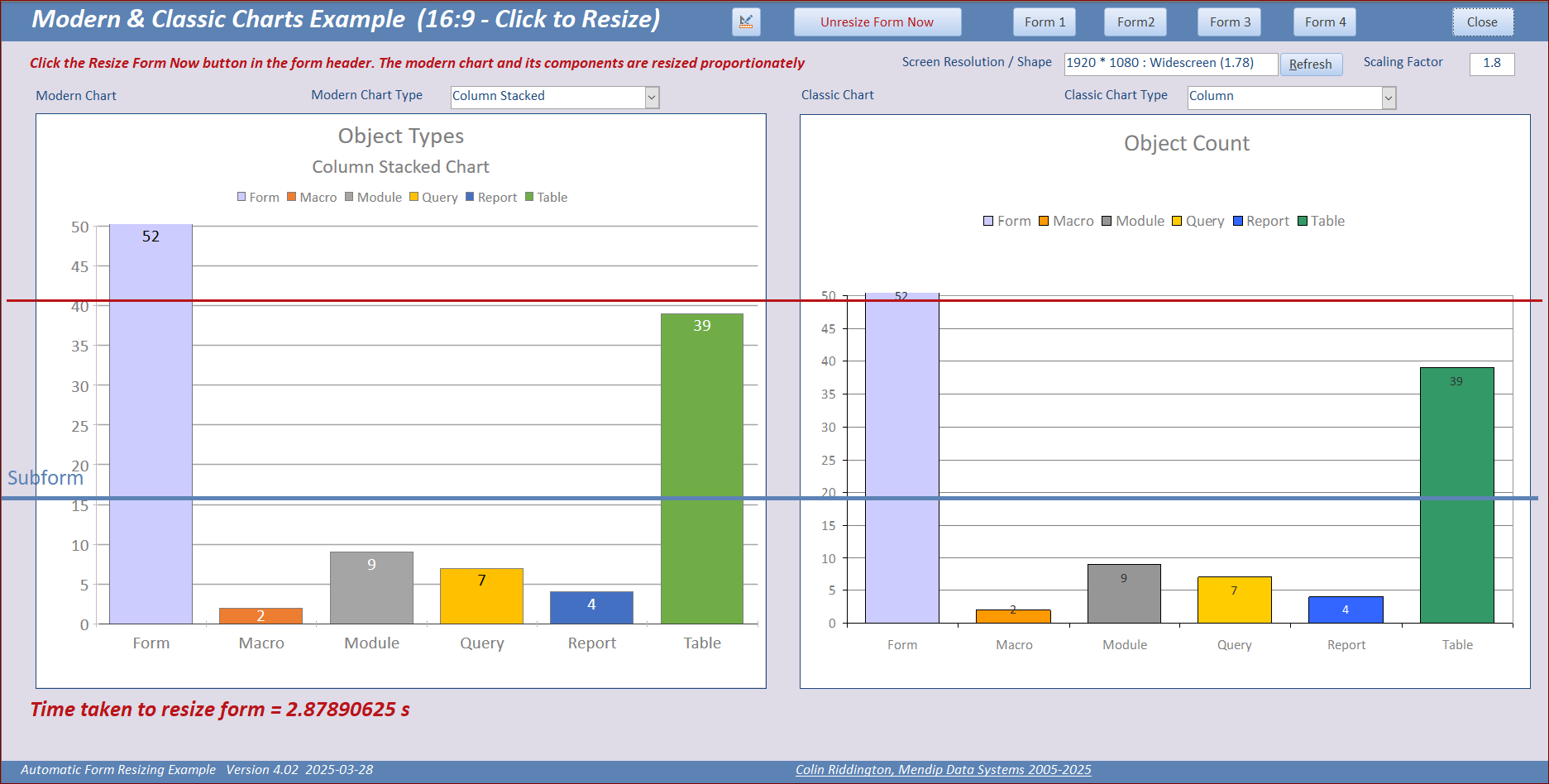
Furthermore, when I 'unresized' the form again, the z-order stayed the same!
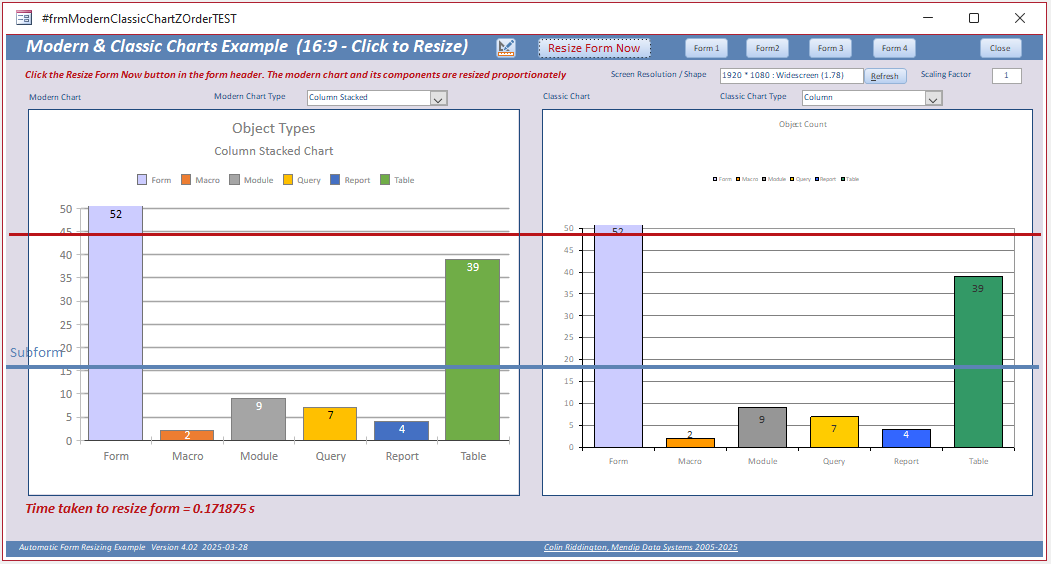
There is nothing in my AFR code to explain why this happens. In fact, exactly the same effect can be achieved without code by either maximizing the form or dragging on the border to resize it.
I did some further tests to try and understand what was going on:
a) changing the tab order for the controls did not have any effect on the results.
b) applying the resizing code or maximizing the form in the Form_Load event did NOT trigger this behaviour.
c) using the resizing code in the Form_Timer event DID trigger the same behaviour.
d) using a modern chart ONLY on the form did NOT trigger this behaviour no matter how/when the form was resized.
e) replacing the classic chart with another modern chart control or a different type of control on the form did NOT trigger this behaviour no matter how/when the form was resized.
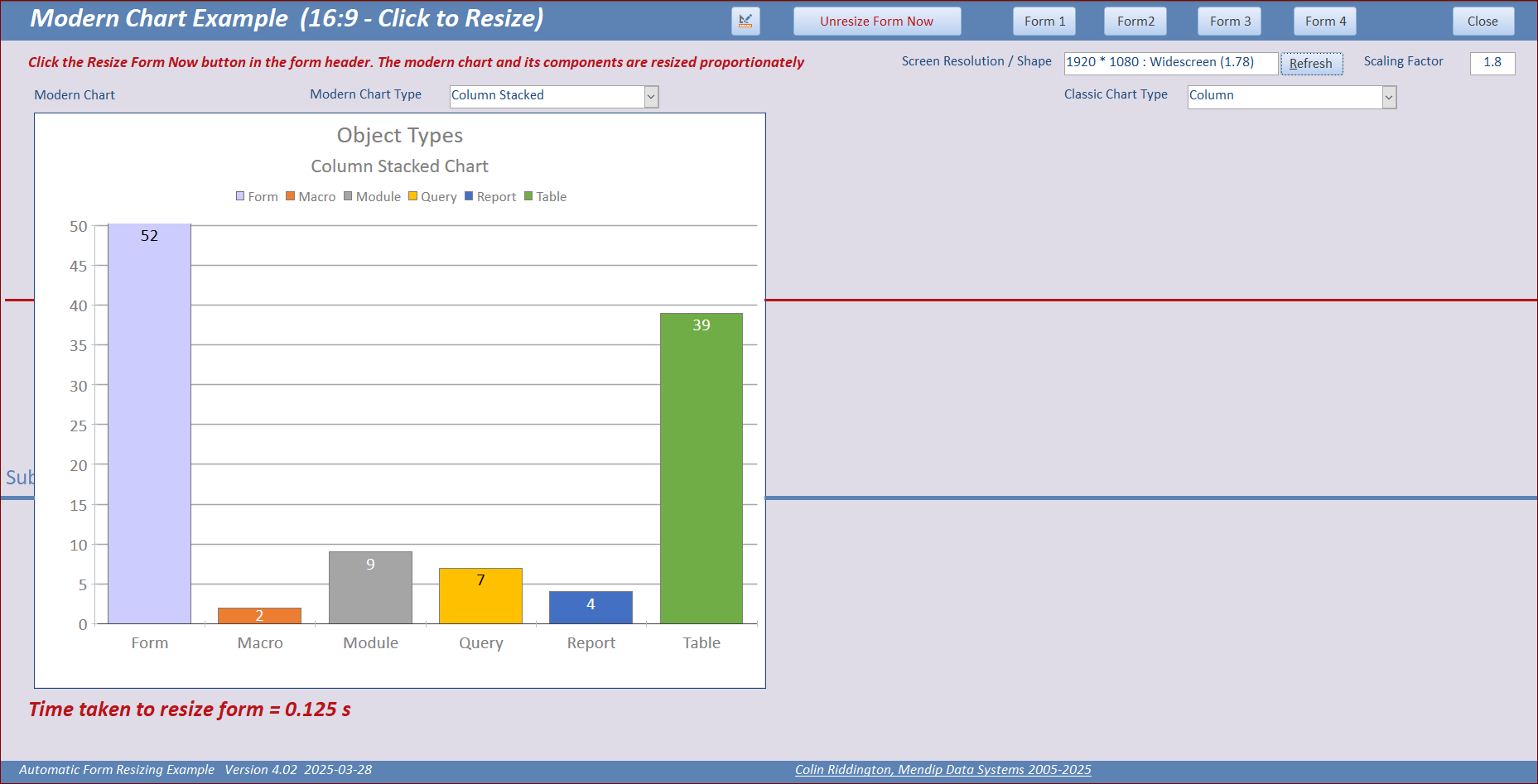
All these additional results occurred consistently in repeated tests.
It appears that the presence of the ActiveX classic chart control somehow affects the way the other controls are displayed.
It doesn't matter where the classic chart control is placed on the form or what size it is. Even zero height and width works!
However, the control MUST be visible. All VERY STRANGE indeed!
I can see how it could be useful to overlay modern charts with a 'marker line'. The above tests show it is possible but only in certain situations.
Hopefully, I will be able to find a way to make use of this strange z-order rendering quirk with the two types of chart!
Downloads
Click to download:
a) The cut down test file used in this article: ZOrderTests+AFR (ACCDB file zipped) Approx 4 MB
b) The latest version of the example app referenced in my autoamtic form resizing article: AFR_Example_v4.02.zip (ACCDB file zipped) Approx 6 MB
NOTE: Modern charts are only available in Access 2019 or later. The above downloads will not work properly in Access 2016 or earlier
Feedback
Please use the E-Mail button in the contact form below to let me know whether you found this article useful or if you have any questions.
Please also consider making a donation towards the costs of maintaining this website. Thank you.
Colin Riddington Mendip Data Systems Last Updated 8 Sept 2025
Return to Access Blog Page
Return to Top