
First Published 30 May 2025
By default, VBA projects signed either within Access or using the new command line switch are NOT timestamped.
The major issue with that is that when the certificate expires, the project is no longer signed.
By contrast, .EXE files that I code sign and timestamp using an installer app remain signed even after the certificate has expired.
Until recently, I thought that it was impossible to add a timestamp to an Access VBA project.
However, whilst responding to a question at Access World Forums, I checked with CoPilot and was directed to this Microsoft article: Digitally sign your VBA macro project
The article explains how to timestamp a VBA project. Apparently the functionality was added at the end of 2024 by another Office team but without much publicity!
I added the 3 registry keys below to HKCU\SOFTWARE\Microsoft\VBA\Security as instructed in the article:

I then tested signing a VBA project both within Access and from the command line
SUCCESS: a timestamp was successfully added to the signed projects in each case. This means those projects should remain signed after the code signing certificate used has expired.
However, the timestamp info is not available when clicking on Tools | Digital Signature | Details in the Visual Basic Editor
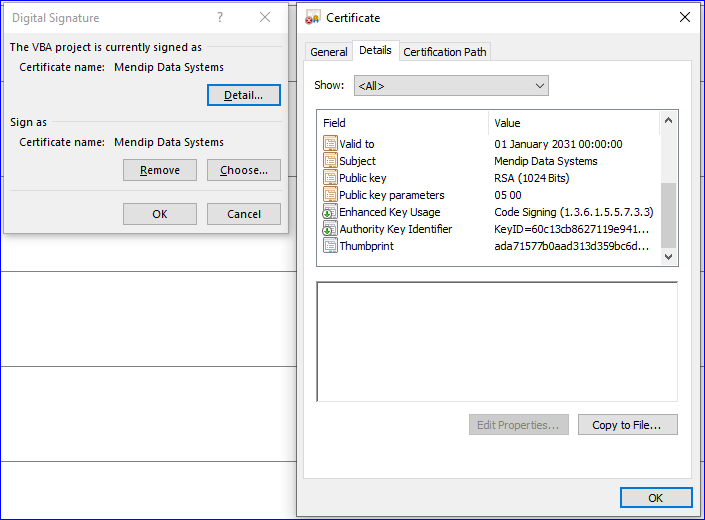
I am only able to view the timestamp details from the security banner (if it is visible) by clicking on the Show Signature Details link as below
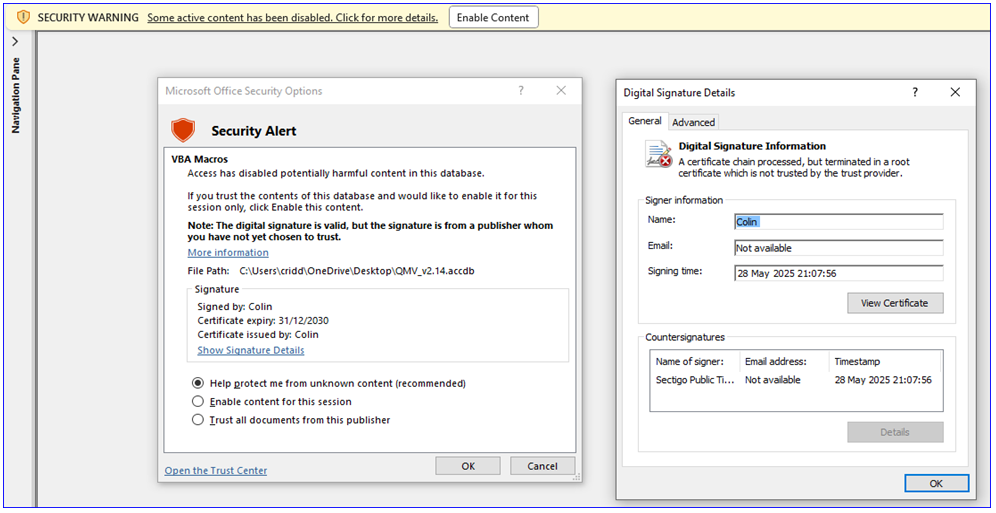
The problem with that is the link only appears where there is an issue
e.g. the publisher has not been trusted (as in the above screenshot) or the certificate has expired (as below)
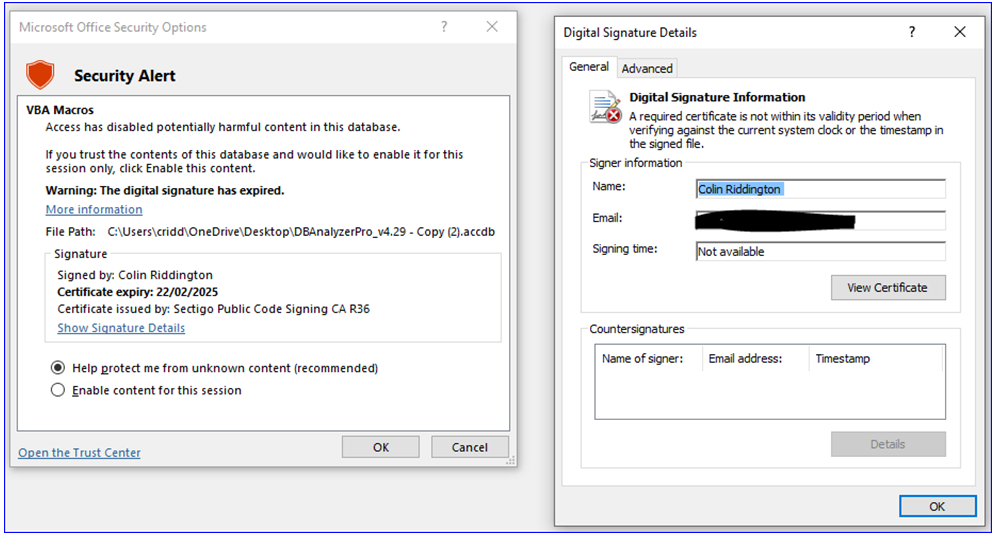
When there are no issues, the Digital Signature Information screen cannot be accessed which means it is impossible to know whether or not a timestamp has been applied.
NOTE:
Some commercial code certificates have limitations in the hash algorithms supported. The above article also mentions adding another registry key V1HashEncoded to HKCU\SOFTWARE\Microsoft\VBA\Security with a supported value (1 to SHA1, 2 to SHA256, 3 to SHA384, 4 to SHA512 and others to MD5).
The value 2 in the screenshot below is for SHA 256 encryption

Related to the points raised in this article, I have made three requests to the Access team:
1. provide a simple method of checking whether a project is digitally signed e.g. a boolean IsSigned function – similar to the existing IsCompiled and IsTrusted functions
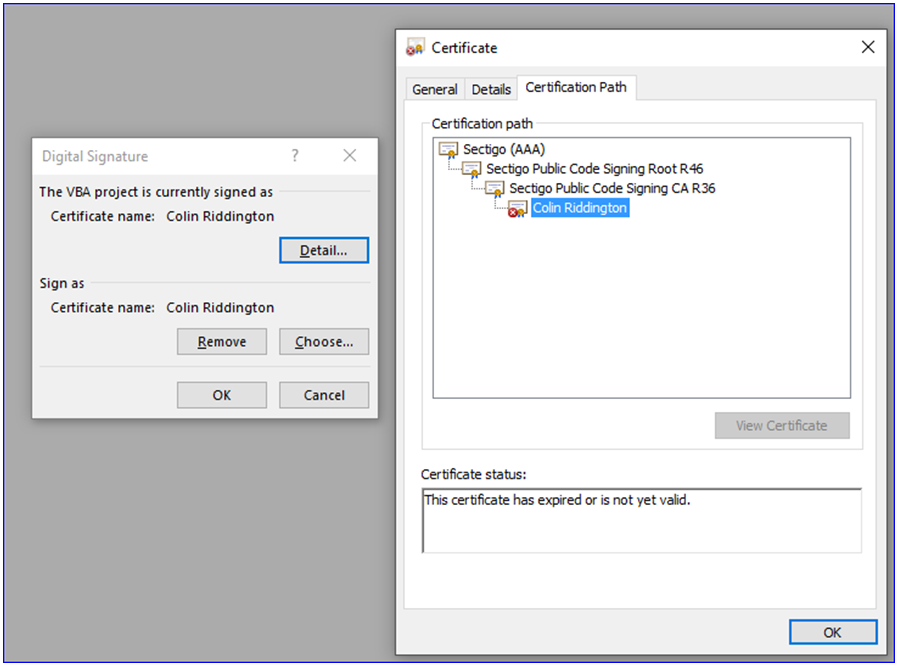
2. make the Digital Signature Details screen (including the timestamp) available for projects where the project is both signed and the publisher is trusted.
e.g. by enabling the View Certificate button in the dialog below (in this case the screenshot is for an expired, non timestamped certificate)
3. provide VBA code to obtain the certificate details (including timestamp). Something like
Application.VBE.ActiveVBProject.VBComponents(1).Properties("DigitalSignature")
. . . or more simply
Application.CurrentProject.Properties("DigitalSignature")
Microsoft Office Subject Interface Packages
I also wondered whether this article:Microsoft Office Subject Interface Packages for Digitally Signing VBA Projects has any relevance to signing Access files.
`
The article mentions a wide variety of supported Office files:
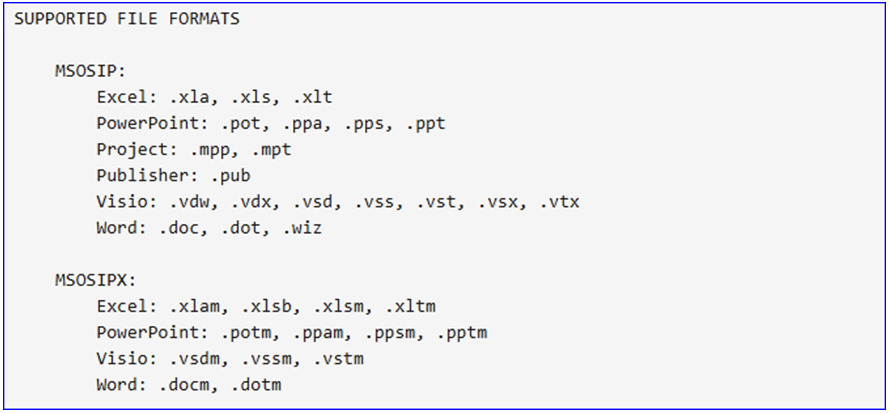
However, ACCDB / ACCDE file formats are noticeably missing from the file types listed in the above article.
`
The Access team have since confirmed that this approach cannot be used with Access files
Related Articles
Using the new VBA Project Signing feature
Command Line Project Signing
Acknowledgements
Thanks to former MVP, Philipp Stiefel, for clarifying several important points related to the information in this article and for providing various signed files for testing purposes.
Feedback
Please use the contact form below to let me know whether you found this article interesting/useful or if you have any questions/comments.
Please also consider making a donation towards the costs of maintaining this website. Thank you
Colin Riddington Mendip Data Systems Last Updated 30 May 2025
|
Return to Access Blog Page
|
Return to Top
|