
First Published 1 May 2025 Last Updated 5 Jun 2025
UPDATED 5 Jun 2025 with additional information
The ability to use VBA Project Signing was added to ACCDB / ACCDE files for Access 365 users in version 2212 (Jan 2023). It had always been possible to code sign MDB files.
For more information, see my article:
Using the new VBA Project Signing feature
The approach works well, but requires the developer to first open the Access app to be signed, then open the Visual Basic Editor then Tools | Digital Signature.
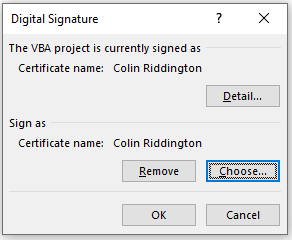
However, some developers often need to sign a large number of projects in turn e.g. when updating the signature after the certificate has been renewed.
Going through this process for each database file in turn can quickly become tedious!
The Access team has recognised this and has now provided the ability to sign VBA projects using a new command line switch /sign
The new feature was originally released to the 365 Beta channel with version 2505 build 18817.20000 in late April 2025.
It has also rolled out to the Current Channel with version 2505 build 18827.20128 released on 29 May 2025.
Syntax:
"Full path to msaccess.exe" "Full path to database" /sign "Certificate name"
Open a command line prompt and enter the above details for the database to be signed then press Enter. For example:
"C:\Program Files\Microsoft Office\root\Office16\msaccess.exe" "G:\MyFiles\ExampleDatabases\BetterDatePicker\DatePicker_v1.72.accdb" /sign "Mendip Data Systems"

NOTE:
Both sets of quotes around the file paths can be omitted unless there are spaces in the file paths.
If the specified certificate is available and is current, the database will open, the signature will be applied and the database will close again. This takes less than a second to complete.
If the specified certificate is NOT available, the database will open and an error message will be shown.
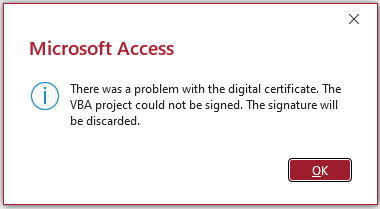
Similar error messages are shown where the path to the database is incorrect. For example:
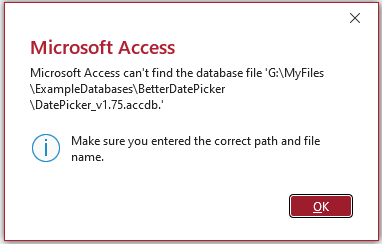
Currently, no message is displayed to indicate where the process has been successful but you can easily re-open the app to check this for yourself.
ADDITIONAL INFO:
For all other command line switches such as /x, /safe, /decompile, the Access file path is optional and can be omitted.
This is because Windows will select and open the default file associated with the database file being used with the command line switch.
Omitting the Access file path may possibly add a small additional time to the process but, if so, it is unnoticeable in practice.
Including the Access file path with the /sign switch is a lot of extra typing if you are signing several VBA projects in turn from the command line.
I contacted the Access team member, Sachin Arumkumar, responsible for this feature. I asked whether the Access path also be made optional for command line signing so that “Full path to database” /sign “Certificate name” would be sufficient.
In response, I was told that:
a) the syntax could be shortened to:
start msaccess "Full path to database" /sign "Certificate name"
For example: start msaccess G:\MyFiles\ExampleDatabases\BetterDatePicker\DatePicker_v1.72.accdb /sign "Mendip Data Systems"
I tested this and can confirm that it worked with no errors
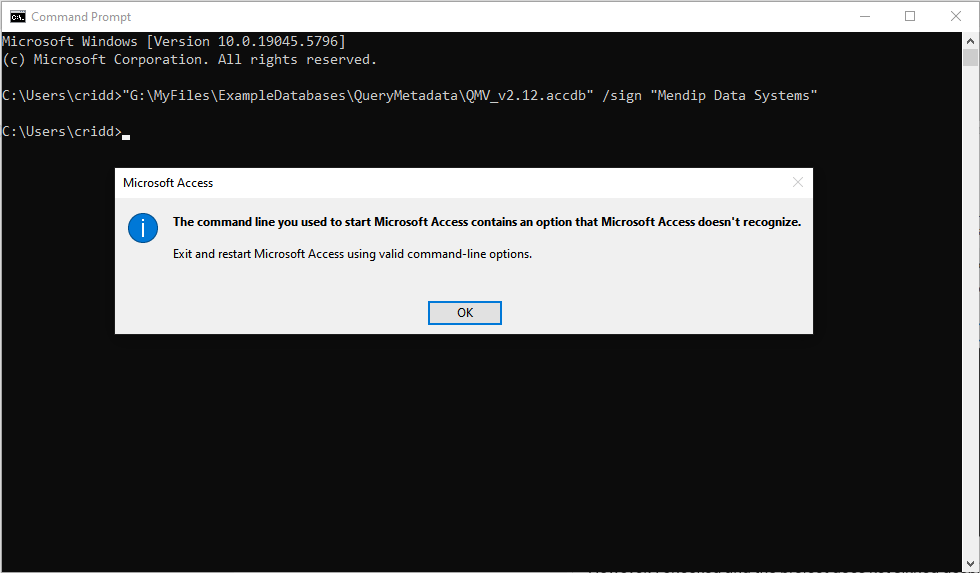
b) It should also work as I requested just using "Full path to database" /sign "Certificate name"
When I tried that, the error message below appeared twice in succession. Despite the error, the VBA project was still signed!
I also forwarded two questions about command line code signing that were raised by former Access MVP, Philipp Stiefel.
He has more than one code certificate with the same 'Issued To' name for each certificate but used for separate client projects.
In such cases of non-unique certificate names, Philipp asked what rules are used to apply the certificate and can another unique property be used instead?
In response, Sachin stated that it will use the first certificate with that name that is found in the 'store'.
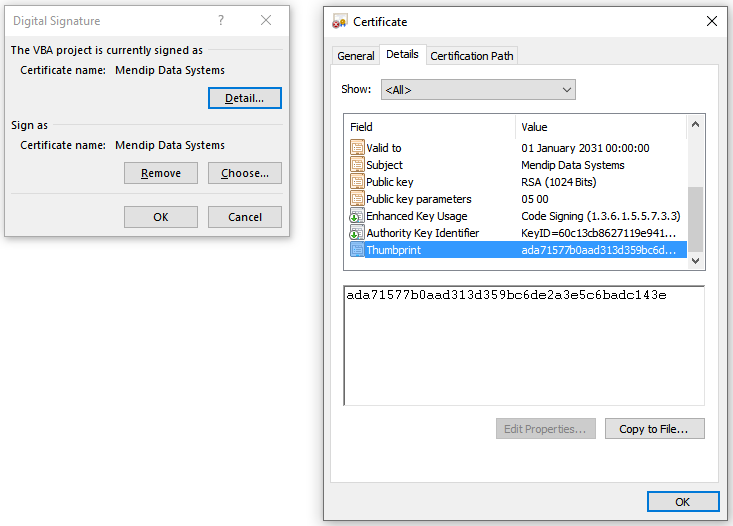
He also stated that the unique certificate thumbprint (AKA 'hash') could instead be used preceded by a backslash.
I have tested this and it worked perfectly (with no error messages) whether including the Access file path, or using start msaccess or omitting it completely. For example:
G:\MyFiles\ExampleDatabases\QueryMetadata\QMV_v2.12.accdb /sign "\ada71577b0aad313d359bc6de2a3e5c6badc143e"
NOTE:
The certificate thumbprint can be found from the certificate documentation, Windows certificate store or perhaps most easily by checking the details for an existing signed VBA project.
The screenshot below is for an example self certificate created using SelfCert.exe
The additional information provides alternative ways to streamline the process of applying code certificates to your projects using command line signing.
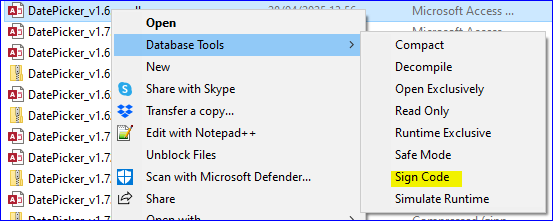
Nevertheless, if you are likely to use this command line signing on a regular basis, it would be worth creating a desktop shortcut or batch file to do so.
Alternatively it can easily be added to Daniel Pineault's Right Click Context Menu Creator tool:
Related Articles
Using the new VBA Project Signing feature
Code Signing VBA Projects with Timestamp
Feedback
Please use the contact form below to let me know whether you found this article interesting/useful or if you have any questions/comments.
Please also consider making a donation towards the costs of maintaining this website. Thank you
Colin Riddington Mendip Data Systems Last Updated 5 Jun 2025
|
Return to Access Blog Page
|
Return to Top
|