| First Published 30 Jan 2026 |
Last Updated 23 Sept 2026 |
Difficulty level : Easy |

Section Links:
Introduction
PowerToys Text Extractor
Snipping Tool (Windows 11)
Photos app (Windows 10/11)
OneNote app
Comparison of Features
Obtaining Best Results
Privacy and Copyright Implications
Feedback
It is easy to copy and paste text from many Windows applications by using the standard Ctrl+C and Ctrl+V shortcuts. However, these don't help if you want to extract text from images or videos. Whilst you can do a screenshot using the PrtScn (print screen) key or the Windows Snipping tool, doing this will just save the screenshot as an image file.
However, there is a simple and effective solution available. Depending on your Windows version, several free utilities are available which allow you to copy text from anywhere on your Windows screen, including inside images or videos. Each method uses Optical Character Recognition (OCR) to help extract text quickly using keyboard shortcuts, making it easier to capture and use text content from any application or media file.
Other free or paid OCR tools such as Google Drive OCR, Adobe Acrobat and ABBYY FineReader PDF are also available from different software vendors but these are not considered in this article.
Optical Character Recognition is an extremely powerful tool but it also gives rise to important privacy and copyright implications which are discussed in detail at the end of this article.
According to Microsoft, PowerToys is "a powerful set of utilities designed to tune and streamline your Windows experience for greater productivity. These utilities and shell enhancement tools are designed to help you customize Windows to suit your needs."
For once, the description is not over-exaggerated! The package contains a large number of very useful and free utilities for both power users and developers which in my opinion should really be standard features in Windows. The features available are updated and extended regularly.
Unfortunately, PowerToys are not installed by default but the latest version can be downloaded from the Microsoft Store or GitHub
Once you have installed PowerToys, go to its Home | Settings screen and enable the Text Extractor feature.

Click the arrow next to the toggle slider control to open another screen with additional info.
From this screen you can modify the shortcut to activate the feature. By default, this is Win+Shift+T

NOTE: the Text Extractor can only accurately recognize languages which have the OCR pack installed.
The list of supported languages can be viewed by clicking the Preferred Language dropdown. For example, currently, I have the following languages installed.
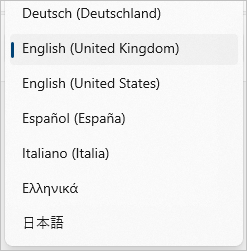
Additional languages and the OCR packs can be downloaded at any time from Windows Settings | Language.
To use the tool, click Win+Shift+T (or your own preferred shortcut) and the text extractor menu will open at the top of your screen:

The dropdown on the left shows the preferred language which can be modified from the languages available for any text extraction.
The first button will format the text extracted from the selected area on screen as a single line (default option).
The next button will format the extracted text as a table.
The third button opens the Settings screen shown above.
Once this menu is visible, hold down the left mouse button whilst you select an area on the screen. The selected area is highlighted and OCR happens automatically as soon as the left mouse button is released. Then paste the text into a text editor such as Notepad or Word.
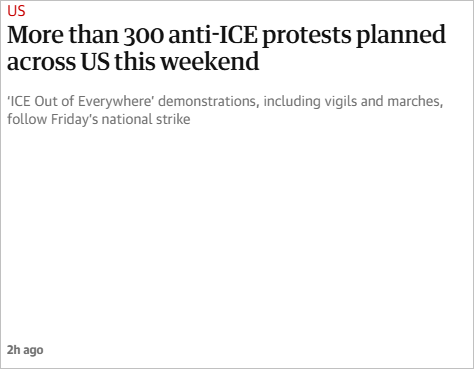
For example, I ran the text extractor on the headline of a current news story in the Guardian newsaper website. This page does not allow direct text copying:
| Original article |
Extracted Text |
 |
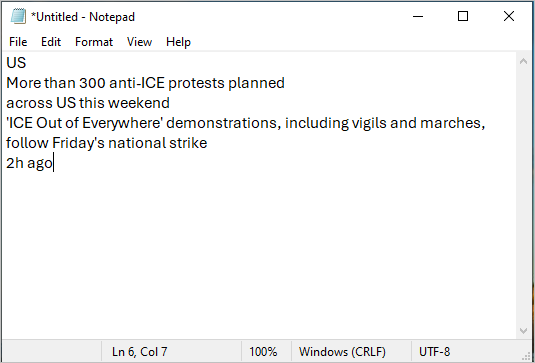 |
The extracted text results are 100% perfect, even for the smaller pale grey text with low contrast (though formatting is never preserved using OCR).
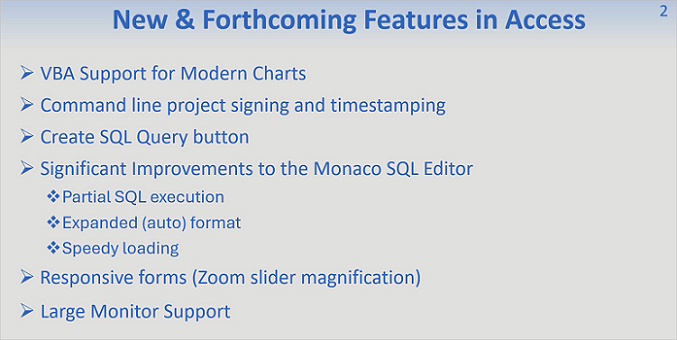
In the next example, I ran the text extractor on this PowerPoint slide from a recent YouTube video and pasted the text into Notepad:
| PowerPoint slide from YouTube video |
Extracted Text |
 |
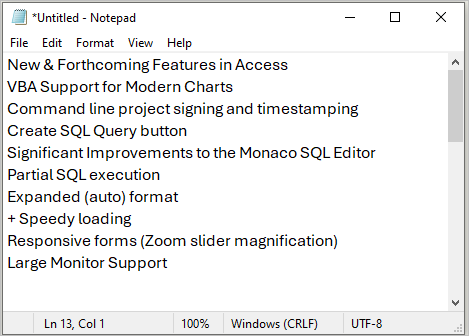 |
In this case, the results are very close to the original. All the text is recognized accurately and the layout is preserved well.
However non-alphanumeric characters such as bullet characters are either ignored or inaccurately replicated. Any minor OCR errors such as these can easily be corrected manually.
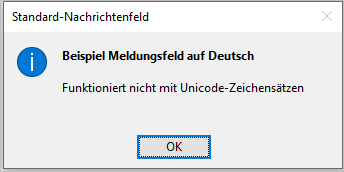
Next I checked the output using several different languages, starting with an image of a message box with German text from my Formatted Message Box web page.
| Image with German Text |
Extracted Text |
 |
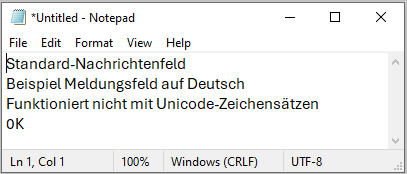 |
The OCR pack for German language text is installed on my computer and the extracted text output was perfect, except that the capital 'O' in OK was mis-recognized as '0' (zero).
Interestingly, the 'X' and 'i' characters used for the close button and Information icon were not read by the tool.
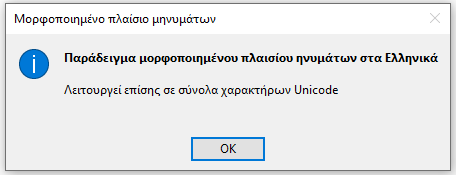
Next I ran the tool on a message box image of mostly Greek text from the same web page. Initially I left the language dropdown set to the default: Engish (United Kingdom).
| Image with Greek Text |
Extracted Text (PowerToys) - default English (UK) |
 |
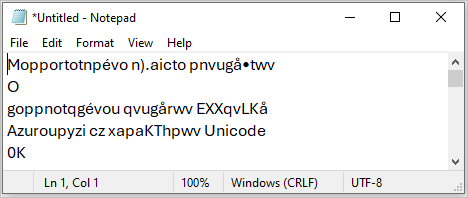 |
The extracted text output was very poor with many errors as the software wasn't making use of the Greek OCR pack available on my computer.
After switching the language dropdown to Greek, I scanned the text again:
| Image with Greek Text |
Extracted Text (PowerToys) using Greek OCR pack |
|
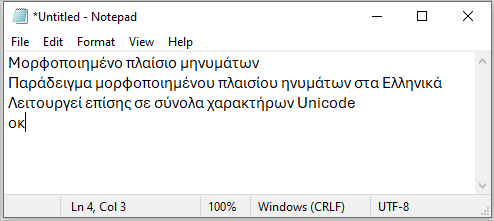 |
The improvement was remarkable with all the Greek language text recognized correctly. The OCR pack did its job perfectly.
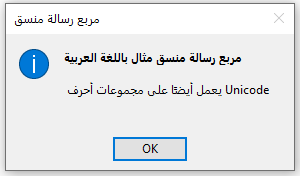
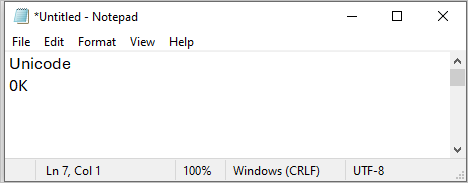
Finally I ran the tool on an image of mostly Arabic text from the same web page. In this case the OCR pack was not installed. None of the Arabic characters were recognized.
| Image with Arabic Text |
Extracted Text (PowerToys) |
 |
 |
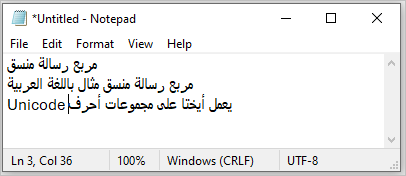
I installed the Arabic language and OCR pack and repeated the test. This time, a visual check suggested that the Arabic text output was perfectly recognized (at least to my untrained eye).
Note the position of the word 'Unicode' due to Arabic being a right to left language.
| Image with Arabic Text |
Extracted Text (PowerToys) using Arabic OCR Pack |
|
 |
The snipping tool was updated for Windows 11 and now contains the following items:

To activate the tool, click Win+Shift+S
In the latest version of this tool, starting from the left, the menu items are:
• Image capture (snip)
• Video snip (Screen recording)
• Mode dropdown (Rectangle / Window / Full screen / Freeform)
• Quick mark-up (annotate / highlight etc)
• Color picker
• Text extractor
NOTE: A delay timer of up to 10 seconds is also available. This is very useful for capturing dropdown menus.
Select the text extractor option. The menu changes to Copy All Text as below with options to automatically copy text and / or remove line breaks.

Select the area on the screen whose text you want to capture and click Copy all text which is now enabled.
The area border will be highlighted for 2-3 seconds whilst optical character recognition is applied to the selected area.
When this has completed, the Copy all text menu should change to show Text Copied.
In my tests using both English and German language text, the accuracy of the output was very similar to that using PowerToys, or slightly better.
However, the process takes slightly longer than using PowerToys and, in my opinion, the interface isn't quite as intuitive requiring additional clicks.
One significant advantage of this tool is that it natively supports a long list of around 64 languages without having to install the OCR packs. See Snipping Tool at Microsoft Store.
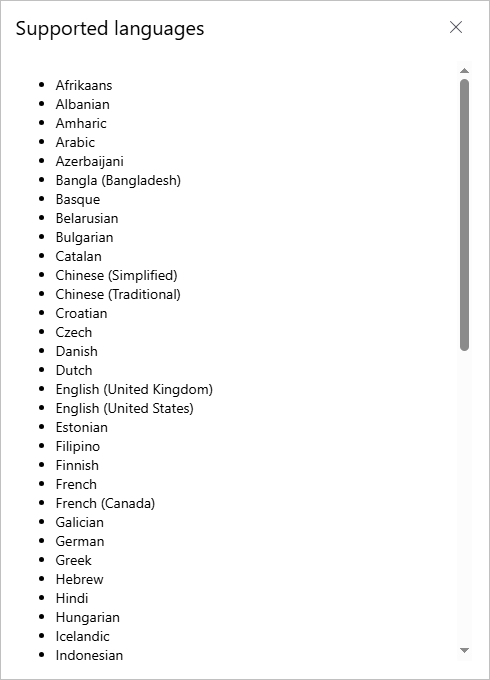
For comparison, I repeated the two tests with the Greek and Arabic text shown above.
| Image with Greek Text |
Extracted Text (Snipping Tool) |
|
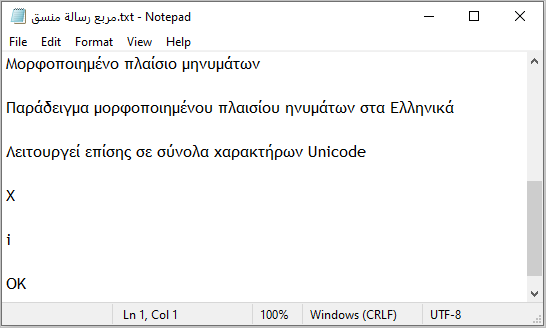 |
This time the results were excellent. The software automatically identified the appropriate character set from the lomg list of supported languages.
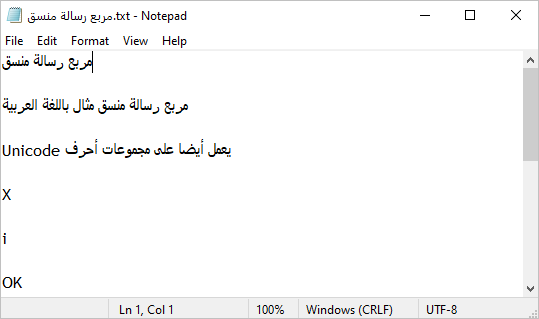
The Arabic text message results were also excellent. All the Arabic characters were correctly recognized but with the English language word 'Unicode' again shifted to the left.
| Image with Arabic Text |
Extracted Text (Snipping Tool) |
|
 |
NOTE:
The earlier version of this tool in Windows 10 was called Snip and Sketch. It has a similar UI which is also loaded by clicking Win+Shift+S but does not include the text extraction feature.
Confusingly, Windows 10 also contains its own Snipping Tool for taking screenshots but this also does not support text extraction.
Windows 10 Snip + Sketch

|
Windows 10 Snipping Tool

|
Unlike the previous two approaches, text extraction is only available for saved images using the Windows Photos app.
Open a saved image in the Photos app, then click the Scan Text button at the bottom:
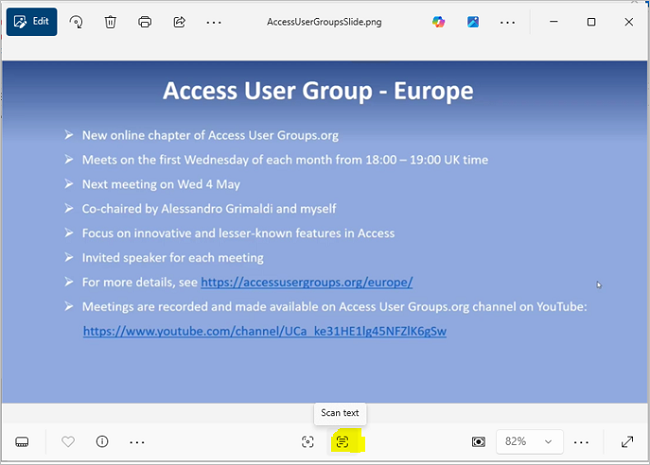
As with the Windows 11 Snipping Tool, the area border is highlighted for 2-3 seconds whilst optical character recognition is applied to the entire image. There is no option to select an area.
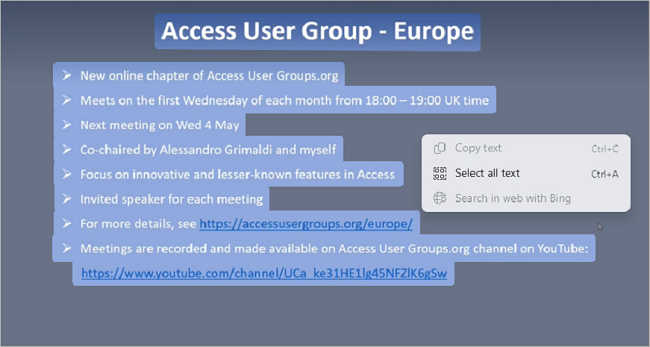
When completed, all the scanned text is highlighted. However, some additional steps are needed as the text is not automatically copied into memory.
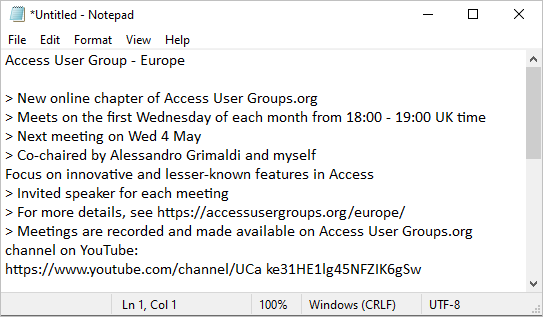
Right click the image and click Select All Text (Ctrl+A) then Copy text (Ctrl+C) and finally paste (Ctrl+V) into e.g. Notepad.
Original Image after Scan Text
|
Extracted Text
|
The process is rather cumbersome but the end results are usually excellent (provided a list format is suitable).
Yet again, I repeated the two tests with the Greek and Arabic text shown above.
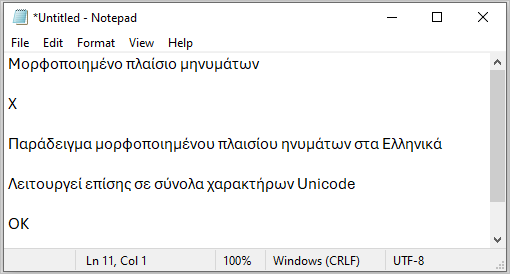
Once again the Greek language text was correctly recognized. The X and OK text used for the form itself were correctly positioned but the 'i' was ignored.
| Image with Greek Text |
Extracted Text (Photos app) |
|
 |
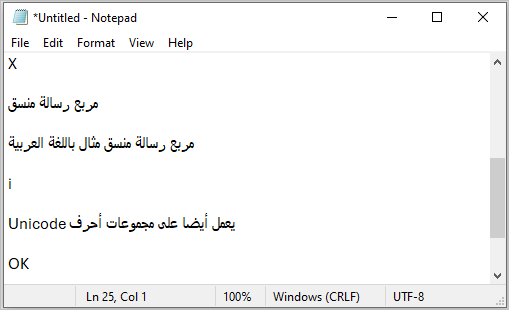
With the Arabic text, all message box items were included and correctly positioned. It was clear that the scanning was done from right to left in line with the language.
| Image with Arabic Text |
Extracted Text (Photos app) |
|
 |
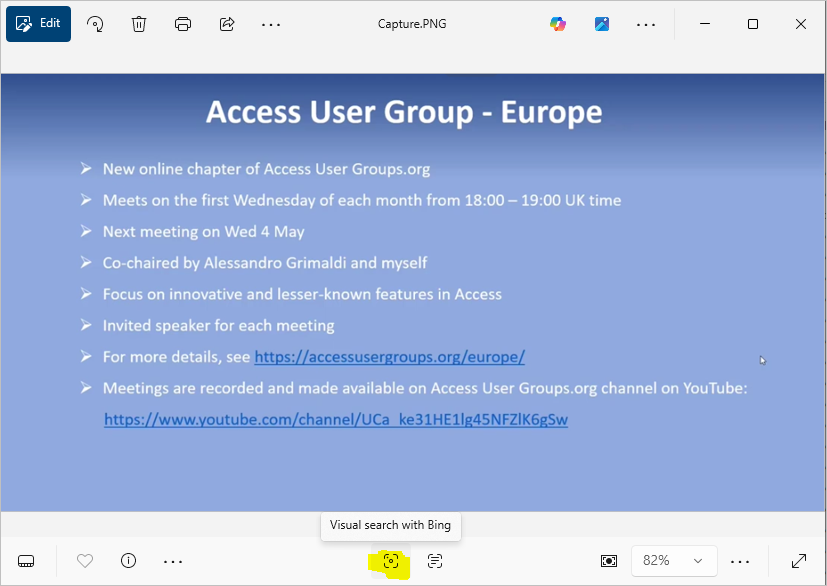
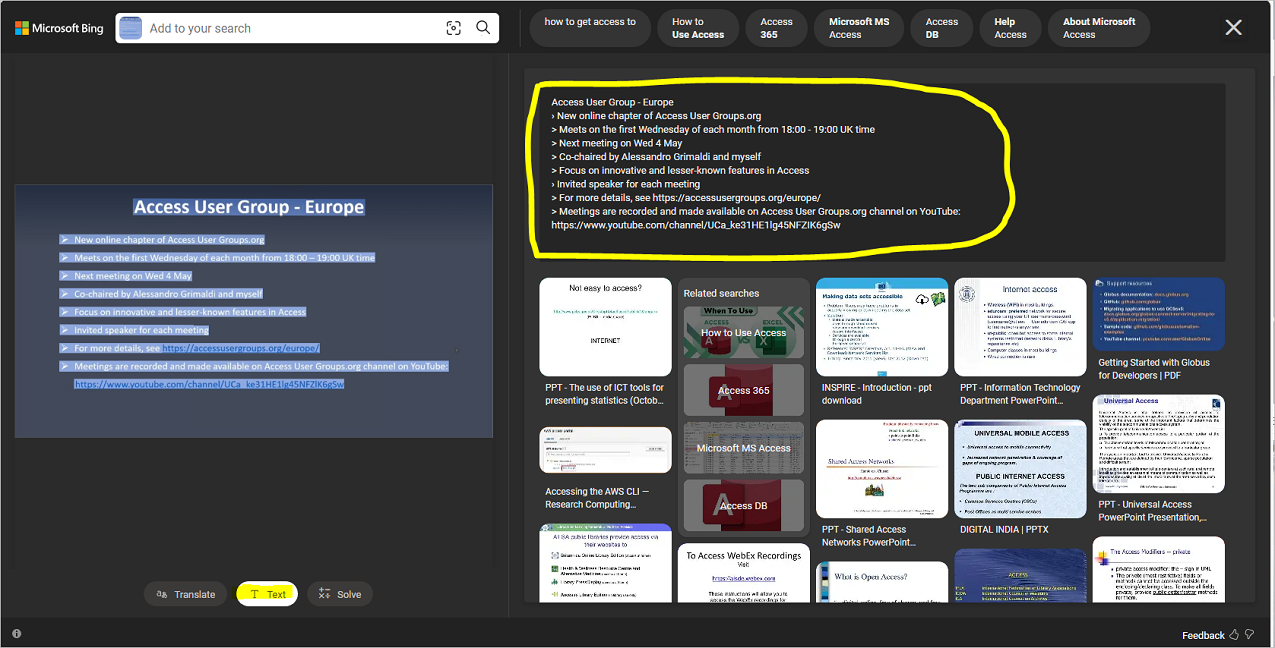
The Photos app also includes another method of extracting text which can give even better accuracy with difficult images.
Open the image in the Photos app then click the Visual Search with Bing button:
A browser window opens with the image on the left and search results on the right (which can be ignored here). Click the Text button below the image and the scanned text is displayed as a list on the right.
Although OneNote isn't free, many people will have this app as it is an integral part of the Microsoft Office suite.
The OCR process is very simple:
First import/scan the image into OneNote. Then right click the image and select Copy Text from Picture.
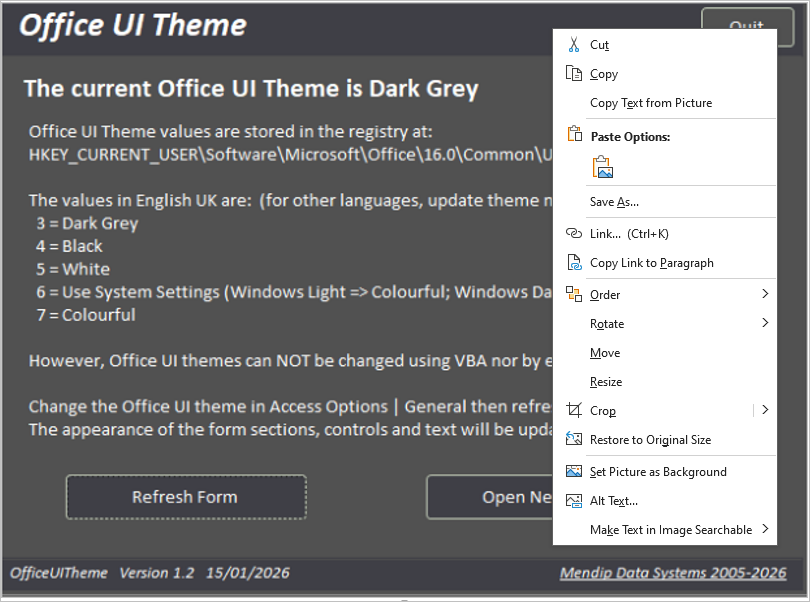
Now click wherever you want to place the extracted text and paste it using Ctrl+V.
The accuracy of the output is broadly similar to that using the PowerToys Text Extractor utility.
It is generally very good for Latin character set languages such as English and German but poor or non-existent for other languages, particularly if the OCR Pack isn't installed.
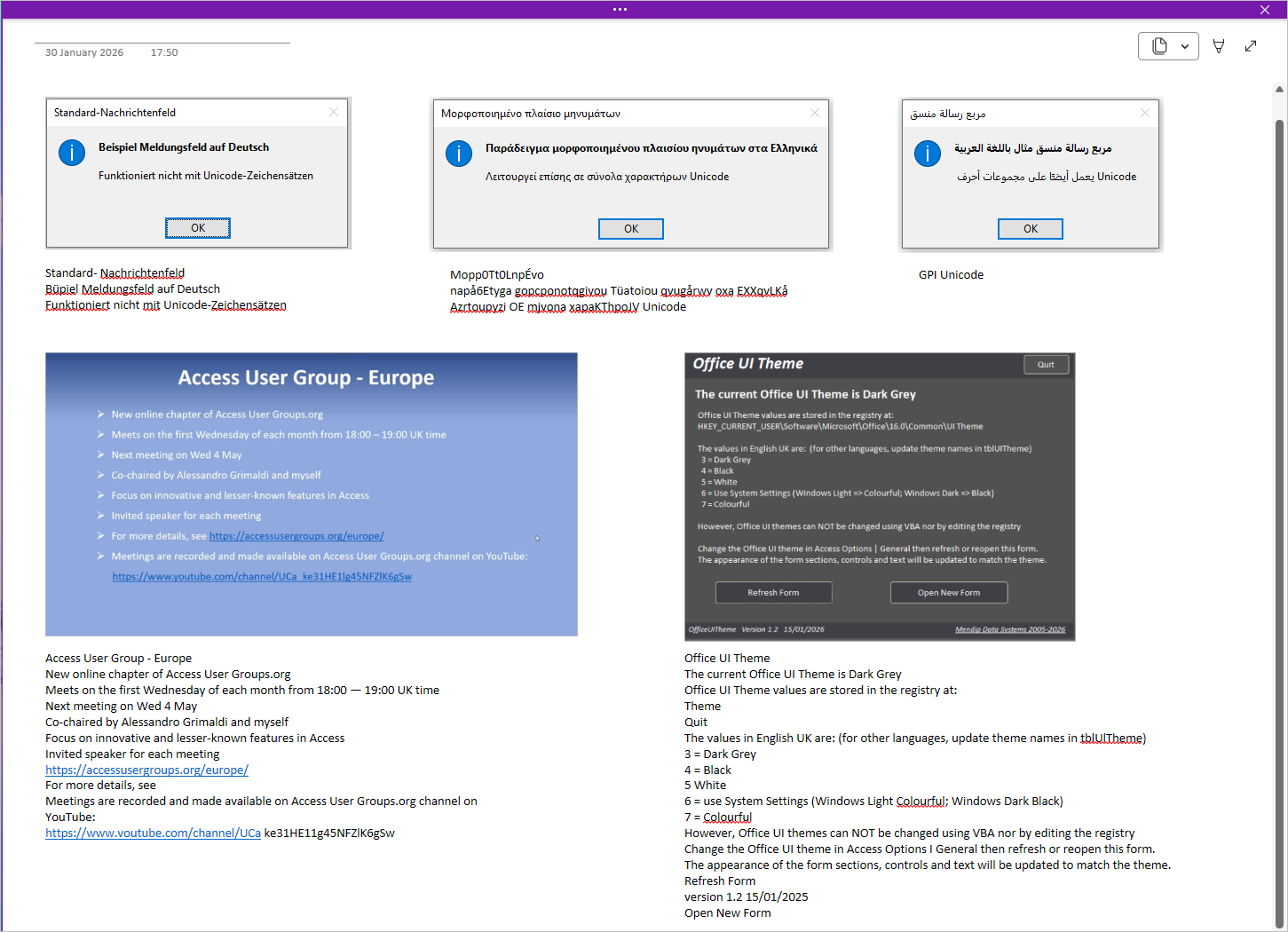
The screenshot below shows several examples with the extracted text below the image:
Each of the OCR apps have advantages and disadvantages. The table below should help you decide which will be most suited to your particular needs at any time.
| Feature |
PowerToys Text Extractor |
Windows 11 Snipping Tool |
Photos app |
OneNote app |
| Availability |
Free download for Windows 10 and 11 |
Built in to Windows 11 ONLY |
Built in to Windows 10 and 11 |
Supplied with Microsoft Office |
| Supported languages |
Language OCR pack installed and selected |
Wide range of languages supported |
Wide range of languages supported |
Only where language OCR pack installed |
| Automatic language detection |
No - install OCR pack and select manually |
Yes - Wide range of languages supported |
Yes - Wide range of languages supported |
No - cannot select manually |
| Ease of use |
Simple |
Moderate |
More complicated |
Simple |
| Speed |
Very fast |
Slower |
Slower |
Very fast |
| Text Extraction Options |
Single line or table |
Automatic / manual text copying;
Include / remove line breaks
| None - List only |
None - List only |
| Accuracy |
Very good if the OCR pack is installed and used. Otherwise poor. |
Very good |
Excellent |
Very good (English / German etc).
Other languages depend on
OCR pack being installed |
As stated above, text accuracy using OCR is often excellent whichever app you use.
However, mistakes may occur if the scanned text is unclear (poor quality), uses non-standard symbols or is in an unrecognized character set.
If the OCR software does not recognize certain characters as text, it will simply ignore those completely.
The accuracy of the text extracted using OCR will depend on a number of factors:
• Standard fonts (serif or sans-serif) work well with OCR - decorative or script fonts do not
• Font size and properties - ideally scan larger text and standard font styles. Underlined or strikethrough text will be mis-read by OCR
• Alphanumeric characters are normally recognized correctly. Non-standard symbols may not be.
• The amount of contrast between text colours and background colours - ideally black on white (or vice versa)
• The language(s) in the text being supported by the OCR software in the tool used
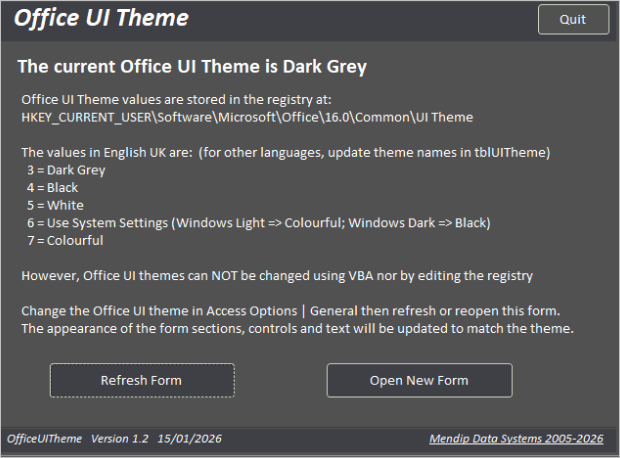
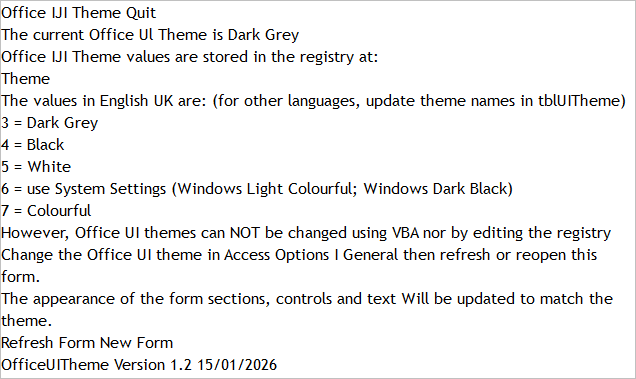
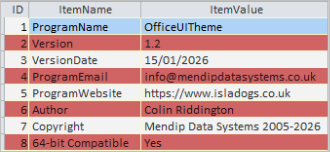
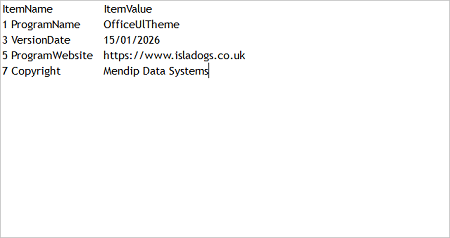
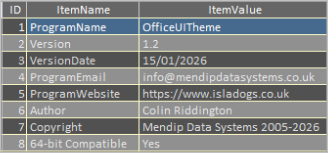
To illustrate some of these points, I scanned sections of images of the two forms used in my article: Create Theme-Aware Forms in Access
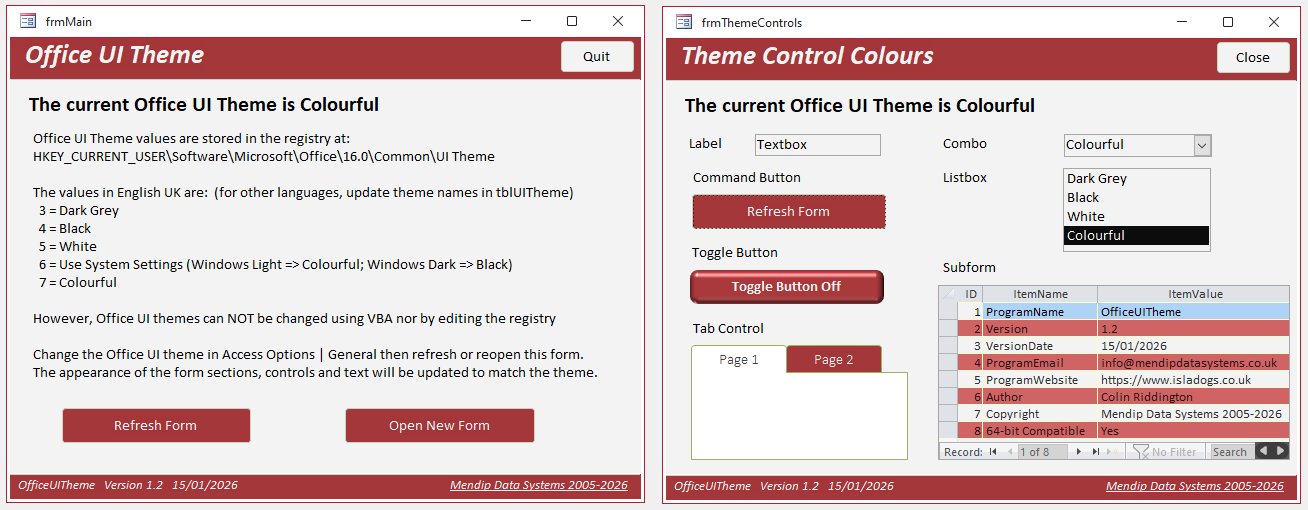
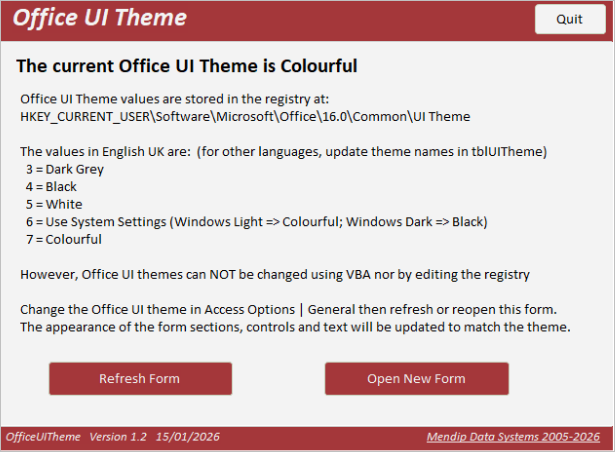
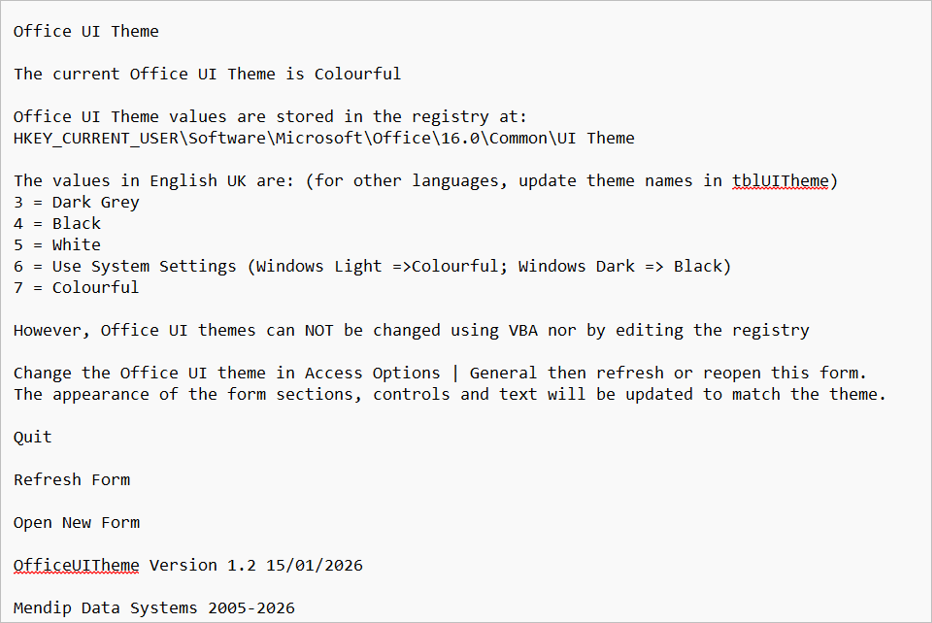
The table below shows the results with the forms modified for Colorful and then Dark Grey themes:
| Screenshot |
Extracted Text |
 |
 |
 |
 |
 |
 |
 |
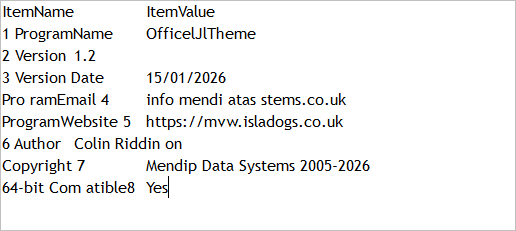 |
For the main form, the Colorful theme results are almost perfect. The registry key is largely unread in the Dark Grey theme as the contrast is less well defined.
The subform results are far worse overall due to both poor colour contrast and smaller font size. In the Colorful theme, the odd numbered records are perfectly rendered but the even numbered records are not read at all. For dark grey, an attempt is made to read all the records but there are many errors.
Optical Character Recognition is a powerful tool which can allow users to obtain text from almost any object including images and videos, often with minimal additional work required.
However, when each item of text in images, screenshots, and photos can be reliably extracted with OCR, the ground shifts under both privacy and copyright. The technology isn’t new, but its accuracy, scale, and automation change the implications in meaningful ways.
The Big Picture
OCR removes practical barriers that used to protect privacy and copyright by default. The result is a world where:
• anything visible is extractable
• anything extractable is searchable
• anything searchable is copyable
• anything copyable is shareable
Privacy Implications
a) Loss of 'security through obscurity'
People often assume that text embedded in images—IDs, addresses, whiteboard notes, badges, receipts, medical documents—can’t easily be read or indexed.
Modern OCR removes that barrier. Anything visible becomes extractable, searchable, and storable.
b) Unintentional data exposure
Images uploaded to social platforms, cloud storage, or messaging apps may contain personal identifiers, financial information, location clues and sensitive workplace material.
If platforms run automated OCR (many already do), this data can be indexed, used for targeting adverts, shared with third‑party analytics and exposed in data breaches.
c) Expanded surveillance potential
OCR enables automated monitoring of signage, documents, or screens in public or semi‑public spaces, extraction of text from CCTV footage and large‑scale text scraping from social media
images. This raises concerns about consent, proportionality, and data retention.
d) Metadata reconstruction
Even if photo EXIF metadata is stripped out, OCR can reveal names, dates, company names, project codes and internal documents.
This can unintentionally remove the anonymity of individuals or organizations.
Copyright Implications
a) Images containing text become de facto text sources
If a screenshot is taken of a copyrighted article, book page, or paywalled content, OCR can convert it into plain text.
This makes copying, redistributing, training AI models and indexing much easier, raising questions about fair use and unauthorized reproduction.
b) Screenshots no longer provide a 'format barrier'
Historically, copyright enforcement relied partly on text in images being harder to copy, so infringement was less scalable. OCR eliminates that 'friction'.
c) Derivative works become easier to create as once text is extracted, it can be republished, transformed, translated and used in datasets
This may violate copyright unless covered by fair use or explicit licensing.
d) Platform liability increases:
If platforms automatically OCR user‑uploaded images, they may inadvertently store copyrighted text, make it searchable and enable redistribution
This can shift them from being a 'passive host' to an 'active processor' which has legal consequences in some jurisdictions.
e) Authenticity and provenance issues
OCR makes it trivial to copy text from images, alter it and re‑embed it in new images
This complicates copyright enforcement and increases the risk of misinformation.
Please use the E-Mail button in the contact form below to let me know whether you found this article useful or if you have any questions.
Please also consider making a donation towards the costs of maintaining this website. Thank you
Colin Riddington Mendip Data Systems Last Updated 23 Sept 2026