Version 1.3 Approx 0.75 MB (zipped) First Published 15 Jan 2026 Last Updated 20 Jan 2026

When distributing applications, a common request is for the appearance of Access forms to be automatically updated in line with the currently selected Office UI theme.
This article explains how this can be done and includes an example database together with all required code.
From Office 2016 onwards, Office applications have provided four different Office themes: Colourful, White, Black and Dark Grey.
The default is Colourful which gives an application specific title bar colour: Access (dark red), Excel (green), Outlook (blue) etc.
It is also possible to specify Use System Settings so that the Office theme is based on the Windows theme: Windows Light theme maps to Colourful; Windows Dark Theme maps to Black.
The theme is selected from the Options | General dialog of any Office app and is applied consistently across all Office apps.

The theme values are as follows:
| Office UI Theme Name | Office UI Theme Value |
|---|---|
| Dark Grey | 3 |
| Black | 4 |
| White | 5 |
| Use system settings | 6 |
| Colourful | 7 |
NOTE: Theme names and spellings will vary depending on Office language / locale but the UI values are consistent.
These values are stored in the registry at: HKEY_CURRENT_USER\Software\Microsoft\Office\16.0\Common\UI Theme

Get the Office theme using Code
This is easily done by reading the registry. Place the following code in a standard module:
Option Compare DatabaseOption Explicit' ============================================================' Author: Colin Riddington' Company: Mendip Data Systems' Website: https://isladogs.co.uk' Purpose: Theme-aware UI module for Microsoft Access' Detects Office theme and exposes colour palettes' Last Updated: 2026-01-14' ============================================================' Office theme registry values:' 3 = Dark Grey' 4 = Black' 5 = White' 6 = Use System Settings' 7 = Colorful' For non-English UK users, update the theme names in tblUITheme to match those in Access Options | General' Windows AppsUseLightTheme values:' 0 = Dark Mode' 1 = Light Mode' ============================================================Public FunctionGetCurrentOfficeTheme()As LongDimregThemeAs VariantregTheme=ReadReg("HKEY_CURRENT_USER\Software\Microsoft\Office\16.0\Common\UI Theme")Select CaseregThemeCase0GetCurrentOfficeTheme= 7'default is ColorfulCase6'use system settingsGetCurrentOfficeTheme=ResolveSystemTheme()Case Else'3,4,5,7GetCurrentOfficeTheme=CLng(regTheme)End SelectEnd FunctionPublic FunctionGetCurrentOfficeThemeName()As StringGetCurrentOfficeThemeName=Nz(DLookup("Theme", "tblUITheme", "UIThemeID = "&GetCurrentOfficeTheme), "Unknown")End FunctionPrivate FunctionResolveSystemTheme()As StringDimwinModeAs VariantwinMode=ReadReg("HKEY_CURRENT_USER\Software\Microsoft\Windows\CurrentVersion\Themes\Personalize\AppsUseLightTheme")IfIsNull(winMode)ThenResolveSystemTheme= 7'Colourful ' Office default fallbackExit FunctionEnd IfIf CLng(winMode) = 0ThenResolveSystemTheme= 4'Black ' Windows Dark Mode => Office BlackElseResolveSystemTheme= 7'Colourful ' Windows Light Mode => Office ColorfulEnd IfEnd FunctionPrivate FunctionReadReg(pathAs String)As VariantOn Error Resume NextDimwshAs ObjectSetwsh=CreateObject("WScript.Shell")ReadReg=wsh.RegRead(path)End Function
The GetCurrentOfficeTheme function returns the registry key value: 3/4/5/6/7.
If the returned value = 6, the code uses the ResolveSystemeTheme function to obtain the effective Office theme value.
This is done by reading another registry key:HKEY_CURRENT_USER\Software\Microsoft\Windows\CurrentVersion\Themes\Personalize\AppsUseLightTheme

The key values are Dark Mode = 0; Light Mode = 1 and result in Black and Colourful Office UI themes respectively.
NOTE:
1. The Office theme names and spellings will vary depending on the Office language and locale. In the attached database, the theme names for English (UK) are stored in the table tblUITheme

If you are using another Office language, you should update the Theme names as necessary in this table as the values are used in the GetCurrentOfficeThemeName function.
2. Although the registry UI Theme value can easily be edited either manually or using code, doing so has no effect on the Office theme.
The values 1, 2 and 3 were originally used to denote the various Office 2007 / 2010 theme colours (silver / blue / black).
At that time, it was possible to edit the theme colurs by editing the registry.
This no longer works as the values are now stored in the cloud. The registry key values are still used but only for backwards compatibility.
Nevertheless, we can still reliably use the registry key values to detect the Office theme and then modify the appearance of our forms.
The Example App
The example app has two forms whose appearance is automatically updated with the Office theme.
I have made no attempt to follow the Fluent UI guidelines published by Microsoft. My purpose here was to show how forms could be modified to blend in with each theme.
Using the default Colourful theme, the forms look like this:

Changing to Black theme, the appearance of each form changes to:

Changing again to Dark Grey theme, the forms now look like this:
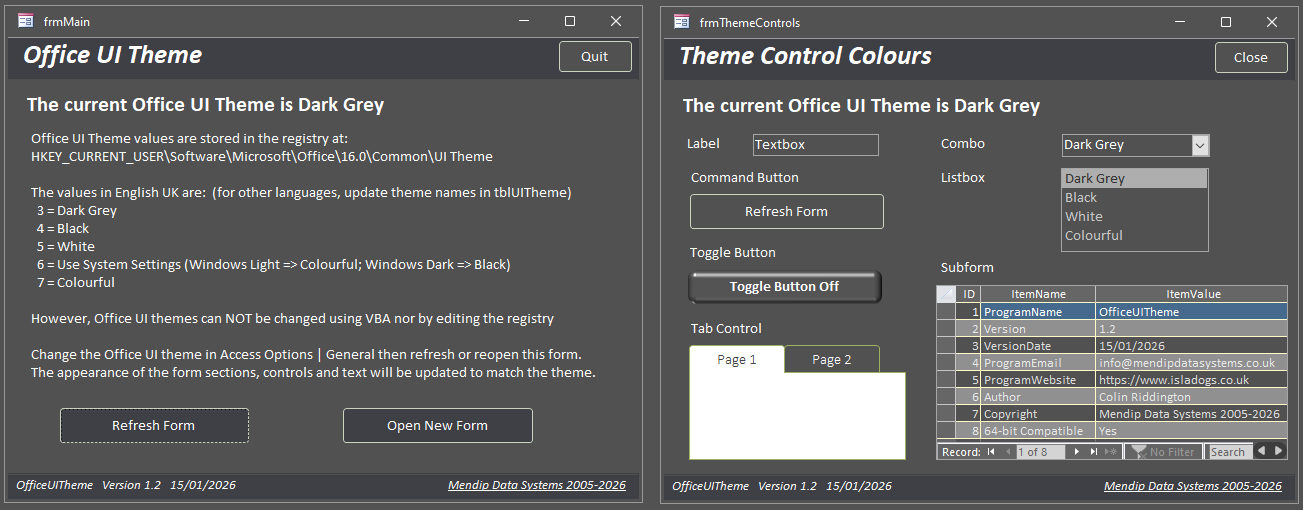
Finally changing to White theme, the forms change to this:
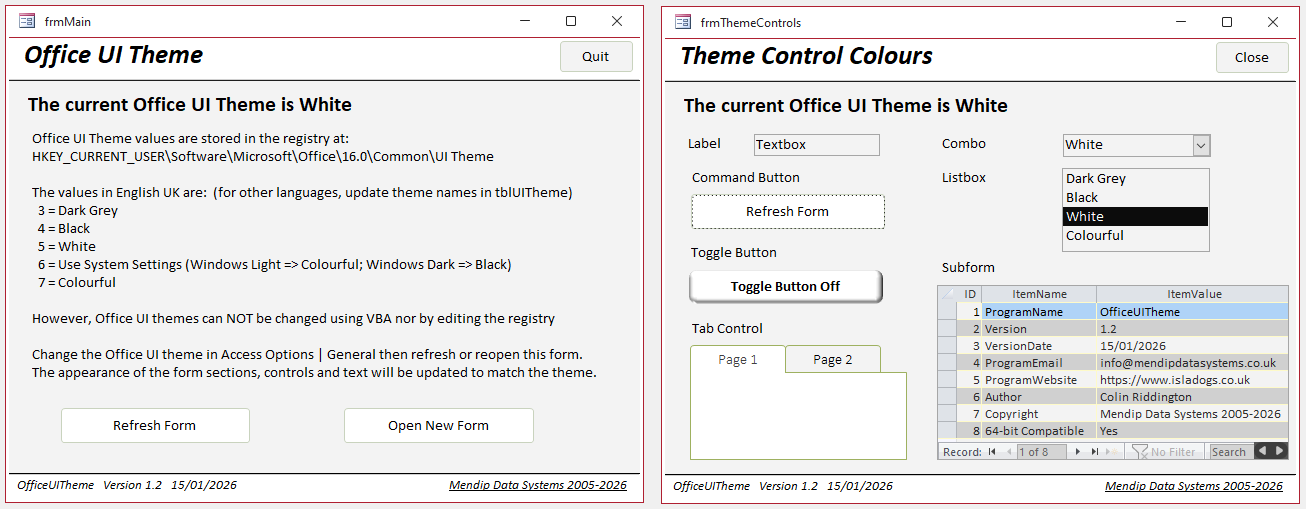
Each form (including the datasheet subform) is automatically updated in line with the current theme when it is opened.
If you change themes whilst a form is open, click the Refresh Form buttons on each form to update the appearance.. The changes are instantaneous.
Most of the code that manages this is also part of the standard module modOfficeTheme. The main procedure is called ApplyThemeToForm:
' ------------------------------------------------------------' Apply theme to a form and its controls' ------------------------------------------------------------Public SubApplyThemeToForm(frmAsForm)'v1.3 - handle error 2465 triggered if form has no header / footerOn Error Resume NextDimctlAsControlfrm.Detail.BackColor=ThemeBackColor()frm.FormHeader.BackColor=OfficeAccentColor()frm.FormFooter.BackColor=OfficeAccentColor()For EachctlInfrm.ControlsSelect Casectl.ControlTypeCaseacTextBox,acComboBox,acListBox,acLabel,acTabCtlctl.ForeColor=ThemeTextColor()ctl.BackColor=ThemeSecondaryBackColor()CaseacLinectl.BorderColor=ThemeTextColor'ThemeBorderColor()CaseacCommandButton,acToggleButtonctl.BackColor=OfficeAccentColor()ctl.ForeColor=ThemeTextColor()End SelectNextctlEnd Sub
This code depends on various helper functions.
With one exception, the colours used in each function are based on what I believe are the values used by Access for each UI theme. These values are stored in the table, tblThemeColors.
' ------------------------------------------------------------' Accent Colours' ------------------------------------------------------------Public FunctionOfficeAccentColor()As LongSelect CaseGetCurrentOfficeTheme()Case3'dark greyOfficeAccentColor=RGB(63, 63, 70)Case4'blackOfficeAccentColor=RGB(0, 0, 0)Case5'WhiteOfficeAccentColor=RGB(255, 255, 255)Case7'colorfulOfficeAccentColor=RGB(164, 55, 58)' #A4373A 'AccessAccentColor()End SelectEnd Function' ------------------------------------------------------------' Neutral background colours for forms' ------------------------------------------------------------Public FunctionThemeBackColor()As LongSelect CaseGetCurrentOfficeTheme()Case3'Dark GreyThemeBackColor=RGB(81, 81, 81)'RGB(63, 63, 70)Case4'BlackThemeBackColor=RGB(30, 30, 30)'RGB(0, 0, 0)Case5'WhiteThemeBackColor=RGB(243, 243, 243)Case7'ColourfulThemeBackColor=RGB(243, 243, 243)End Select'Debug.Print ThemeBackColorEnd Function' ------------------------------------------------------------' Secondary background colours for controls e.g. textboxes, combos' ------------------------------------------------------------Public FunctionThemeSecondaryBackColor()As LongSelect CaseGetCurrentOfficeTheme()Case3'Dark GreyThemeSecondaryBackColor=RGB(81, 81, 81)Case4'BlackThemeSecondaryBackColor=RGB(30, 30, 30)Case5'WhiteThemeSecondaryBackColor=RGB(243, 243, 243)Case7'ColourfulThemeSecondaryBackColor=RGB(243, 243, 243)End SelectEnd Function' ------------------------------------------------------------' Text colour for forms' ------------------------------------------------------------Public FunctionThemeTextColor()As LongSelect CaseGetCurrentOfficeTheme()Case3, 4'Dark Grey, BlackThemeTextColor=RGB(255, 255, 255)Case5, 7'White, ColourfulThemeTextColor=RGB(0, 0, 0)End SelectEnd Function' ------------------------------------------------------------' Secondary Text colour for forms' ------------------------------------------------------------Public FunctionThemeSecondaryTextColor()As LongSelect CaseGetCurrentOfficeTheme()Case3'Dark GreyThemeSecondaryTextColor=RGB(200, 200, 200)Case4'BlackThemeSecondaryTextColor=RGB(212, 212, 212)Case5'WhiteThemeSecondaryTextColor=RGB(166, 166, 166)Case7'ColourfulThemeSecondaryTextColor=RGB(166, 166, 166)End SelectEnd Function' ------------------------------------------------------------' Border colours for controls e.g. textboxes, combos' ------------------------------------------------------------Public FunctionThemeBorderColor()As LongSelect CaseGetCurrentOfficeTheme()Case3'Dark GreyThemeBorderColor=RGB(81, 81, 81)Case4'BlackThemeBorderColor=RGB(60, 60, 60)Case5'WhiteThemeBorderColor=RGB(208, 208, 208)Case7'ColourfulThemeBorderColor=RGB(208, 208, 208)End SelectEnd Function' ------------------------------------------------------------' Alternate Row Colors for datasheets (unofficial)' I have chosen these as 'muted' versions of the OfficeAccentColor for each theme' ------------------------------------------------------------Public FunctionThemeDSAltRowColor()As LongSelect CaseGetCurrentOfficeTheme()Case3'Dark GreyThemeDSAltRowColor=RGB(144, 144, 144)Case4'BlackThemeDSAltRowColor=RGB(127, 127, 127)Case5'WhiteThemeDSAltRowColor=RGB(208, 208, 208)Case7'ColourfulThemeDSAltRowColor=RGB(208, 100, 100)End SelectEnd Function
As stated in the code above, the colours specified by the function ThemeDSAltColors are not part of the official theme colors.
I have used this function to provide 'muted' versions of the OfficeAccentColor as a suitable colour for datasheet alternate rows.
Both forms run a procedure called UpdateFormColors in the Form_Load event. This does the following:
• detects the current Office theme and displays the theme name
• runs the ApplyThemeToForm procedure which updates the colours of all the form sections and controls
• optionally runs code to manage any exceptions to the default values (if necessary).
For example in the main form, the UpdateFormColors procedure has several exceptions when the Colorful theme is used:
Private Sub UpdateFormColors() Me.lblTheme.Caption = "The current Office UI Theme is " & GetCurrentOfficeThemeName ApplyThemeToForm Me 'contrast button in header with header section colour Me.cmdQuit.BackColor = ThemeBackColor 'manage exceptions for Colourful theme If GetCurrentOfficeTheme = 7 Then Me.lblHeader.ForeColor = ThemeBackColor Me.cmdRefresh.ForeColor = ThemeBackColor Me.cmdNew.ForeColor = ThemeBackColor Me.lblVersion.ForeColor = ThemeBackColor Me.lblMDS.ForeColor = ThemeBackColor End IfEnd Sub
Similar modifications have been done in the second form.
Private SubUpdateFormColors()Me.lblTheme.Caption= "The current Office UI Theme is "&GetCurrentOfficeThemeNameApplyThemeToFormMe'apply current theme to combo & listboxMe.cboThemes=GetCurrentOfficeThemeMe.lstThemes=GetCurrentOfficeThemeMe.fsubSettings.Form.DatasheetBackColor=ThemeSecondaryBackColorMe.fsubSettings.Form.DatasheetAlternateBackColor=ThemeDSAltRowColorMe.fsubSettings.Form.DatasheetForeColor=ThemeTextColor'contrast button in header with header section colourMe.cmdClose.BackColor=ThemeBackColor'manage exceptionsSelect CaseGetCurrentOfficeThemeCase3, 4'dark grey, blackMe.lstThemes.ForeColor=ThemeSecondaryTextColorMe.cmdRefresh.BackColor=ThemeSecondaryBackColorMe.tgl1.BackColor=ThemeSecondaryBackColorCase5'whiteCase7'colourfulMe.lblHeader.ForeColor=ThemeBackColorMe.cmdRefresh.ForeColor=ThemeBackColorMe.cmdClose.BackColor=ThemeBackColorMe.lblVersion.ForeColor=ThemeBackColorMe.lblMDS.ForeColor=ThemeBackColorMe.TabCtl1.BackColor=OfficeAccentColorMe.TabCtl1.ForeColor=ThemeBackColorMe.tgl1.ForeColor=ThemeBackColorEnd SelectEnd Sub
The UpdateFormColors procedure also runs when the Refresh Form button is clicked.
If you are interested in applying the ideas from this article in your own apps, I suggest you first experiment with the example app.
You can try changing any of the values in the code to see the effects of your changes in each case.
NOTE: I STRONGLY recommend you make a backup before making any changes to the example app.
Alternative Approach
You could instead specify built-in Access themes (or create your own) to use with each of the Office UI themes.
When the Office UI theme is changed, update all forms to the corresponding Access theme.
I may write an article about this approach in the future. For more information on using Access themes effectively, see the
ThemeMyDatabase add-in by Peter Cole.
Video
I have created a short YouTube video (04:17) to demonstrate this using the example app.
You can watch the Create Theme-Aware Forms in Access video on my Isladogs YouTube channel or you can click below:
If you liked the video, please subscribe to my Isladogs on Access channel on YouTube. Thanks.
Version History
| Version | Release Date | Notes |
|---|---|---|
| 1.2 | 2016-01-15 | Initial release |
| 1.3 | 2016-01-20 | Added test form frmThemeControlsDetailOnly Added error handling to ApplyThemeToForm code to manage error 2465 where no form header / footer exists. Thanks to Peter Cole for reporting this issue. |
Download
Click to download:
Office UI Theme_v1.3 Approx 0.75 MB (ACCDB - zipped)
Feedback
Please use the E-Mail button in the contact form below to let me know whether you found this article useful or if you have any questions.
If there is sufficient interest, I may do a follow-up article showing how to apply fluent UI guidelines for each component of a form in the four Office themes.
Please also consider making a donation towards the costs of maintaining this website. Thank you
Colin Riddington Mendip Data Systems Last Updated 20 Jan 2026
|
Return to Example Databases Page
|
Return to Top
|