First Published 12 Jan 2026

Introduction
Over the past couple of years, Microsoft has been slowly rolling out a significant update to the old style message box used in all Office apps for built-in messages.
Gone are the monochrome and rather forgettable messages of the past. Now we have colorful messages that catch users' attention more effectively.
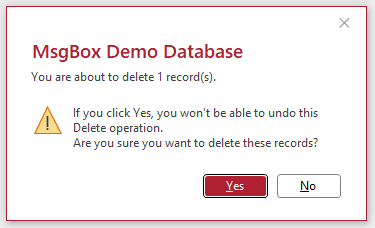
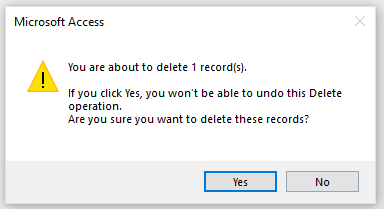
First, compare the new and old style delete record messages as shown using the default Access Colorful theme
New Style Message
|
Old Style Message
|
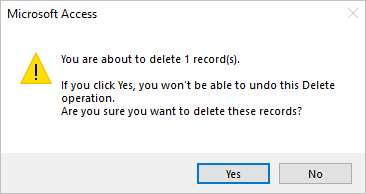
Once again, but this time using the Access Black theme:
New Style Message

|
Old Style Message
|
The new style message changes with the Access theme whereas the old style message is unchanged and looks incongruous.
The dark red heading text and default button color have become a slightly lighter shade to improve the contrast with the backcolor.
Unfortunately, the new style dialog has not yet been ported across to the messages that developers create using Access MsgBox code.
As a result, UK developer, Neil Sargent set out on a major development journey to replicate the new style message boxes in Access.
In the first Access Europe User Group meeting of 2026, Neil demonstrated how he was able to replicate the new style messages with his own custom MsgBox function
For more details about the topic and presenter, see Spot the Difference – A new style MsgBox for Access
It was a high quality and very detailed session, prepared over many months with a large number of UI tips for developers.
The video is now available on YouTube and has had well over 400 views in the first 24 hours.
Other Message Box Alternatives
In addition to the work done by Neil, there have been many other variations on the standard message box over the years. For example:
Formatted MsgBox
Attention Seeking Database (Colin Riddington)
Task Dialog Messages (Kevin Bell)
Improved, Enhanced Message Box (Olaf Nöhring)
High impact dialogs and mini-notifications (Marcus Dieterle)
These all provide additional functionality such as bold text, rich text, timeouts, hyperlinks etc
Customizing the built-in Access message boxes
In addition to all the above possibilities, there are several simple ways of customizing both the old and the new style message boxes without writing any code.
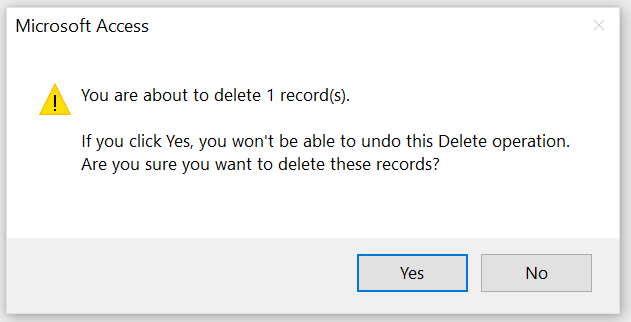
For example, many users with vision difficulties and those with ultra high definition monitors may find the font size too small.
However, this can be increased in Windows Ease of Access (Accessibility) Display settings.
The scaling factor can be increased using a slider from normal (100%) through to 225%. For example, here it has been increased to 150%.

NOTE: You may need to restart Access for all user interface text and spacings to be updated.
The results obtained for each type of message are shown below:
New Style Message (Text size = 150%) - Colorful theme

|
Old Style Message (Text size = 150%) - all themes
|
New Style Message (Text size = 150%) - Black theme

|
For those who find the colored text in the new style messages difficult to read, this can be altered by choosing from the large range of Windows Accessibility color options.
For example, users can select from a range of color filters such as Greyscale.

This will change the appearance of both old and new style messages:
New Style Message (Greyscale) - Colorful theme
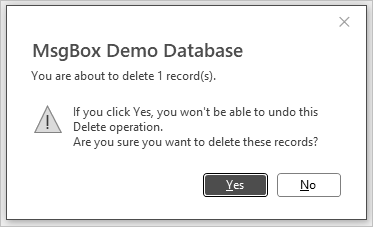
|
New Style Message (Greyscale) - Black theme
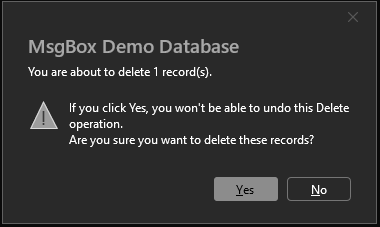
|
Old Style Message (Greyscale) - all themes
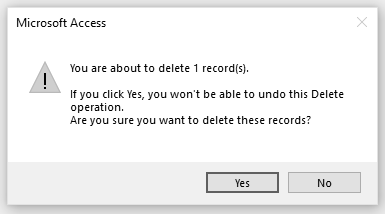
|
For those who find there is insuufficient contrast between the foreground and background colors, it is also possible to use high contrast colors in Windows Ease of Access settings such as High Contrast White or High Contrast Black.

Each of the high contrast settings can also be combined with e.g. the greyscale color filter to create a fully black and white scheme.
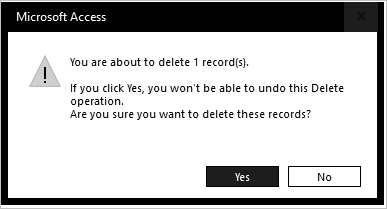
For example, using high contrast white with greyscale filter:
New Style Message
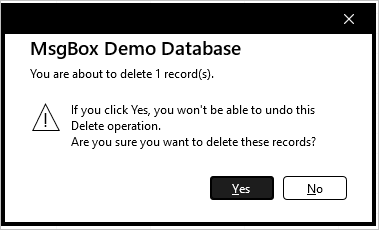
|
Old Style Message
|
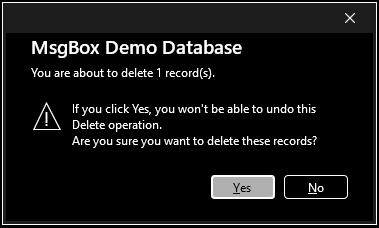
Or instead using high contrast black with greyscale filter:
New Style Message
|
Old Style Message

|
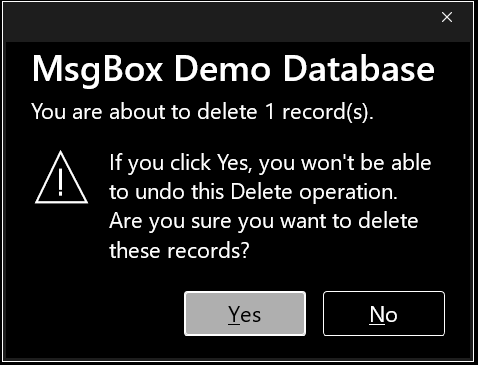
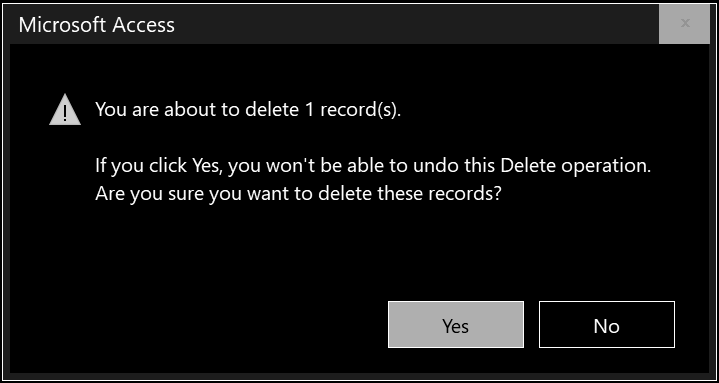
Finally, larger font scaling can be used with either or both of these settings. For example using 175% font size scaling with high contrast black and greyscale filter
New Style Message
|
Old Style Message
|
Summary
There are many ways of improving the appearance and/or functionality of message boxes both with and without using code.
By making use of Windows Ease of Access options, it should be possible to change the appearance of message boxes to suit individual needs and monitor resolutions.
Alternatively, for additional functionality, investigate the various different message box enhancements available such as those linked above.
Feedback
Please use the E-Mail button in the contact form below to let me know whether you found this article useful or if you have any questions.
Please also consider making a donation towards the costs of maintaining this website. Thank you
Colin Riddington Mendip Data Systems Last Updated 12 Jan 2026
|
Return to Access Blog Page
|
Return to Top
|