First Published 29 Nov 2025
The Quick Access Toolbar (QAT) uses shortcuts to provide quick access to frequently used commands and tools in Office applications. Its contents are fully customisable by users.
For many years, the QAT was fully integrated with the ribbon. Whilst its position could be changed (above / below the ribbon), the QAT could only be hidden by hiding the ribbon itself.
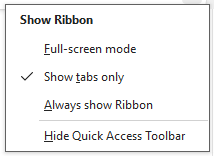
However, starting with Office 2021, it finally became possible to hide / show the QAT independently of the ribbon visibility.
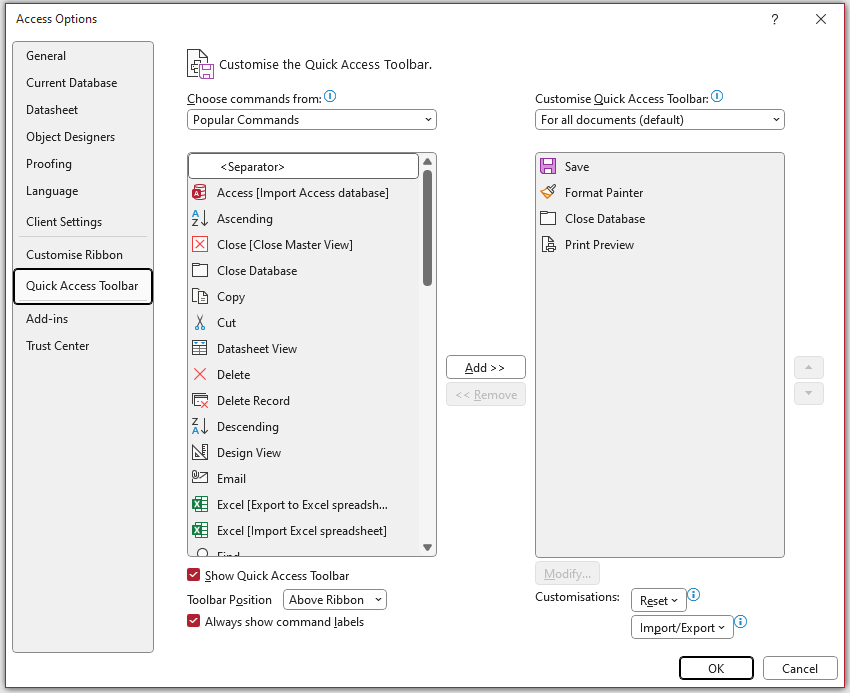
Access Options - Quick Access Toolbar
|
Ribbon Dropdown Menu
|
Using the Options menu, it is also possible to specify whether or not command labels are shown alongside the QAT icon. However, for space reasons, this setting only applies when the QAT is displayed below the ribbon
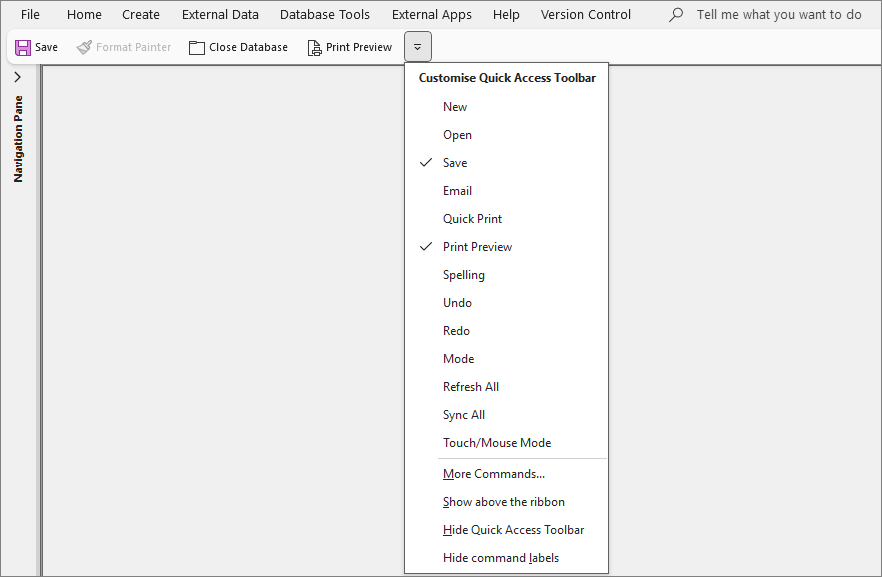
The same functionality to manage the QAT is available in all Office apps. Perhaps surprisingly, the Office team didn't provide any method of achieving these results using code.
However, there is a way of doing so indirectly by editing the registry, either directly using the Regedit app or by using code.
NOTE: Editing the registry can cause unpredictable results if done incorrectly. Take care.

Manage the QAT using the registry
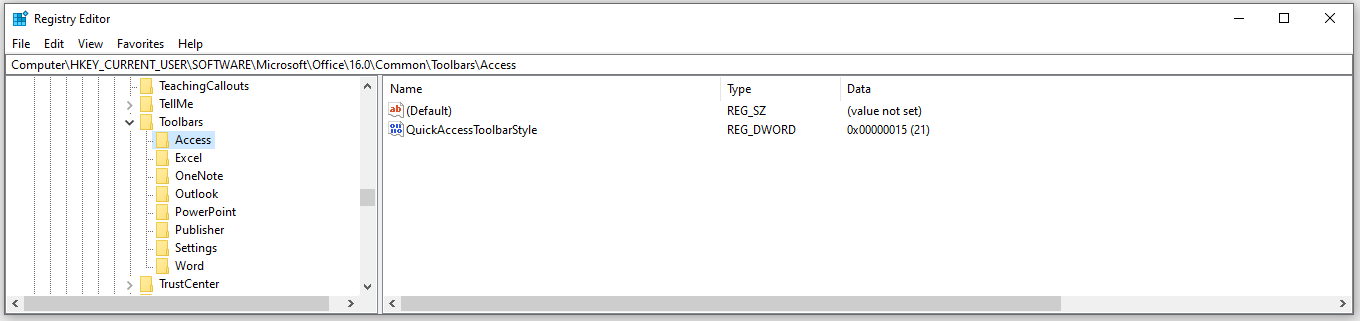
All QAT settings for each Office app are stored in the registry in individual subfolders at: HKEY_CURRENT_USER\SOFTWARE\Microsoft\Office\16.0\Common\Toolbars
For each Office app there is a single REG_DWORD key QuickAccessToolbarStyle. Modifying the value changes the QAT position, shows/hides labels or hides the QAT itself.
The values are derived using bitwise (binary) addition where the individual component values in A2021, A2024 or A365 are:

For example, QAT below ribbon (always shown expanded) with labels hidden = 16 + 1 + 512 = 529
The resulting output where the ribbon tabs are always shown (expanded) is as follows:

In the case where only the ribbon tabs are shown the values are:

For example, QAT below ribbon (tabs only) with labels hidden = 16 + 4 + 1 + 512 = 533
NOTE:
1. Outlook has additional QAT style options depending to the feature in use.
2. Older versions of Access prior to A2021 had fewer ribbon / QAT toolbar variations:

As a result, the only possible values were:

Manage the QAT using code
I am grateful to my colleague, Xevi Batlle, for suggesting this approach.
The registry values shown above can also be applied using VBA. Copy the following code into a standard module:
Option Compare DatabaseOption ExplicitPrivate Declare PtrSafe FunctionRegCreateKeyExLib"advapi32.dll"Alias"RegCreateKeyExA"( _ByValhKeyAs LongPtr,ByVallpSubKeyAs String,ByValReservedAs Long, _ByVallpClassAs String,ByValdwOptionsAs Long,ByValsamDesiredAs Long, _ByVallpSecurityAttributesAs LongPtr,phkResultAs LongPtr, _lpdwDispositionAs Long)As LongPrivate Declare PtrSafe FunctionRegSetValueExLib"advapi32.dll"Alias"RegSetValueExA"( _ByValhKeyAs LongPtr,ByVallpValueNameAs String,ByValReservedAs Long, _ByValdwTypeAs Long,lpDataAs Any,ByValcbDataAs Long)As LongPrivate Declare PtrSafe FunctionRegCloseKeyLib"advapi32.dll"(ByValhKeyAs LongPtr)As LongConstREG_SZ= 1ConstREG_DWORD= 4ConstKEY_SET_VALUE= &H2ConstKEY_CREATE_SUB_KEY= &H4ConstHKEY_CURRENT_USER= &H80000001Public SubSetQATStyle(ByValStyleValueAs Long)'===========================================================================' Author: Xevi Batlle' Purpose: Set QuickAccessToolbarStyle (e.g. 20 = show the QAT in the ribbon, 276 = hide it)'===========================================================================DimlngResultAs LongDimhKeyAs LongPtrDimdispAs LongDimsKeyAs StringsKey= "Software\Microsoft\Office\16.0\Common\Toolbars\Access"' Create the key if it doesn't existlngResult=RegCreateKeyEx(HKEY_CURRENT_USER,sKey, 0&,vbNullString, 0&, _KEY_SET_VALUEOrKEY_CREATE_SUB_KEY, 0&,hKey,disp)IflngResult<> 0ThenMsgBox"Could not create/open registry key. Error: "&lngResult,vbCriticalExit SubEnd If' Write the DWORD valuelngResult=RegSetValueEx(hKey, "QuickAccessToolbarStyle", 0&,REG_DWORD,StyleValue, 4&)RegCloseKey hKeyIflngResult= 0ThenMsgBox"QuickAccessToolbarStyle successfully set to "&StyleValue&vbCrLf& _"Restart Access for the change to take effect.",vbInformationElseMsgBox"Failed to write value. Error: "&lngResult,vbCriticalEnd IfEnd Sub
The above code can now be used in e.g. A365 to implement various QAT styles by adding various procedures such as those below:
' ExamplesSubShowQATAboveRibbonAlwaysShown()SetQATStyle16' (Hex 10)End SubSubShowQATBelowRibbonAlwaysShown()SetQATStyle17'Hex (11)End SubSubShowQATAboveRibbonTabsOnly()SetQATStyle20' (Hex 14)End SubSubShowQATBelowRibbonTabsOnly()SetQATStyle21'Hex (15)End SubSubHideQATRibbonAlwaysShown()SetQATStyle272'(Hex 110)End SubSubHideQATRibbonsTabsOnly()SetQATStyle276'(Hex 114)End Sub
Substitute other decimal values from the table above to achieve different QAT styles. In each case, the changes will only be implemented after Access is restarted.
Full-Screen Mode
Word, Excel, PowerPoint and Outlook also have an additional feature, Full-screen mode, which is available from the Show Ribbon dropdown menu.
When this is clicked the app is maximized and the title bar shrinks, with an ellipsis (. . .) added. Other screen items are removed allowing maximum space for the document being displayed.
For example in Excel:
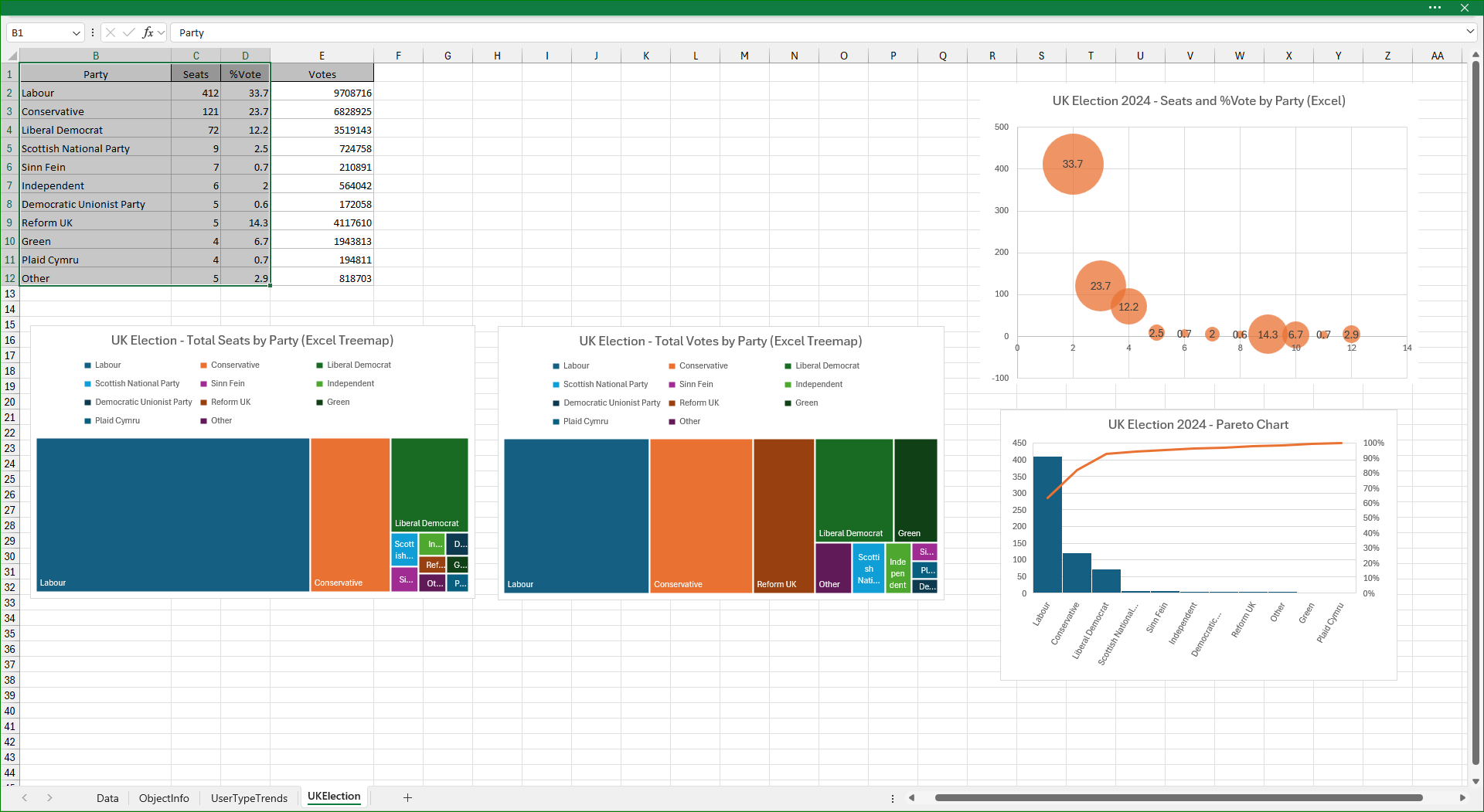
Clicking the ellipsis restores both the ribbon and QAT temporarily. Click anywhere in the open document to revert to full-screen mode.
Although Access (and Publisher) have the full-screen mode item in the Show Ribbon dropdown menu, it cannot be selected / implemented from the Show Ribbon dropdown menu.
Nevertheless, I have discovered that this mode CAN be implemented in Access, again by using the registry. Further details are provided in a companion article:
Full Screen Mode in Access
Feedback
Please use the E-Mail button in the contact form below to let me know whether you found this article interesting/useful or if you have any questions/comments.
Please also consider making a donation towards the costs of maintaining this website. Thank you
Colin Riddington Mendip Data Systems Last Updated 29 Nov 2025
Return to Code Samples Page
Return to Top