| First Published 9 Feb 2026 |
|---|

Periodically, Access / Office users experience issues where Office apps do not completely close leaving hidden instances behind as background processes in Task Manager.
Currently, there is a lengthy thread at Access World Forums started by an experienced UK developer, Chris Arnold in August 2025: Access instance remains in memory once closed
In many ways its the same issue that arose a couple of years ago with hidden instances being left behind in Task Manager and which were fixed in v2405. At that time, various Ease of Access features were at least partly responsible.
See the article on the Access Forever website: Hanging instance of Access after closing a database (Fixed)
Another similar issue occurred with version 2408 and was rapidly fixed. See my article: BUG - Version 2408 and Hanging Access Tasks
This time around there are other causes involved. Finding the cause(s) can often be very elusive.
Back in August with 365 version 2509 Beta channel, I couldn’t replicate the issues that the OP (and others) described in the thread at Access World Forums.
Recently several more users in that thread have reported experiencing the same issues.
Then last week, I started experiencing the same problem consistently in 365 Beta Channel version 2603 on 2 different machines, both Win 10 & Win 11.
I had been doing a lot of work with automation and the Application.UserControl property last week. This made the problem more noticeable with two instances being left behind on each occasion. Lock files were deleted but Access instances were always left in Task Manager background processes whether the app is closed directly or via automation code.
Further investigation showed that hidden instances were created on each occasion after closing any Access app whether opened directly from File Explorer or from backstage view in Access.
Sometimes Access appeared to close but then reopened to Backstage view. All the same apps / code work perfectly using A2010 on both machines.
On returning to this issue the next day, I found the problem had been solved in my Windows 10 machine after rebooting overnight. I had no idea why at this point.
However rebooting did not fix my Windows 11 machine. In fact, from then on, matters got worse on that machine!
Just opening Access and closing it again without opening a database was sufficient to cause a hanging instance.
Then I discovered that exactly the same issue occurred with other Office apps: Excel, Outlook (classic), PowerPoint and Word were equally afflicted.
Opening Access in safe mode using the command line switch msaccess /safe did NOT cause a hanging instance. Similarly when using the /compact or /runtime command line switches.
As each of these switches bypassed normal startup procedures, this suggested possible issues with COM add-ins but there were none running in Access.
In any case the problem wasn't specific to Access but Office-wide.
Troubleshooting the Problem
I tried the obvious solutions first in case it was due to a problematic Office update. In turn I tried the following steps:
• reverting to the latest Current Channel version
• running a Quick Office repair
• running a full Online repair to reinstall Office
• removing all recent Windows 11 updates in case one of those was the cause
• uninstalling Office completely and manually removing all leftover folders then reinstalling a clean copy
None of those had the slightest effect! I was still getting hidden instances of each Office app left behind EVERY time in Task Manager.
I then turned to CoPilot which led me down more rabbit holes than I choose to ever see again. Amongst other steps it advised lots of fruitless, and with hindsight, irrelevant PowerShell checks to further investigate COM hooks into Office. Eventually, I gave up on that approach.
I then looked at OneDrive integration with Office – not a problem in my case though it might be the cause for others reading this article. If so, try disabling OneDrive syncing and see if it helps.
By this stage, I was almost certain that a full reinstallation of Windows 11 would be necessary. Then came the sudden and unexpected breakthrough!
The Problem - Microsoft Teams
On my Windows 11 machine, Microsoft Teams is loaded automatically at start up.
From the notification area in the taskbar (system tray), I right clicked on the Microsoft Teams icon and clicked Quit Teams.
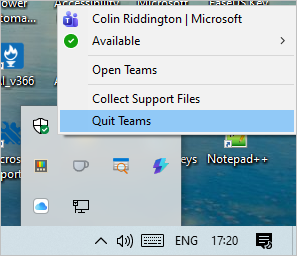
BINGO! Instantly, all of my Office apps closed properly without leaving a background process in Task Manager.
To confirm this was the problem, I restarted Teams and the problem immediately came back.
My Windows 10 machine has Teams auto-start disabled but I had left it running after a Teams meeting last Thursday. Rebooting the machine fixed the problem as Teams was no longer running.
As further confirmation, I started Teams on that machine and the problems were immediately back again.
The Solution - Modify Teams integration with Office 365
I again asked CoPilot for advice and this time it instantly suggested the correct Teams setting to change which allowed Teams and Office apps to co-exist in harmony!
Open Teams - click the ellipsis ( . . .) at the top right, click Settings | General and untick Register the new Teams as the chat app for Microsoft 365.

In the latest version of Teams (26005.213.4315.4117), the last option under General had been enabled (not by me)
In my case, it was hooked so firmly into my Office apps it was preventing them closing cleanly.
Once I had closed and restarted any running Office apps, no further hanging instances were left in Task Manager from then on.
NOTE: If you only see the top two options, you may need to change the Language and regional format settings lower down under General, close and restart Teams.
I also chose to untick Teams auto-start though it wasn't actually necessary to fix this problem. Doing that may not be helpful for those who use Teams on a regular basis for your work.
CoPilot also suggested making one other change. Under Settings | Files and links , it recommended setting Always open Word, PowerPoint and Excel files to Browser (NOT Teams).
In my case, that was already my chosen setting so I don't know whether that would have made a difference.

NOTE: The obvious reason why there were no problems with Access 2010 is that Teams only integrates with Office 365.
Summary
I very much expect there is more than one cause for the hanging instances that various people are afflicted by.
So whilst Teams was the problem in my case, the above suggestions may not provide the solution for everyone.
For those who are getting hanging instances, first check if Teams is running.
Go to the notifications area in the taskbar, right click the Teams icon (if present) and click Quit Teams. The icon will disappear.
Now open an Access database then close and Quit Access. Do you still get an instance of Access left in background process?
If the answer is yes, then Teams isn't the problem and the above solution is not relevant in your case.
If not, then Teams is responsible, so check your Teams settings and see whether the above suggestions fix it.
Postscript
After reporting the above information to Microsoft yesterday, two other Access MVPs reported having no hanging Office instances despite having the following Teams settings:
• Register the new Teams as the chat app for Microsoft 365 => enabled
• Always open Word, PowerPoint and Excel files => Teams
As a final check, I have just reset two of my machines to those settings. Inexplicably, initial tests suggest that the problem has NOT returned.
Perhaps just unticking that option for about 24 hours was enough to unhook Teams from Office without needing to leave it unticked permanently?
I honestly have no idea why this has changed but will continue to monitor the situation.
Feedback
Please use the E-Mail button in the contact form below to let me know whether you found this article useful or if you have any questions.
Please also consider making a donation towards the costs of maintaining this website. Thank you
| Colin Riddington | Mendip Data Systems | Last Updated 9 Feb 2026 |
|---|
|
Return to Access Blog Page
|
Return to Top
|