Versions 1.1 / 1.31 Approx 0.9 MB (zipped) First Published 21 May 2025 Last Updated 13 Jun 2025
This is a companion to my article: Highlight Current Record Using Transparency
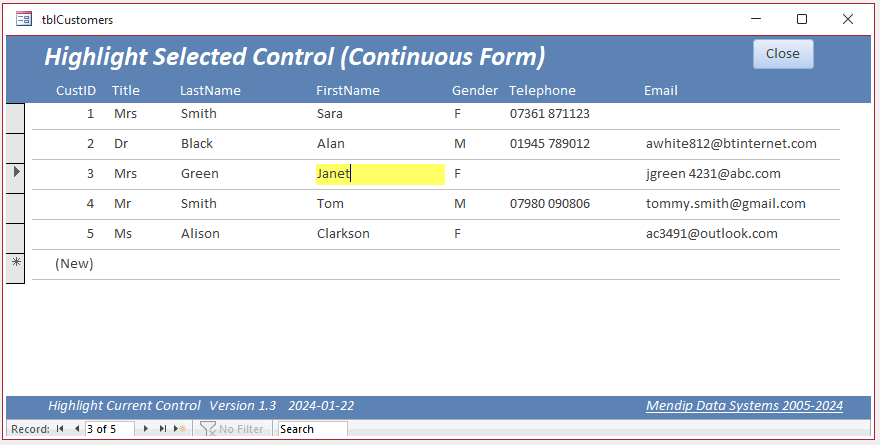
It also follows on from my previous article, Highlight Current Control in Continuous Form, where I showed how the current control could be highlighted using just one line of code together with conditional formatting.
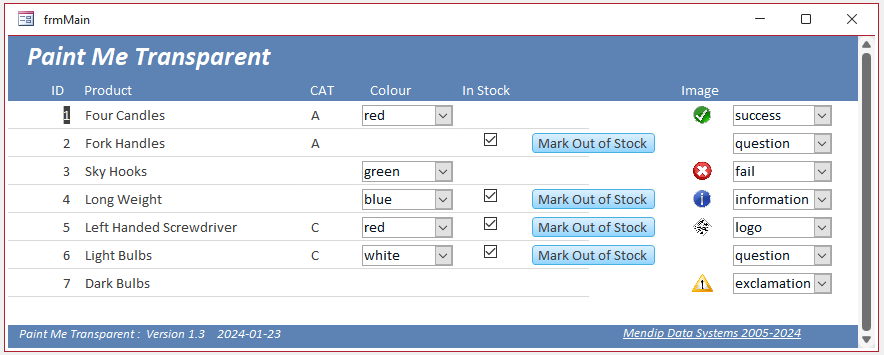
In a separate article, Paint Me Transparent, I demonstrated how individual controls in a continuous form could be hidden using the transparency property of command buttons.

In this article, I will combine these ideas to show how transparency can be used to highlight the current control in a continuous form.
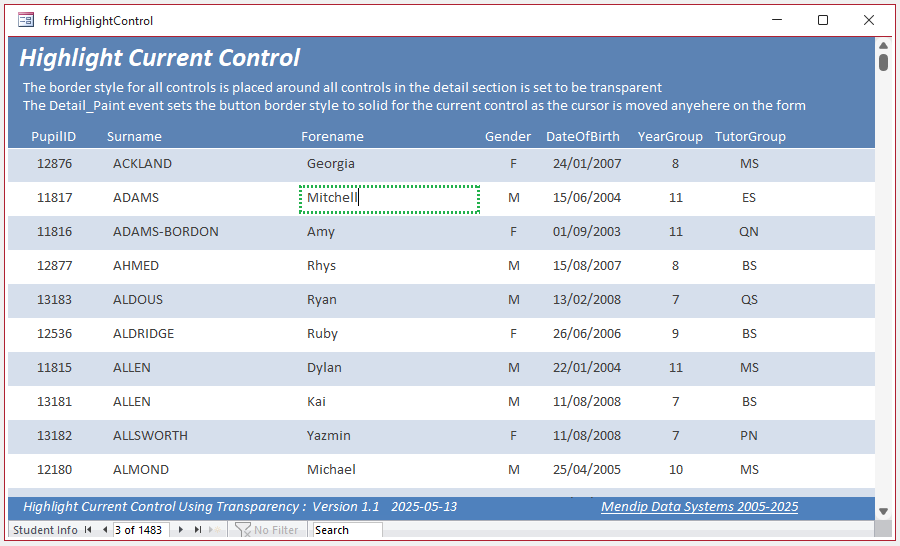
More accurately, I will show how the current control can be highlighted by disabling transparency for the control border.
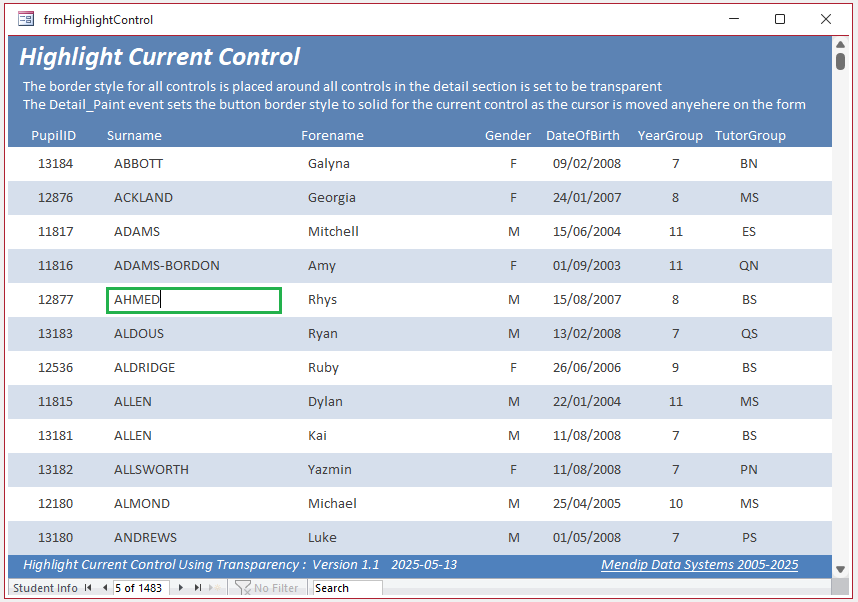
The above effect is easy to achieve with any control with a border style property such as a textbox or combo box.
Set the control back style to transparent and the border style to solid. I have used a border width = 2pt and a green border color.
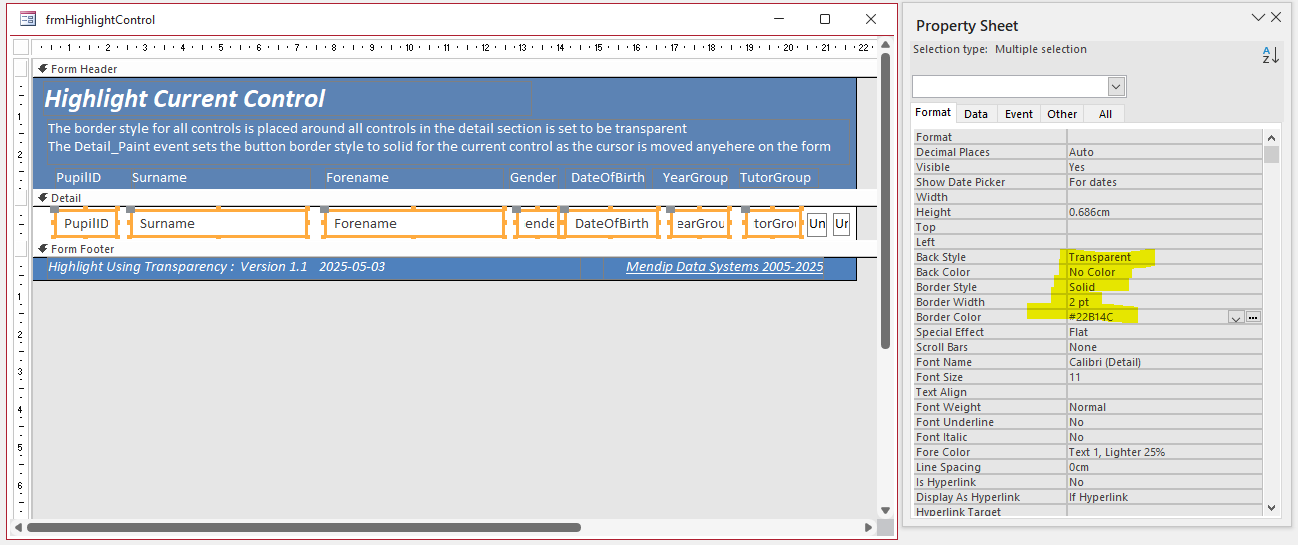
Each record MUST have a unique field, in this case PupilID. The field can be hidden if preferred.
Two hidden unbound textboxes, RecNo and cActive, are also required. Place these anywhere on the Detail section. In the screenshot above, these are both on the right
Add the following code to your form:
DimctlAsControl'control highlightPrivate FunctionHighlightControl()'set values of hidden controlsRecNo=Me.PupilIDcActive=Me.ActiveControlEnd FunctionPrivate SubDetail_Paint()On Error Resume NextFor EachctlIn Me.Controls'solid border style (1) when conditions are both metctl.BorderStyle=Abs(cActive=ctl.ValueAndRecNo=Me.PupilID)'OR for other border styles, multiply by the appropriate value'2 = dashes, 3 = short dashes, 4 = dots, 5 = sparse dots, 6 = dash dot, 7 = dash dot dot'https://learn.microsoft.com/en-us/office/vba/api/access.textbox.borderstyle'ctl.BorderStyle = 4 * Abs(cActive = ctl.Value And RecNo = Me.PupilID)NextEnd Sub
Also set the GotFocus event for each control to the function HighlightControl:
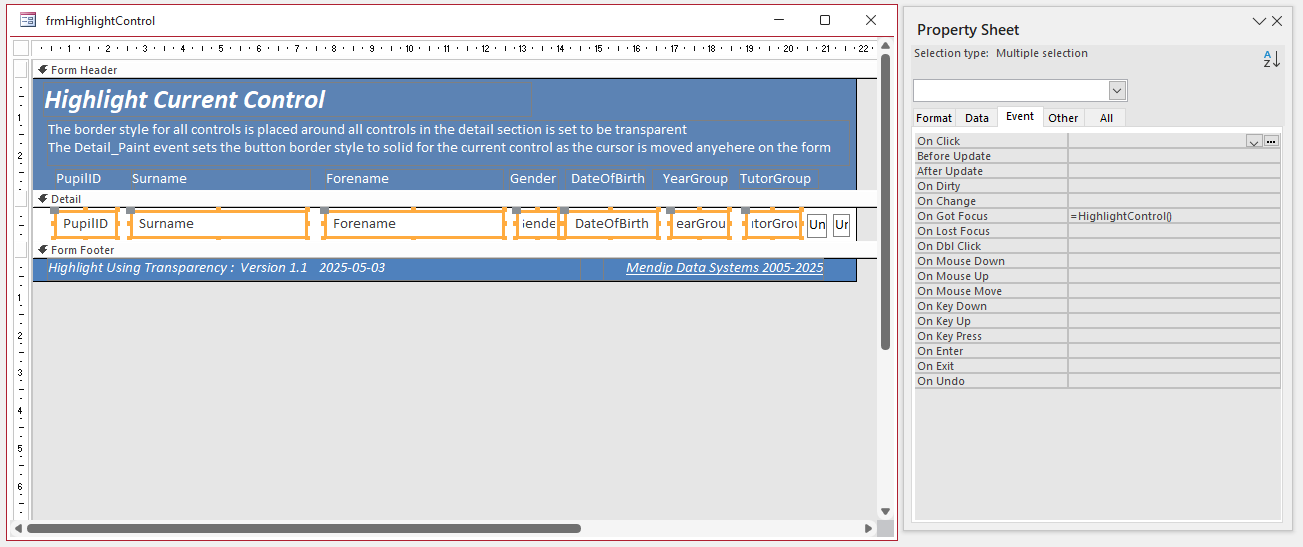
When the user clicks anywhere on a control to make it the active control, the control GotFocus event fires and sets the value of the hidden control cActive control equal to the control value
It also sets the hidden control RecNo equal to the PupilID.
The Detail_Paint event then runs and sets the border style as solid (1) for the current active control where the expression (cActive = ctl.Value And RecNo = Me.PupilID) is True (-1).
The Abs function then sets the ctl.BorderStyle = 1 (solid).
For all other controls, the expression is false so ctl.BorderStyle = 0 (transparent)
Both textbox and combobox controls have a wide choice of border styles.
For other border styles, we just multiply the expression Abs(cActive = ctl.Value And RecNo = Me.PupilID) by the required value, For example, multiply by 4 for dots
See the border style documentation at Textbox.BorderStyle property (Access)
NOTE:
This approach will not work for controls such as checkboxes and option buttons. Although these do have a BorderStyle property, the appearance does not change no matter what style is used.
As a workaround, surround the control with an unbound textbox and use the above approach OR create a 'dummy' checkbox using a textbox and Wingdings font
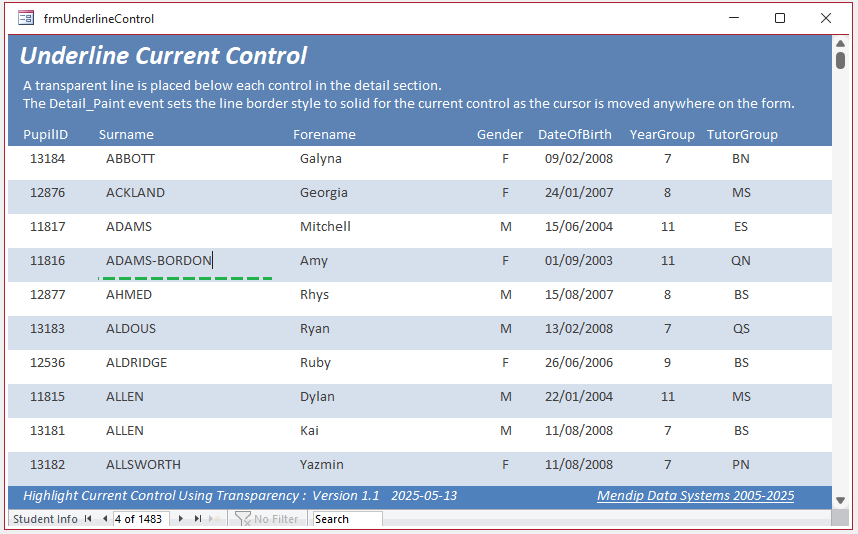
Yet another highlighting approach is to underline the current control:
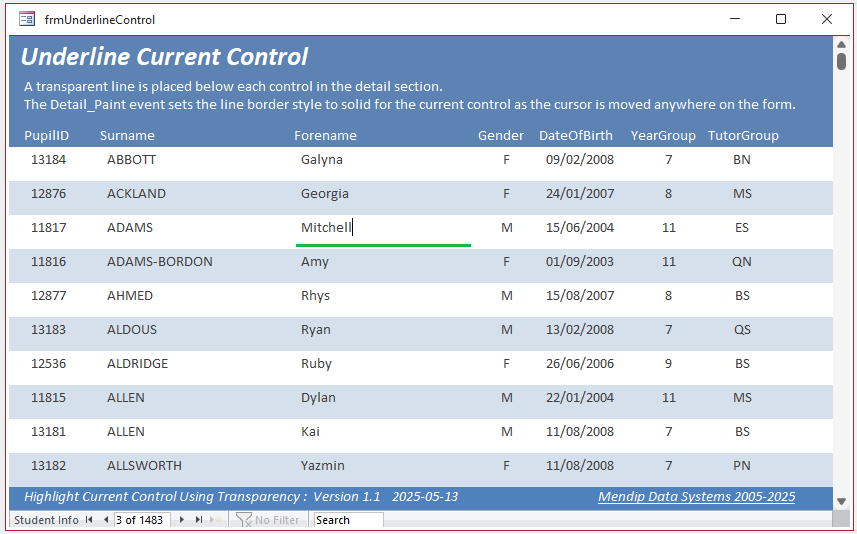
This works in a similar way but requires a hidden line control below each of the bound controls. To simplify the code, use a consistent naming style for each line e.g. lnPupilID, lnSurname etc.
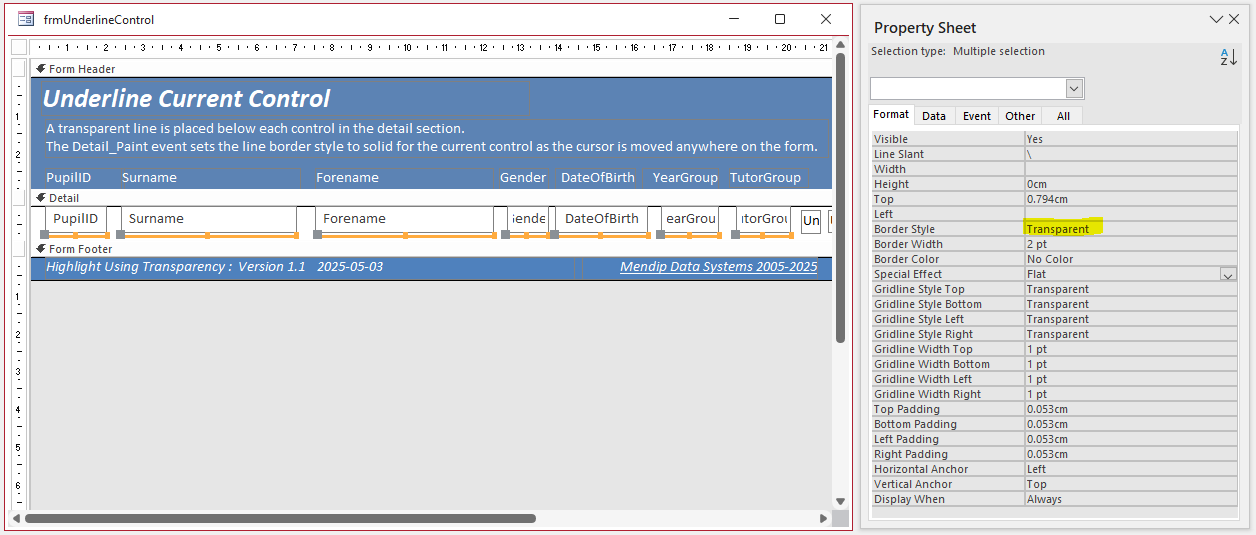
Lines do not have event procedures but the border style can still be set in the Detail_Paint event.
The line border style is set transparent (0) for all except the current control.
For the current control, the border style is set to solid (1) or any other preferred value up to 7
DimctlAsControl,strLineAs String'control highlightPrivate FunctionHighlightControl()'set values of hidden controlsRecNo=Me.PupilIDcActive=Me.ActiveControlstrLine= "ln"&Me.ActiveControl.NameEnd FunctionPrivate SubDetail_Paint()On Error Resume NextFor EachctlIn Me.ControlsIfctl.ControlType=acLineThen'solid border style (1) when conditions are both metMe(strLine).BorderStyle=Abs(cActive=Me.ActiveControlAndRecNo=Me.PupilID)'OR for other border styles, multiply by the appropriate value'2 = dashes, 3 = short dashes, 4 = dots, 5 = sparse dots, 6 = dash dot, 7 = dash dot dot'https://learn.microsoft.com/en-us/office/vba/api/access.textbox.borderstyle' Me(strLine).BorderStyle = 2 * Abs(cActive = Me.ActiveControl And RecNo = Me.PupilID)End IfNextEnd Sub
In the screenshot below, the border style is set to dashes (2)
UPDATE 13 Jun 2025 - Version 1.31
Following a request from another developer, I have modified the forms to allow end users to select the border / line style and color at run time.
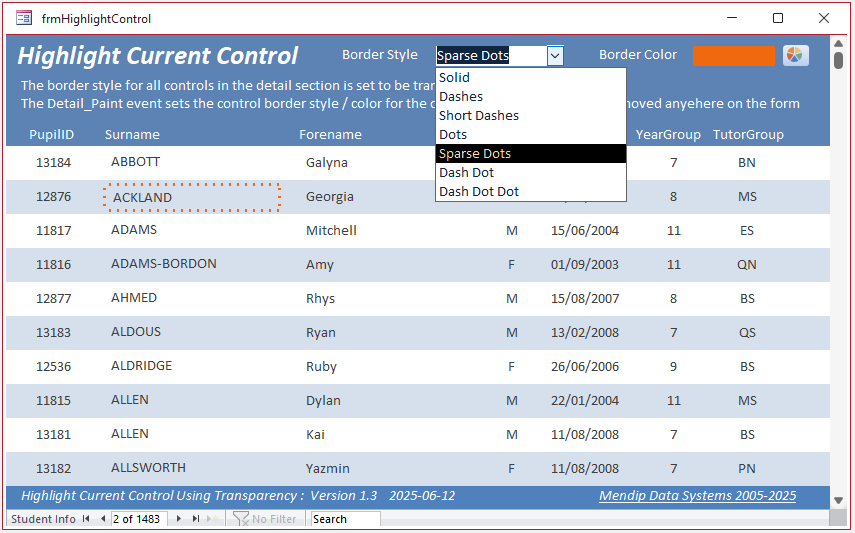

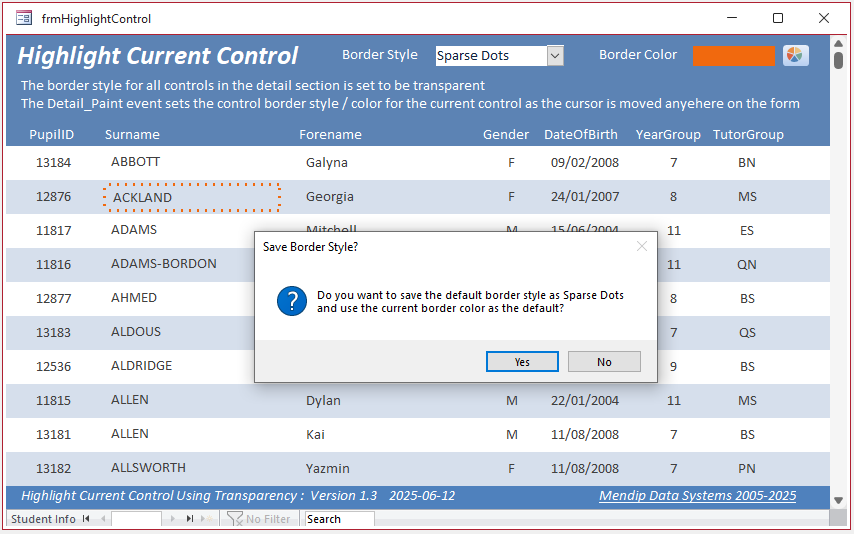
On closing the form, users can choose whether to save the changes to border style and color
The same options can also be applied to the form which underlines the current control:
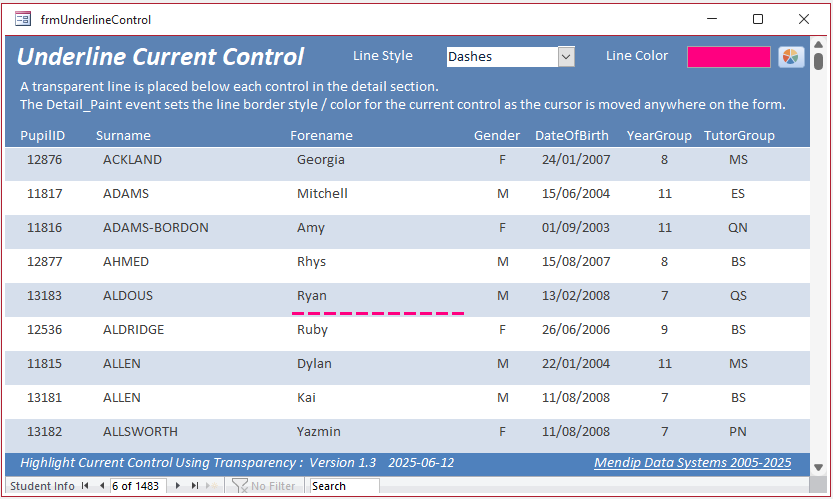
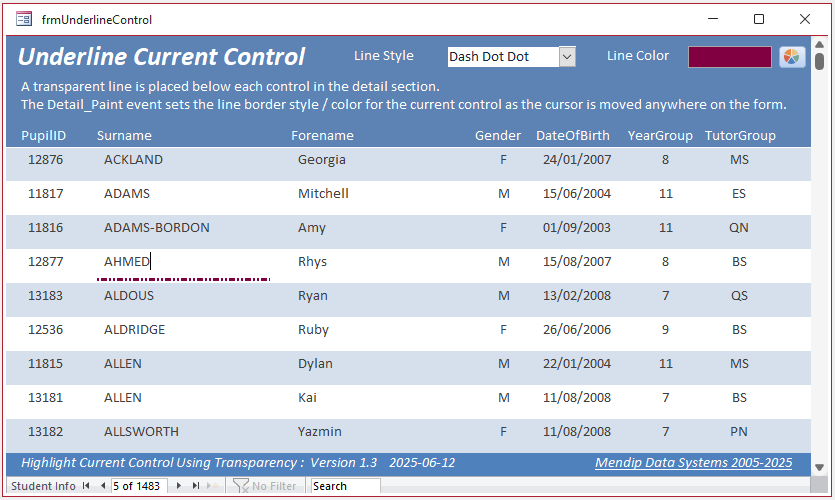
Note that changing the underline style / color takes the focus away from the controls in the detail section of the form. Select any control to view the results.
It would again be very easy to add another combo for users to select the border / line weight (Hairline to 6 pt)
Download
Click to download:
Highlight Control Using Transparency Version 1.1 ACCDB file Approx 0.9 MB (zipped)
Highlight Control Using Transparency_v1.31 Version 1.31 ACCDB file Approx 0.9 MB (zipped)
As is the case for all files downloaded from the internet, first unblock the downloaded file, unzip then save to a trusted location
Feedback
Please use the E-Mail button in the contact form below to let me know whether you found this article useful or if you have any questions.
Please also consider making a donation towards the costs of maintaining this website. Thank you
Colin Riddington Mendip Data Systems Last Updated 13 Jun 2025
|
Return to Example Databases Page
|
Return to Top
|