| First Published 5 Mar 2026 | Last Updated 1 Apr 2026 |
|---|

A very common request is to add a timeout feature to Access message boxes so that the default option is used if the user does not respond within a specified time.
This can be particularly useful in lengthy procedures where the user may wish to leave Access running unattended.
The standard message box function does not support a timeout but there are several approaches that can be used.
UPDATE 9 Mar 2026: Added WScript Shell as additional method
UPDATE 1 Apr 2026: Added link to New Style Access Message Boxes With Timeout article elsewhere on this website.
1. Use the MessageBoxTimeout API
Place this code in the declarations section of a standard module:
Option Compare DatabaseOption Explicit' Ascii versionPrivate Declare PtrSafe FunctionMessageBoxTimeoutLib"user32"Alias"MessageBoxTimeoutA"_(ByValhwndAs LongPtr,ByVallpTextAs String,ByVallpCaptionAs String, _ByValuTypeAs Long,ByValwLanguageIdAs Long,ByValdwMillisecondsAs Long)As Long' Unicode versionPrivate Declare PtrSafe FunctionMessageBoxTimeoutWLib"user32"_(ByValhwndAs LongPtr,ByVallpTextAs LongPtr,ByVallpCaptionAs LongPtr, _ByValuTypeAs Long,ByValwLanguageIdAs Long,ByValdwMillisecondsAs Long)As Long' Wrapper Ascii versionPublic FunctionMsgBoxTimeout(ByValPromptAs String,Optional ByValButtonsAsVbMsgBoxStyle=vbOKOnly, _Optional ByValTitleAs String= "",Optional ByValTimeoutAs Long= 3000,OptionalHelpFileAs Variant,OptionalContextAs Variant)As LongMsgBoxTimeout=MessageBoxTimeout(Application.hWndAccessApp,Prompt,Title,Buttons, 0,Timeout)', HelpFile, Context)End Function' Wrapper Unicode versionPublic FunctionMsgBoxTimeoutW(ByValPromptAs String,Optional ByValButtonsAsVbMsgBoxStyle=vbOKOnly, _Optional ByValTitleAs String= "",Optional ByValTimeoutAs Long= 3000)As LongMsgBoxTimeoutW=MessageBoxTimeoutW(Application.hWndAccessApp,StrPtr(Prompt),StrPtr(Title),Buttons, 0,Timeout)End Function
The following are some examples of how this code can be used:
SubTestAscii1()MsgBoxTimeout"This will close in 2 seconds.",vbCritical+vbOKOnly, "Error", 2000End SubSubTestAscii2()DimmsgAs Stringmsg= "This will close in 3 seconds."&vbCrLf& "If no buttons pressed the function returns 0 "MsgBoxTimeout msg,vbYesNo+vbQuestion+vbDefaultButton2, "Question", 3000End SubTestUnicodeMsgBox()DimmsgAs StringDimTitleAs Stringmsg= "Unicode test: "&ChrW(&H4F60) &ChrW(&H597D) & " = ""Hello"" in Chinese."&vbCrLf& _"Symbols: "&ChrW(&H2605) &ChrW(&H2606) &ChrW(&HD83D) &ChrW(&HDE00) &vbCrLf&vbCrLf& _"This will close in 5 seconds."Title= "Unicode Example "&ChrW(&H2714) & " "&ChrW(&H2716) & " "&ChrW(&H2713) & " "&ChrW(&H2715) & " "&ChrW(&H2717) & " "&ChrW(&H2718)MsgBoxTimeoutW msg,vbOKCancel+vbInformation,Title, 5000End Sub
| Test Ascii 1 | Test Ascii 2 | Test Unicode | 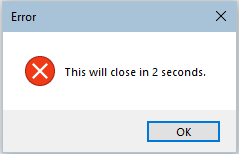 |
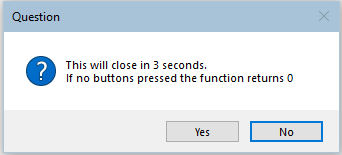 |
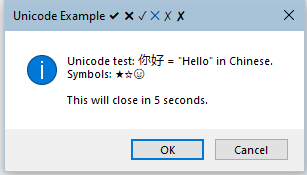 |
|---|
In each case, the message will close automatically after the specified number of milliseconds. However it is not possible to display a countdown during this time.
This timeout approach cannot be used with the new style Fluent UI message box created using either Wizhook WizMsgBox or Eval (FormattedMsgBox) as described in these articles:
New Style Message Box: Part 1 - Using Wizhook and New Style Message Box: Part 2 - Using Eval
UPDATE 18 March 2026:
I have successfully added a timeout to the new style message box created using Eval using some Windows APIs.
Full details of the MsgBoxT function I have now created are given in my new article: New Style Message Boxes With Timeout
2. Use WScript Shell
The Windows Script Host Object Model library, WShell, includes a popup function which supports a timeout. It can be used with late binding so no additional reference is required
Syntax: Items in [ ] are optional
Popup(Text As String, [SecondsToWait], [Title], [Type]) As Long
Example Code:
SubTimedMsgWSH()DimwshAs ObjectSetwsh=CreateObject("WScript.Shell")wsh.PopUp"This message will close in 5 seconds.", 5, "Timed Message", 64Setwsh=NothingEnd Sub
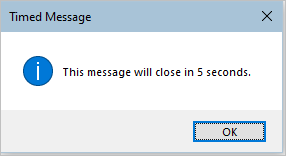
NOTE:
a) This is a standard message box style only. It cannot be formatted.
b) The WShell message is popup but not modal. This means that it can be interrupted if users click on another object.
However, this also means that it can be adapted to show a countdown by redrawing the message every second until it times out. For example:
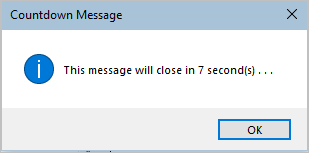
Example Code:
' Declare Sleep API for delays (optional)Private Declare PtrSafe SubSleepLib"kernel32"(ByValdwMillisecondsAs LongPtr)Public SubTimedMessageBoxCountdown()DimwshAs ObjectDimmsgAs StringDimTitleAs StringDimsecondsAs LongDimbuttonsAs LongDimiconAs LongDimiAs LongDimresultAs Long' Initialize parametersmsg= "This message will close in"Title= "Countdown Message"seconds= 5' Countdown durationbuttons= 0' 0 = OK button onlyicon= 64' 64 = Information icon' Create WScript.Shell COM objectSetwsh=CreateObject("WScript.Shell")' Countdown loopFori=secondsTo1Step-1result=wsh.PopUp(msg& " "&i& " second(s)...", 1,Title,buttons+icon)' If user clicks OK before timeout, exit earlyIfresult<> -1ThenDebug."User clicked button. Exiting countdown."Exit ForEnd If' Small delay to avoid flicker (optional)Sleep10NextiDebug."Countdown finished."Setwsh=NothingEnd Sub
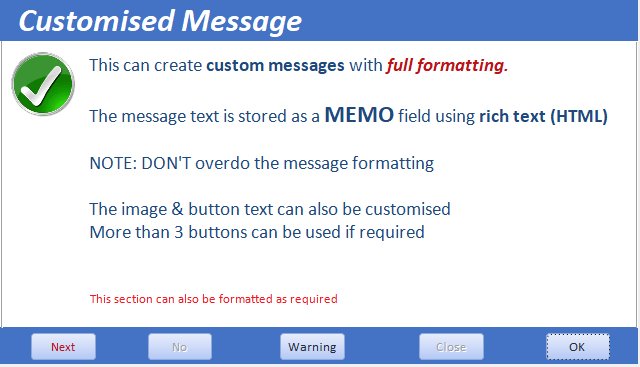
3. Use a Custom Popup / Modal Form
Create a small form e.g. frmMsg with your message text. Set Pop Up = Yes and Modal = Yes in the form properties.
Also add a timer event with a timer interval (e.g. 3000 for 3 seconds) for when the form should close.
Private Sub Form_Timer()
DoCmd.Close acForm, Me.Name
End Sub
To display the message, open the form with standard code: DoCmd.OpenForm "frmMsg". The form will close automatically when the timer event runs.
The advantage of this approach is the the message appearance is fully customizable.
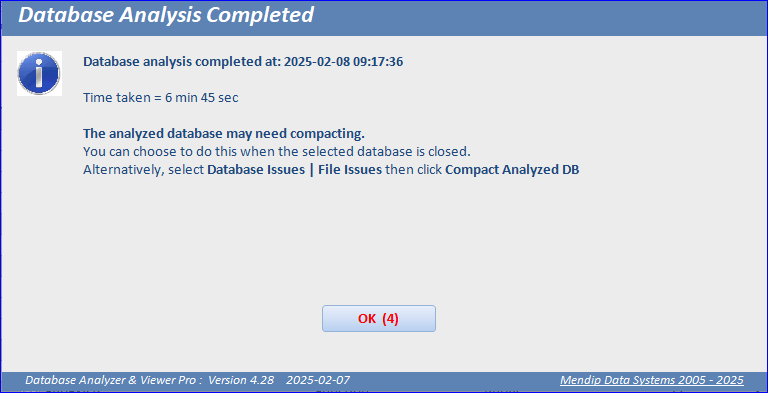
Here is another example with a countdown timer from my Database Analyzer Pro app.
4. Use a non-standard message box that includes a timer feature
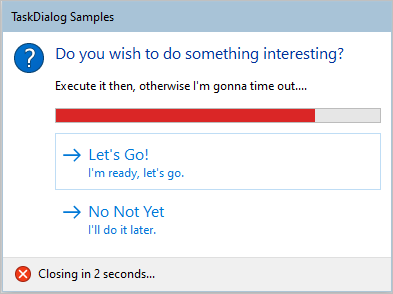
Below are 5 examples that can be downloaded free with all code and included in your own applications. Most include a countdown feature before the message is automatically closed.
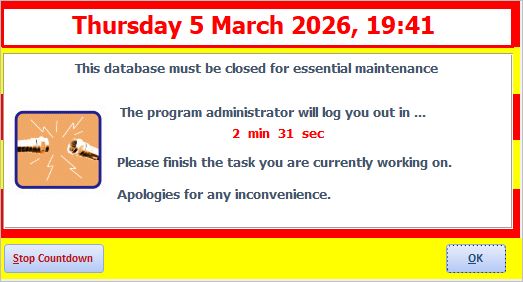
a) Timed Message Form. This deliberately 'gaudy' example is included as part of my Attention Seeking example database.
b) Task Dialog Messages by Kevin Bell. See the examples also included as part of the Attention Seek example database.
c) Improved, Enhanced Message Box by Olaf Nöhring.
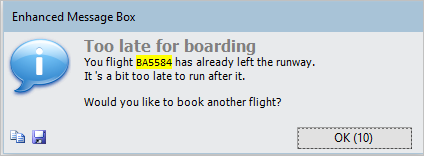
See also Olaf's Access Europe User Group presentation from July 2024 on YouTube: Improved, Enhanced Message Box
d) High Impact Custom Dialogs by Marcus Dieterle.
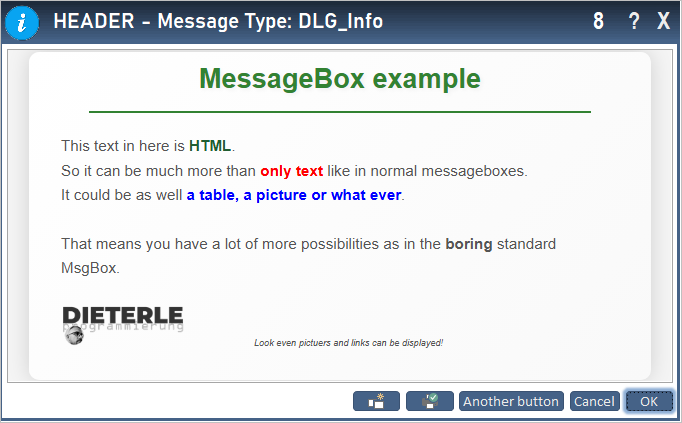
See also the Access Europe User Group presentation by Marcus from Oct 2025 on YouTube: High impact – Custom dialogs and mini-notifications
e) New Style Access Message Boxes With Timeout elsewhere on this website.
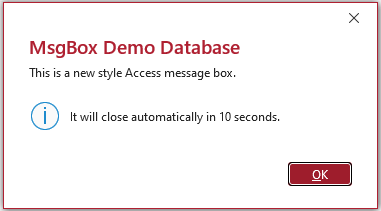
This solution builds on the message boxes created by the Access Expression Service by adding a timeout feature.
In fact, it can create 3 styles of message box (new style Fluent UI, old style with bold first line and a standard message box), all with optional timeout.
This method also supports Unicode characters, links to help files, adapts to Office themes and Ease of Access settings.
See also the Access Europe User Group presentation by Neil Sargent from Jan 2026 on YouTube: Spot the Difference – A new style MsgBox for Access
In that presentation, Neil re-created the new style Fluent UI message box as a custom form.
Feedback
Please use the E-Mail button in the contact form below to let me know whether you found this article useful or if you have any questions.
Please also consider making a donation towards the costs of maintaining this website. Thank you
| Colin Riddington | Mendip Data Systems | Last Updated 1 Apr 2026 |
|---|
|
Return to Code Samples Page
|
Return to Top
|