| First Published 16 March 2026 |
|---|

The Access Expression Service is the internal evaluation engine in Microsoft Access and is responsible for parsing, validating, and executing expressions.
Expressions are the formulas that power calculated fields, control sources, validation rules, default values, macros, and query logic.
It takes the text you write, such as "=[Quantity] * [UnitPrice]" and converts it into an executable expression, then computes the result at runtime.
In practical terms, the Expression Service is the subsystem that:
• Interprets Access expression syntax (functions, operators, identifiers, constants).
• Resolves references to fields, controls, forms, reports, and built‑in functions.
• Executes expressions in queries, forms, reports, macros, and data macros.
• Enforces validation rules and default values.
• Manages message boxes created in macros or directly entered into form events in the property sheet
• Provides the runtime environment for the Expression Builder
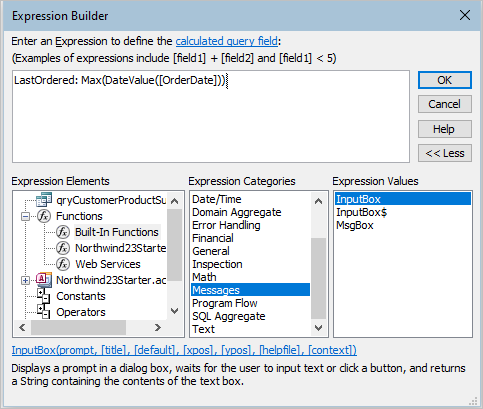
It is essentially Access’s equivalent of a formula engine - similar in principle to Excel’s calculation engine, but tailored to Access’s object model, data types, and event-driven environment.
Microsoft does not publish a standalone Expression Service page, but the official documentation for Access expressions directly describes the components and behavior of the Expression Service.
See the MS article: Examples of expressions
This focus of this article is on using the Access expression service to create messages and how these compare to messages created using the VBA MsgBox function.
Comparison of Access Expression Service Messages with the VBA MsgBox function
There are at least 6 ways of creating message boxes in Access:
• Using VBA code
• from the Immediate window
• as a function run from a form / report event in the property sheet
• directly written into an event in the object property sheet
• from a saved macro
• from an embedded macro
The first 3 methods use the VBA MsgBox function, the last 3 use the Access Expression Service. This matters because each creates its own style of message box.
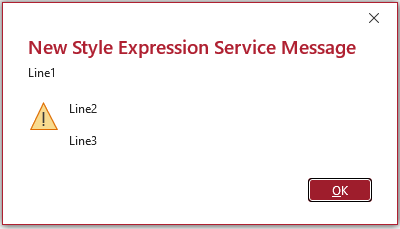
All internal messages created by Access use the Expression Service. For example, this new style message in Access 365:
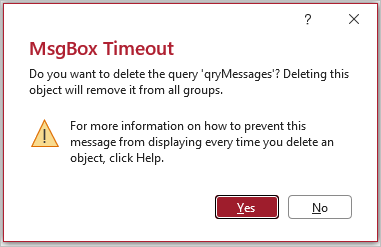
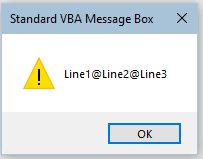
Specifically, the Expression Service supports the Line1@Line2@Line3 syntax for multi-line messages. The '@' symbol is interpreted by the Expression Service as a line break token.
The VBA MsgBox function has no equivalent feature. You must use vbCrLf (or similar syntax) to create line breaks.
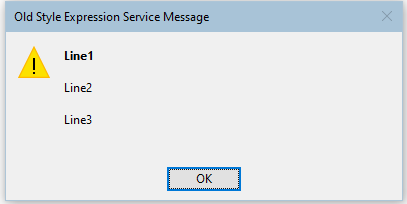
In addition, in all older versions prior to Access 365, using that '@@' syntax with the Expression Service results in a bold first line and normal weight for subsequent lines.
Access 365 uses the new Fluent‑style dialog UI, but the underlying evaluation engine is still the Expression Service.
| VBA MsgBox | Old Style Expression Service Message | New Style Expression Service Message |
|---|---|---|
 |
 |
 |
As already stated, the VBA MsgBox function does not support this notation unless it is wrapped in the Eval function. However, doing that causes the Access Expression Service to be used instead!
For a detailed explanation of how the new style messages can be created using Eval, see my article:New Style Message Box: Part 2 - Using Eval
The WizMsgBox function which forms parts of the hidden Wizhook object can also be used for this purpose. Once again, that causes the Access Expression Service to be used instead.
For more details, see my article: New Style Message Box: Part 1 - Using Wizhook
Explaining my Message Boxes with no VBA Code puzzle
I used the Expression Service to create all three messages without any VBA code in my recent article: PUZZLE: Access Message Boxes with no VBA code
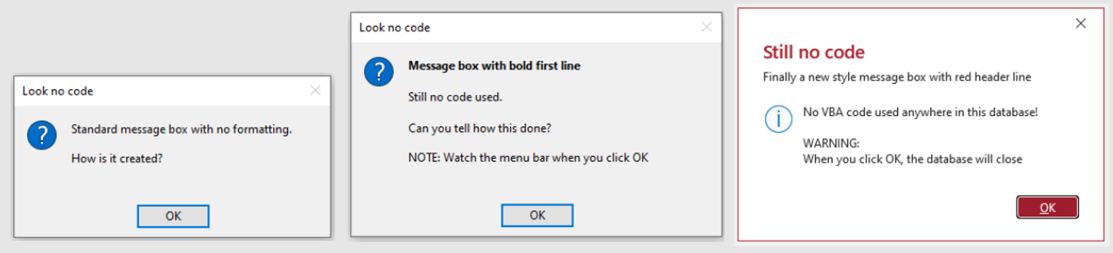
I also created a short video to accompany the article. You can watch the Access Messages Boxes With No VBA Code video on my Isladogs YouTube channel or you can click below:
For info, the messages were all created directly as form events (Load / Current / Close) in the property sheet for a hidden form.
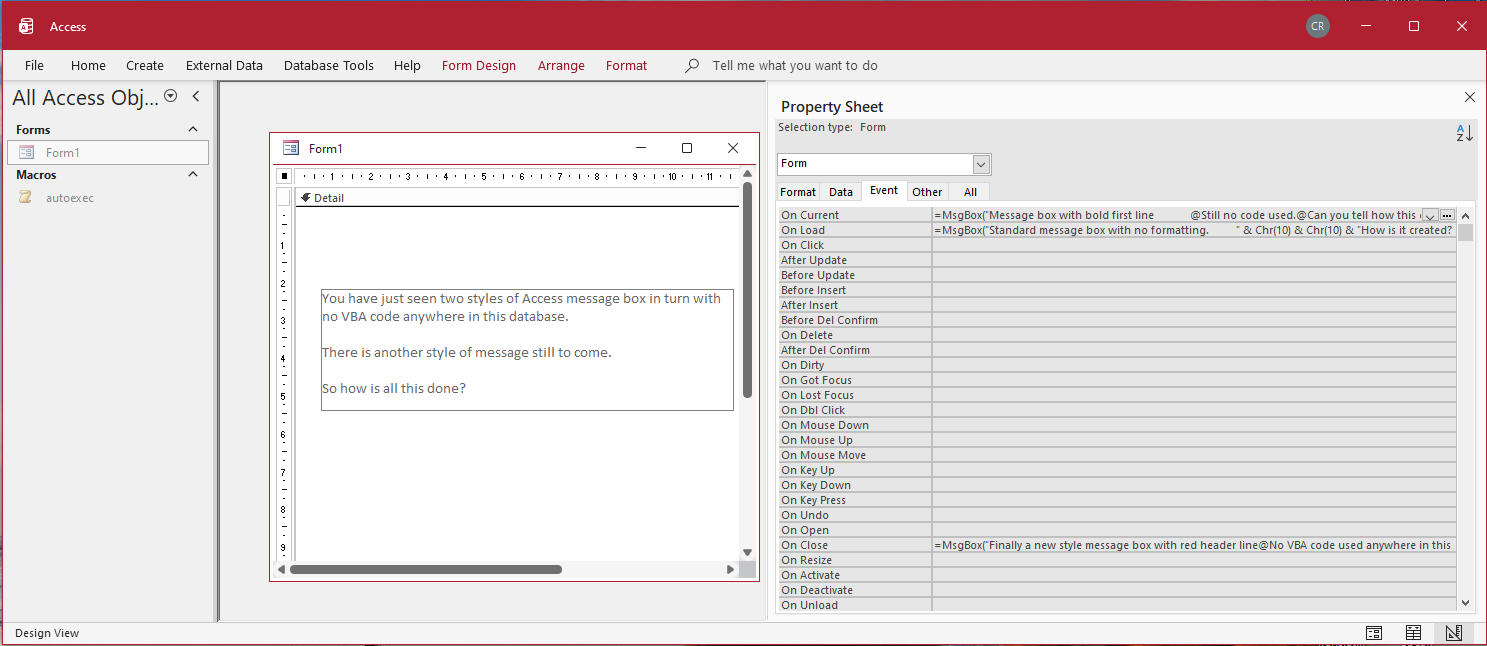
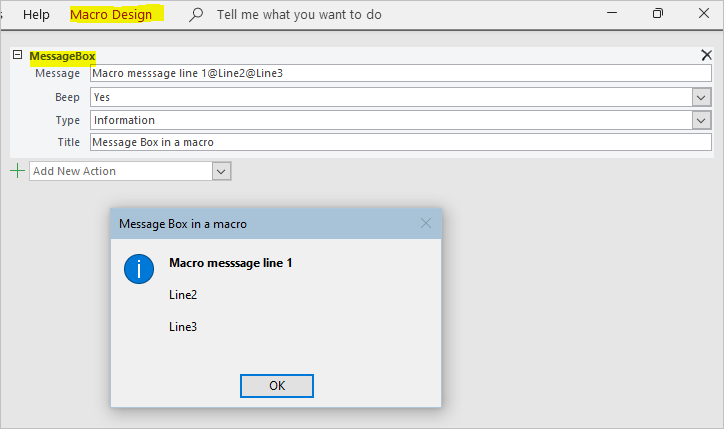
I could have used a macro for the first two messages but not the third as macros do not support the help file and context message box arguments needed for the new style message.
Further Reading
Please see these related message box articles elsewhere on this website:
New Style Message Box: Part 1 - Using Wizhook
New Style Message Box: Part 2 - Using Eval
Formatted Message Box
PUZZLE: Access Message Boxes with no VBA code
Customize the Appearance of the Access MsgBox
Add a Timeout to Message Boxes
New Style Access Message Boxes With Timeout
Message Box Constants & Values
Feedback
Please use the E-Mail button in the contact form below to let me know whether you found this article useful or if you have any questions.
Please also consider making a donation towards the costs of maintaining this website. Thank you
| Colin Riddington | Mendip Data Systems | Last Updated 16 March 2026 |
|---|
|
Return to Access Blog Page
|
Return to Top
|